Showing posts with label google. Show all posts

Jun 29, 2016

What If Coding Were As Easy as Playing With Blocks?

Throughout the year, I teach an online class to teachers on the topic of differentiated instruction.  One aspect of that class deals with student learning styles.  Each time I teach the class, I have teachers take an online assessment to determine their learning style.  It is often interesting to see how many of them are kinesthetic learners.  

I've always believed that students learn best by doing.  By actively engaging with their surroundings, students' brains create pathways that link what they see, hear, and do to create memories of the experience.  The more pathways that are linked to a memory, the easier it is for students to access those memories later in life.  

As kids, many of us learned by working with tangible items such as blocks, legos, lincoln logs, and erector sets.  Working with these toys builds creativity, but also helps to develop spatial reasoning.  Well, what if coding worked the same way?  What if students could learn the language of coding in a hands-on way, such as using building blocks?

Google is currently working on a collaborative project to do just that.  Project Bloks is a program in which programmers and developers are working to create tools to help kids learn about coding using tangible blocks.  By making the process a physical experience, it is the hope that children can pick up the basics of coding in a way that is more natural to them.  Check out the video from the Project Bloks site:


Some of the basic pieces of the Bloks program utilize blocks called Pucks.  Pucks will carry out a specific task, such as on/off, move, or jump functions.  These can be controlled by Base Boards and Brain Boards that read instructions, and convey information to wireless devices. 

Personally, I can't wait until this becomes a marketed curriculum that is available to schools.  As a parent, I would love my children to have these kinds of experiences so they can learn how to code.  In the past few years, there have been a long list of resources made available to help kids learn to code.  Until Bloks is available, check this short list of  resources on learning to code.  


For now, Project Blok is still in the research phase, but the site has more information if you are interested.  Plus, you can sign up to be notified of future progress.  Check it out here! 

Jun 21, 2016

Take A Course with the Techy Coach

Very soon, the Techy Coach Blog will begin offering online courses.  In preparation for that day, I am polling you - the reader - to see what types of training you would like to see on the Techy Coach Blog.  So to that end, please fill in the form below and voice your thoughts.

Thanks!


Apr 14, 2016

Save to Google - A Launch Page for your Favorite Sites


This week, Google released the Save to Google Chrome Extension.  This handy tool allows users to save their favorite websites to Google Chrome.  

How is this any different than creating Bookmarks?  If you're like me, I'm a visual person.  I avoided bookmarks like the plague for so long, because having a  list of bookmarked webpages didn't do anything for me.  I wanted to see a thumbnail view of the site, or at least some large icon representing what that site is about.  That way, I would have a visual reminder.

So now it's Save to Google to Save the Day!  
 

If you have a Website you want to save, just click the Star Icon for the Save to Google Extension.  That's all you have to do.   One click does it.  When you want to view your saved sites, go to http://www.google.com/save

You can also Tag your Saved Sites so they can be categorized.  To do this, you can add Tags as you save sites, or just visit your saved sites page, click on a tile and add the tag.  To view tags by category, just click the Tag at the upper left side of the page.


Finally, if you can't remember what your saved site is about, you can click on it and open the description.  Don't like the default description?  Change it!  Just highlight the description and type a new one in.  Then click Enter. It's saved!


There are other programs online that do the same thing such as Pocket or Symbaloo, but like all things Google, this has a clean and simple look, and an easy interface, so anyone can do it.  Plus you don't have to create a new account for another service.  It is part of the every growing number of Google Services available to GAFE and Gmail users.

Feb 16, 2016

Tutorial Showcase: Google Forms

As I spend this month overhauling and updating the Techy Coach Blog, I'll be shining the spotlight on tutorial videos that each focus on a specific Google App.


For today, we'll take a look at Google Forms.  Often overlooked and misunderstood by new GAFE users, Google Forms can be an extremely powerful tool.  With Google Forms, users can create:


  • Surveys for gathering information
  • Registration forms for clubs and teams
  • Evaluation Forms linked to a Certificate of Attendance
  • Quizzes and Tests
  • Forms for plotting locations into a Google Map
That's quite a list, but there are many more applications if you just apply a little creativity.  If you need a jump start to see what you can do, use the YouTube Playlist below, or click over to the Google Forms page in this site.


Feb 15, 2016

Get Kids Interested in Coding with Google CS First

For all the technology coaches out there who have a hard time finding coding curriculum for students, Google has answered your prayers.  Google CS First is a free online program that can be completed as an after school, in school, or summer school program. It operates through clubs that are setup by volunteer educators and through free curriculum that employs Scratch to teach students the fundamentals of coding.


Originally developed for students in grades 4-8, the curriculum is designed so that everyone from the most experienced tech geek to the inexperienced newbie can make it work.  All curriculum materials are provided for free - Yes I said FREE! - and additional support print materials can be shipped and provided at no cost. 

Teachers interested in starting a Google CS First Club can get started by following this link.   As I said, no experience is necessary.  You just need a desire to teach and time on your hands to provide training.  

If you are curious about the materials, you can preview them through the Google CS First website.  Topics include:

  • Art
  • Fashion & Design
  • Social Media
  • Sports
  • Game Design
  • Animation and More...
Additional Training Materials and a Getting Started video are available on the Google CS Website.  


Jan 14, 2016

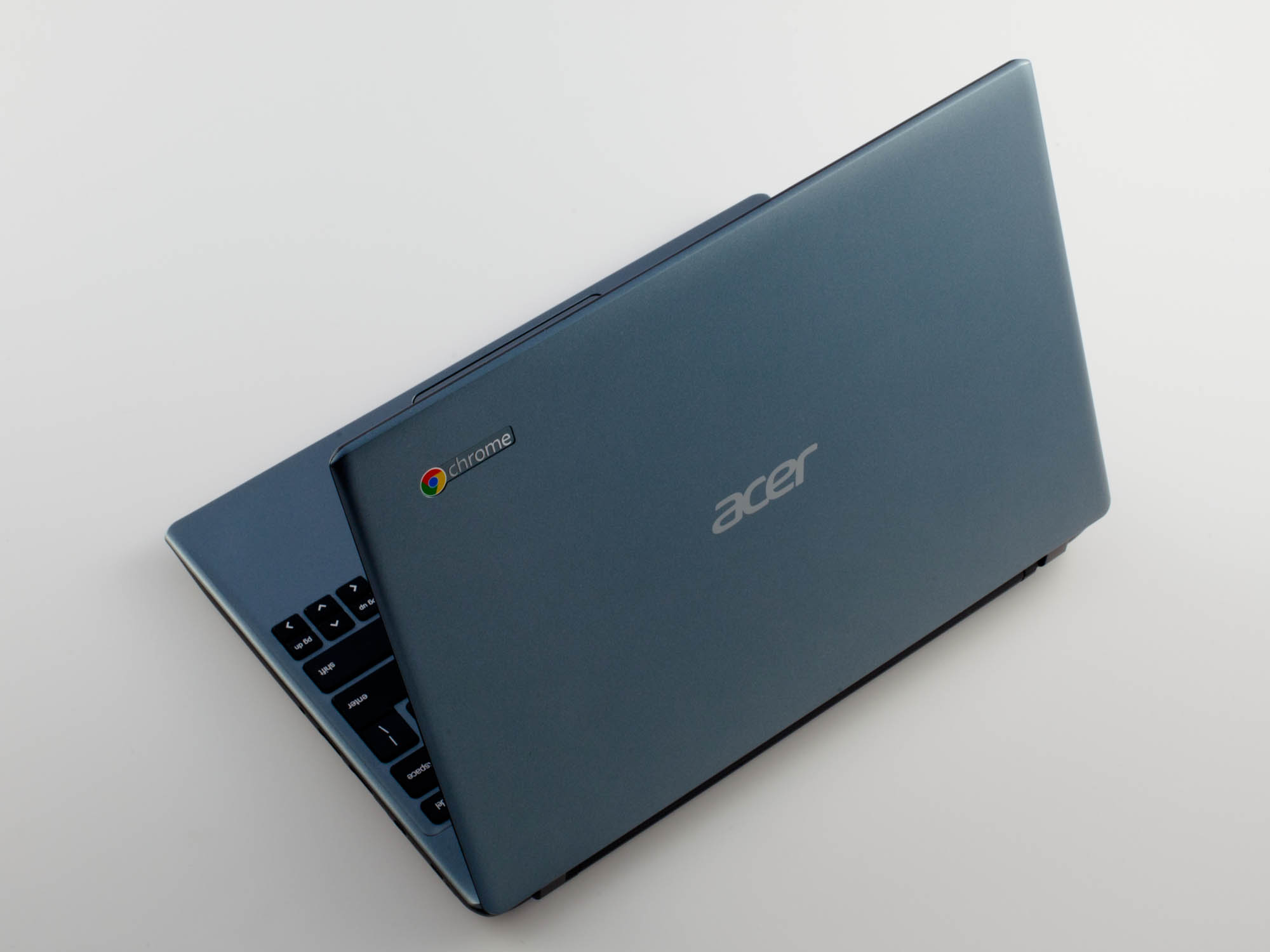
Schools and Mobile Devices - iPads, Computers or Chromebooks...Oh My!


Recently a question was submitted to the Techy Coach site asking about the use of mobile devices in the classroom.  The question specifically asks:


"Would you recommend a school that is mostly on an Apple platform to add Chromebooks to its mix...we are looking at Chromebooks because of their price and to meet the  increased enrollment demands.  More specifically, would you recommend Chromebooks for 4th-5th grade?"
In the world of 1:1 computing, I don't really feel that there is one exact fit for schools regarding mobile devices.  Different devices serve different needs, and I believe that schools need to be flexible in their choices when creating a learning environment to foster 21st century computing skills.  Flexibility, in this case, means that schools need to understand that while workhorse devices such as PCs and Macs offer the ability to install programs such as Microsoft Office, Adobe Creative Suite, and others, mobile devices such as Chromebooks and iPads offer the ability to mimic many tools with smaller apps that consume fewer resources, storage space, and are often free.  And while schools may be willing to sacrifice larger programs for price and more accessible (free) tools, they will ultimately find that they still need those big box programs.  So in answering this question, I'll fill in gaps by explaining what our district has done to work towards a solution.  


The Beginning of Mobile Access
About 6 years ago, our district started purchasing iPad carts to place in each building.  The drive was to provide classrooms with access to the web for research, as well as rich video content and access to apps for drill and practice.  The initial push was in the elementary schools, with middle school and high school to follow.  While iPads provided a great deal of flexibility with free apps and instant access to the web, the cost was smaller than placing PCs and Macs in classrooms, and they took up less space.  

Eventually, every building had at least one cart, while others had multiple carts that were used as checkout labs on an as needed basis.  This lessened the competition for computer labs and library access, and allowed more teachers/classrooms to conduct research and connect with the web.


1:1 Budget Concerns
Our district is a medium sized district for our state, but it is not by any means a "rich" district.  By this I mean, we face some of the same budget restraints that smaller schools face.  As a result, we began to slow down on the purchase of iPads and started to take a hard look at our budget, while discussing the need to provide access to all students.  We knew we could not afford to place a device in the hands of every student, so the question was, how could we provide access for all and still remain within our budget.  

Google Apps for Education had been around for a while, and our district had been exploring the opportunity to become a GAFE school.  I used this as an opportunity to discuss the cost savings of Chromebooks.   While the carts for Chromebooks tended to be about the same in cost as iPad carts, the devices were around $100 to $200 cheaper.  Once you multiply that cost by 30-35 devices per cart, the costs savings is great.  The question some had was whether the Chromebooks would be as sturdy as an iPad.  But the initial cost and the addition of a keyboard (add about $99 to $150 to an iPad for keyboards) and Chromebooks were the obvious choice.  

We began the process of purchasing Chromebook carts with our technology budget, and placed one cart in each ELA classroom, from 6th grade up.  This meant that every student in grades 6-12 would have access to a mobile device at some point, every day.  We also decided that for future purposes, iPads would be pushed down to the Elementary Schools as they seemed more suitable for the needs of K-5 students.  We then shifted our computer rotation cycle so that instead of PCs, libraries would receive a Chromebook cart instead, which allowed us to save money within our budget.  This meant that the only PCs we had in our building were in Career Tech classes, which needed a device capable of running Microsoft Office and Adobe Creative Suite, and in checkout computer labs.   As we did so, we started to hear more and more from our elementary teachers, stating that they would also like to have access to Chromebooks.  


Suitability Across the District
What we have found is that while iPads were a great addition to our district, we have grown to like our Chromebooks more every day.  Here are some of the benefits we have found in using Chromebooks:


  • The Chrome Web Store provides access to a wide range of free apps, including all Google Apps.
  • The added functionality of a keyboard means that our students are practicing keyboarding skills while accessing apps and information on the web.  
  • Google Apps, admittedly, is much easier to access and use on a Chromebook than on an iPad.
  • The IT department has found that managing Chromebooks is much easier.  After the initial setup, devices can be managed remotely from a computer.  (iPad management requires hands on operation for updating and managing).
  • Chromebooks allow any user to login and use them without worrying about account security once they log off.
We have not found that our elementary students have any more difficulty using Chromebooks than our secondary students, meaning that 4th -5th grade students can use them just fine.  In fact, using Chromebooks more closely mimic the experience students encounter when at a computer workstation, especially since most students use them for web research.  The suite of apps in Google Drive also creates an experience similar to what students would experience when using most other programs such as Word, PPT, Excel, Pages, Keynote and Numbers.   


What Should You Do?
If you currently use Macs or iPads, or if you are thinking of adding Chromebooks to the mix in your district, I would suggest you strongly consider a few of the points below:

  • What will the primary use of devices be? 
  • What will students access? 
  • Will devices be used primarily for access to web services, or specific programs?
  • What apps do you currently use? Check for availability of apps in the Chrome Web Store.
In addition to answering these questions, you will also need to consider infrastructure needs (WiFi, Bandwidth) and Student Access.  If you are seriously considering Chromebooks, you'll want to start by exploring the possibilities that Google Apps for Education can offer.  Once we did so, we found that universal access to Google Apps for all teachers and students meant that we could work and communicate more easily through Gmail, Google Drive and Google Classroom.  And finally, any district considering the addition of any device to their curriculum will want to make sure that they consider Teacher Buy-In.  After all, if you don't have buy in from your teachers, it could make or break your implementation plan.  To do this, we provided extensive in house training to our teachers in the Spring and Summer prior to implementation, and throughout the school year.  If you need help in providing training,  I have tutorials available, you can find trainers online, or your can train your own teachers here.


Good Luck and if you have questions, please post them here!


Jan 8, 2016

Getting Comfortable with Gmail - Preview Pane

If you are a new user to Gmail and you miss certain features of your old email client, it can be difficult.  But for the most part, Gmail has a feature for most everything, so you don't have to worry.  

One features many of our teachers miss is the Preview Pane.  If you miss this feature, you are in luck.  You will need to click on the Gear icon at the top right and choose Settings.  Once there, go to the LABS menu.  From here, you can choose the Preview Pane lab by clicking Enable.  Make sure to Save Changes.

Once you have enabled this lab, you will see that at the top right of Gmail you will now have a "Toggle Split Pane Mode" button, allowing you to have a Vertical or Horizontal Preview Pane for your Inbox.  


You can also configure your inbox to "Pre-Sort" incoming mail into Primary, Social, Promotions, Updates, or Forums so that you can keep a handle on the flood of mail coming in.  This allows you to keep everything in its place.  


Beyond this, if you still need tips on keeping your email  under check, you can also use Labels.  Rather than assigning email into folders, Gmail allows you to apply labels to your incoming mail so it can easily be found later.  But not just one label.  Whereas with other email clients, a message can only be filed away in one folder, you can apply up to 5000 labels to one email message.  So you no longer have to worry if you have an email that applies to multiple topics.  Watch this video to learn more.


Dec 1, 2015

We've Gone Google!


This week, teachers in our district received their Teacher Login for Google Apps for Education.  When I teach classes on Google Drive and Google Apps, I often get skeptics who aren't sure why they would take the plunge.  Many just don't want to let go of the things they have traditionally relied on.  With that, here are a few reasons I give for the switch:

  • You can go paperless - Google Drive and Google Classroom let open up the possibility of pushing assignments out to students in the form of a link to a Google Doc, which students can copy and then fill in.  Then they can resubmit the lesson for grading.  Plus, inside Google Drive, you can comment on student work and share it back with them in real time, meaning they can receive feedback immediately - with no need to wait on papers to be passed back.

  • No more flash drives! - I used to carry around a small case that held all of my flash drives so I would always have my documents with me.  But with Google Drive, you can have all of your files with you as long as you have access to the internet.  That means on a computer, your phone, your tablet - anywhere!  But often people say, "what happens if the internet goes down?"  If you download Google Drive to your computer, your files are synced from the web to your computer - so you have a backup!

  • Publish your files to the web! - If you have presentations that you use in class or in meetings, you can publish your Google Slide presentation to the web or embed it on your Google Site.  Then any changes you make in the future will be available on your site and with others you have shared in real time.

  • Collaboration - By sharing a doc, you can work from anywhere at any time with others in real time.  

  • Put Google Drive to work for you - There are tons of Add Ons and Scripts that allow you to put Google to work for you. For instance, in our Virtual Academy program,  I have a form that I use for enrollment.  Our counselors fill the form to let me know what courses our online students need.  Once the counselor submits the form entry, a script called Autocrat automatically merges their selections with a document that is emailed to me!  


In an effort to help our teachers understand the world of possibilities this opens up to them, I am also publishing a few links I have found to be helpful with Google Apps and Google Drive.


For more tips and ideas from the web, follow me on our Google Educators of Oklahoma page on Facebook - Google Educators of Oklahoma


Jun 26, 2015

Everything Google


In order to serve the needs of our teachers during our transition to Google Apps for Education, I've created a website with articles, tutorials, and information about Google Apps.  You can link to my page from this blog or by visiting http://everythinggoogle.com

You can also subscribe to posts and updates to Everything Google here:

Enter your email address:


Delivered by FeedBurner

Mar 27, 2015

Two New Videos: Google Tools for ELL and Publishing to the Web

Just sharing...


Two new videos have been uploaded to my YouTube Channel:


Google Tools for ELL / ESL


Google Docs:  Publishing to the Web


Oct 4, 2014

Have Student Response Clickers Been Replaced?


This question is actually not a new one.  Clickers have been in decline in recent years as online options have changed.  But the topic came up recently as I worked with a few teachers in setting up a classroom for use with student response clickers.  The question came up as to whether student response systems were worth the time or if mobile solutions were better.

For those of you that may or may not remember, for years, eInstruction, Renaissance Learning, and Smart Response among others, flooded the market with Student Response Systems.  These systems consisted of a computer program in which the teacher could create and deploy test and review questions that students could respond to using hand held clickers.  Of course this was not a new idea as it had been around for years.  These companies had just gotten into the business of perfecting and selling the idea, which was a good one.


Flash forward a few years, and teachers started to see the emergence of free options that allowed students to use mobile devices to respond and interact with classroom content.  Some of the following may ring a bell:


Now Google has gotten into the mix in several ways.

Google Forms - You can use Google Forms as an effective quiz or testing tool by adding on a few Scripts or AddOns.  Create a Form and instead of form or survey questions, use test questions.  As students fill in your form, responses are collected in a Google Sheet.  Add-ons such as Flubaroo and SuperQuiz can be used to grade the results.

Google Chrome Apps - The Chrome Store has a whole host of Apps that can be used for student response, including Socrative Teacher & Socrative Student , Nearpod , ExitTicket, and  VirtualClicker.  While some of these require that you have a teacher account, many of them are free.

What does this mean to the classroom teacher who can't afford to buy an expensive set of clickers?  If you are in a school that has gone 1:1, or you have a checkout lab or iPad cart, these online solutions allow you to create and deploy tests in your classroom for free.  Free is definitely good in my book.  Plus if you use Google Forms, you could create quizzes or exit ticket questions to go with videos for the Flipped Classroom.

Whatever situation you are in, we are now in an educational age where free technology is closer to our grasp than ever.  Make use of it in any way you can to further your educational goals.  Just remember that technology is the tool, not the main focus.  We need to work hard as educators to help students learn that there are several tools out there to help them achieve their goals.

Sep 11, 2014

Google Apps for Teachers

Recently, our district decided to make the switch to become a Google Apps for Education (GAFE) school.  We are in the middle of the transition and are slowly adding teachers to our district account, one site at a time.  This transition has made things simpler for me, and the discussion that I have had with several teachers has gotten them in the mode of thinking about how Google could be leveraged to making their lives easier too.


The difficulty I have had is helping them understand just why they should use Google Apps.  The biggest and best answer I can give is that Google allows the following:


  • Free Cloud Storage - 15GB for a Free user, 30GB for a GAFE Teacher
  • Access to Google Drive
  • Real Time collaboration - share docs and collaborate from anywhere at anytime with an Internet Connection
  • Google Docs - word processing in the cloud
  • Google Forms - for quizzes and tests
  • Google Sheets - for collecting and sharing data
  • Google Slides - convert your PowerPoints into slides and access them from anywhere.
  • ...and the biggest...NO NEED TO CARRY AROUND FLASH DRIVES ANYMORE!
To help our teachers learn how to use these apps, I have created a few tutorial videos that I wanted to share with everyone.  

Google:  An Introduction


Google Docs


Google Forms


Google Slides


Beyond these videos, there are several links that will help new users keep up with Google News:

Google Gooru - http://www.googlegooru.com/
Google Educators - Sand Springs - https://www.facebook.com/groups/GoogleSSPS/
The Official Google Blog - http://googleblog.blogspot.com/

Hopefully the videos and the links will help you as you Go Google!