Showing posts with label edtech. Show all posts

Jan 14, 2016

Schools and Mobile Devices - iPads, Computers or Chromebooks...Oh My!


Recently a question was submitted to the Techy Coach site asking about the use of mobile devices in the classroom.  The question specifically asks:


"Would you recommend a school that is mostly on an Apple platform to add Chromebooks to its mix...we are looking at Chromebooks because of their price and to meet the  increased enrollment demands.  More specifically, would you recommend Chromebooks for 4th-5th grade?"
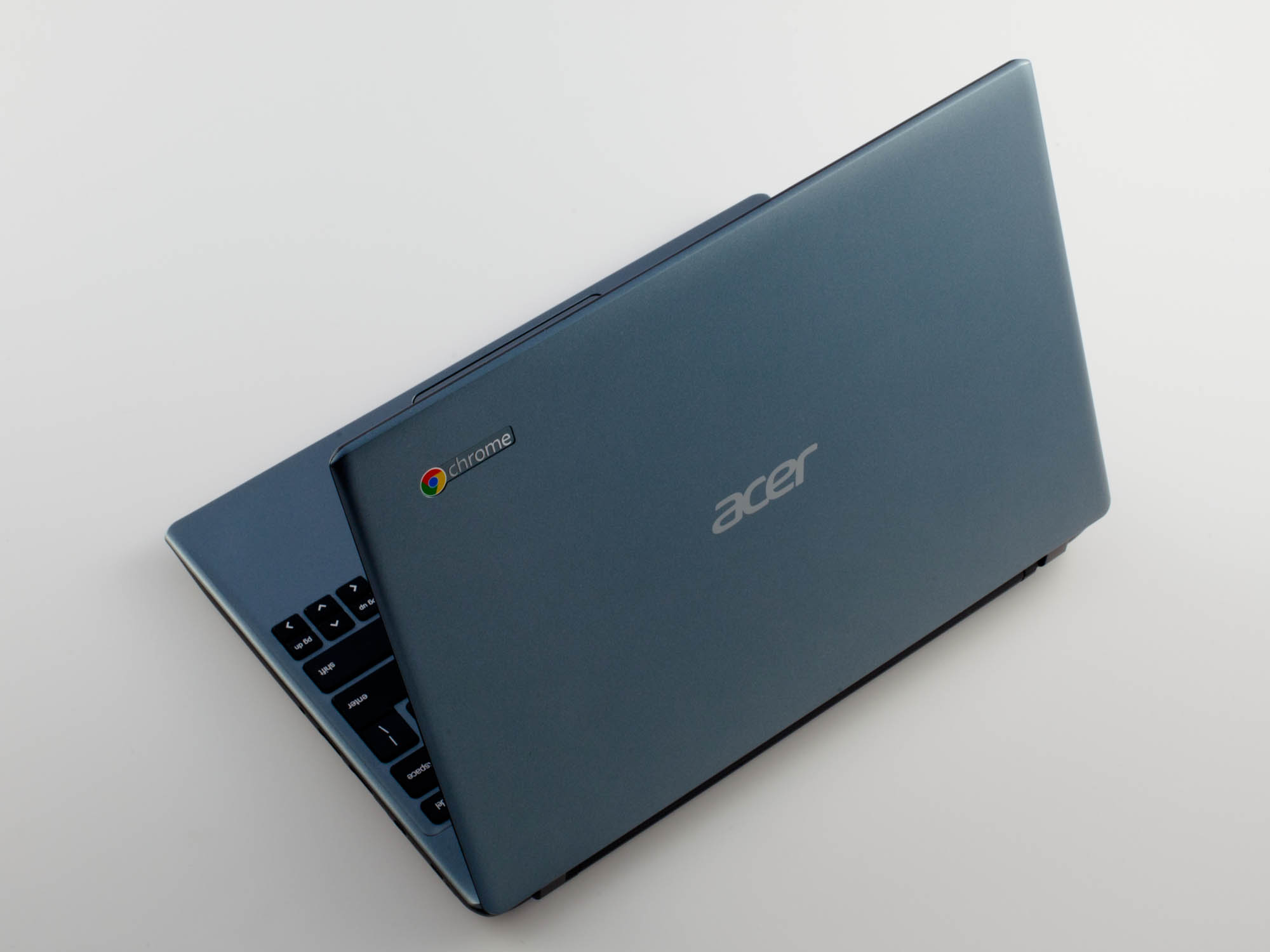
In the world of 1:1 computing, I don't really feel that there is one exact fit for schools regarding mobile devices.  Different devices serve different needs, and I believe that schools need to be flexible in their choices when creating a learning environment to foster 21st century computing skills.  Flexibility, in this case, means that schools need to understand that while workhorse devices such as PCs and Macs offer the ability to install programs such as Microsoft Office, Adobe Creative Suite, and others, mobile devices such as Chromebooks and iPads offer the ability to mimic many tools with smaller apps that consume fewer resources, storage space, and are often free.  And while schools may be willing to sacrifice larger programs for price and more accessible (free) tools, they will ultimately find that they still need those big box programs.  So in answering this question, I'll fill in gaps by explaining what our district has done to work towards a solution.  


The Beginning of Mobile Access
About 6 years ago, our district started purchasing iPad carts to place in each building.  The drive was to provide classrooms with access to the web for research, as well as rich video content and access to apps for drill and practice.  The initial push was in the elementary schools, with middle school and high school to follow.  While iPads provided a great deal of flexibility with free apps and instant access to the web, the cost was smaller than placing PCs and Macs in classrooms, and they took up less space.  

Eventually, every building had at least one cart, while others had multiple carts that were used as checkout labs on an as needed basis.  This lessened the competition for computer labs and library access, and allowed more teachers/classrooms to conduct research and connect with the web.


1:1 Budget Concerns
Our district is a medium sized district for our state, but it is not by any means a "rich" district.  By this I mean, we face some of the same budget restraints that smaller schools face.  As a result, we began to slow down on the purchase of iPads and started to take a hard look at our budget, while discussing the need to provide access to all students.  We knew we could not afford to place a device in the hands of every student, so the question was, how could we provide access for all and still remain within our budget.  

Google Apps for Education had been around for a while, and our district had been exploring the opportunity to become a GAFE school.  I used this as an opportunity to discuss the cost savings of Chromebooks.   While the carts for Chromebooks tended to be about the same in cost as iPad carts, the devices were around $100 to $200 cheaper.  Once you multiply that cost by 30-35 devices per cart, the costs savings is great.  The question some had was whether the Chromebooks would be as sturdy as an iPad.  But the initial cost and the addition of a keyboard (add about $99 to $150 to an iPad for keyboards) and Chromebooks were the obvious choice.  

We began the process of purchasing Chromebook carts with our technology budget, and placed one cart in each ELA classroom, from 6th grade up.  This meant that every student in grades 6-12 would have access to a mobile device at some point, every day.  We also decided that for future purposes, iPads would be pushed down to the Elementary Schools as they seemed more suitable for the needs of K-5 students.  We then shifted our computer rotation cycle so that instead of PCs, libraries would receive a Chromebook cart instead, which allowed us to save money within our budget.  This meant that the only PCs we had in our building were in Career Tech classes, which needed a device capable of running Microsoft Office and Adobe Creative Suite, and in checkout computer labs.   As we did so, we started to hear more and more from our elementary teachers, stating that they would also like to have access to Chromebooks.  


Suitability Across the District
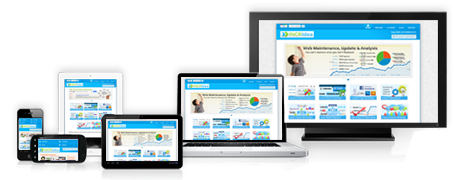
What we have found is that while iPads were a great addition to our district, we have grown to like our Chromebooks more every day.  Here are some of the benefits we have found in using Chromebooks:


  • The Chrome Web Store provides access to a wide range of free apps, including all Google Apps.
  • The added functionality of a keyboard means that our students are practicing keyboarding skills while accessing apps and information on the web.  
  • Google Apps, admittedly, is much easier to access and use on a Chromebook than on an iPad.
  • The IT department has found that managing Chromebooks is much easier.  After the initial setup, devices can be managed remotely from a computer.  (iPad management requires hands on operation for updating and managing).
  • Chromebooks allow any user to login and use them without worrying about account security once they log off.
We have not found that our elementary students have any more difficulty using Chromebooks than our secondary students, meaning that 4th -5th grade students can use them just fine.  In fact, using Chromebooks more closely mimic the experience students encounter when at a computer workstation, especially since most students use them for web research.  The suite of apps in Google Drive also creates an experience similar to what students would experience when using most other programs such as Word, PPT, Excel, Pages, Keynote and Numbers.   


What Should You Do?
If you currently use Macs or iPads, or if you are thinking of adding Chromebooks to the mix in your district, I would suggest you strongly consider a few of the points below:

  • What will the primary use of devices be? 
  • What will students access? 
  • Will devices be used primarily for access to web services, or specific programs?
  • What apps do you currently use? Check for availability of apps in the Chrome Web Store.
In addition to answering these questions, you will also need to consider infrastructure needs (WiFi, Bandwidth) and Student Access.  If you are seriously considering Chromebooks, you'll want to start by exploring the possibilities that Google Apps for Education can offer.  Once we did so, we found that universal access to Google Apps for all teachers and students meant that we could work and communicate more easily through Gmail, Google Drive and Google Classroom.  And finally, any district considering the addition of any device to their curriculum will want to make sure that they consider Teacher Buy-In.  After all, if you don't have buy in from your teachers, it could make or break your implementation plan.  To do this, we provided extensive in house training to our teachers in the Spring and Summer prior to implementation, and throughout the school year.  If you need help in providing training,  I have tutorials available, you can find trainers online, or your can train your own teachers here.


Good Luck and if you have questions, please post them here!


Dec 15, 2015

Gmail Series Part I: Composing an Email


As our district moves deeper into the use of Google Tools as a Google Apps for Education (GAFE) District, I will be creating a few tutorials on Gmail.  This post is the first in a series of video tutorials on Gmail.  Check back later for more on this topic....


Dec 1, 2015

We've Gone Google!


This week, teachers in our district received their Teacher Login for Google Apps for Education.  When I teach classes on Google Drive and Google Apps, I often get skeptics who aren't sure why they would take the plunge.  Many just don't want to let go of the things they have traditionally relied on.  With that, here are a few reasons I give for the switch:

  • You can go paperless - Google Drive and Google Classroom let open up the possibility of pushing assignments out to students in the form of a link to a Google Doc, which students can copy and then fill in.  Then they can resubmit the lesson for grading.  Plus, inside Google Drive, you can comment on student work and share it back with them in real time, meaning they can receive feedback immediately - with no need to wait on papers to be passed back.

  • No more flash drives! - I used to carry around a small case that held all of my flash drives so I would always have my documents with me.  But with Google Drive, you can have all of your files with you as long as you have access to the internet.  That means on a computer, your phone, your tablet - anywhere!  But often people say, "what happens if the internet goes down?"  If you download Google Drive to your computer, your files are synced from the web to your computer - so you have a backup!

  • Publish your files to the web! - If you have presentations that you use in class or in meetings, you can publish your Google Slide presentation to the web or embed it on your Google Site.  Then any changes you make in the future will be available on your site and with others you have shared in real time.

  • Collaboration - By sharing a doc, you can work from anywhere at any time with others in real time.  

  • Put Google Drive to work for you - There are tons of Add Ons and Scripts that allow you to put Google to work for you. For instance, in our Virtual Academy program,  I have a form that I use for enrollment.  Our counselors fill the form to let me know what courses our online students need.  Once the counselor submits the form entry, a script called Autocrat automatically merges their selections with a document that is emailed to me!  


In an effort to help our teachers understand the world of possibilities this opens up to them, I am also publishing a few links I have found to be helpful with Google Apps and Google Drive.


For more tips and ideas from the web, follow me on our Google Educators of Oklahoma page on Facebook - Google Educators of Oklahoma


Jun 22, 2015

Google Sites vs. Google Classroom

Classroom vs. Site

This year, our district has made significant strides toward being a Google Apps for Education school district.  All of our faculty and students have their own Google Account and have been working to understand the benefits afforded by working in the cloud.

As we drew the year to a close we started Summer training for our English Language Arts teachers, as they would be receiving a Chromebook cart in each of their classrooms.  As part of that training, one of the questions that popped up was,  "Which is better? Google Sites or Google Classroom."

To answer that question, I've provided a few pieces of information for you (benefits of each), as well as a few videos to help newbies understand each tool:


Google Classroom

  • Teachers can assign students to their classroom.
  • Assign and grade work within the classroom.
  • Use the stream to post announcements or assignments
  • Link to Google Drive to assign work.
  • Add links to YouTube Videos
  • Add links to URLs
  • Allow students to post or comment (easy to disable)
Google Classroom


Discussion Forums using Google Classroom

Google Sites

  • Freedom to create the look and feel of a Teacher Webpage/Site
  • Add multiple pages
  • Link to Google Drive to add assignments
  • Create a File Cabinet to share files as a department
  • Create an Announcements Page to post thoughts and discussion topics
  • Embed any content you need (YouTube, Easel.ly, Etc...)
  • Add links to websites, etc....
  • Open site up for discussion boards
  • Embed a Google Calendar for a list of events
  • Have students create their own Google Site as a digital portfolio
  • Use a Google Site as a Wiki where students can work on group projects.  
Setting up a Google Site


Sep 28, 2014

Build Your PLC by Putting the Internet to Work For You


Recently while teaching an online class on Differentiated Instruction, I found that many of the teachers involved in the class had gotten the fire in them and were excited about finding resources and implementing DI in their classroom.  Rather than let them leave the class with no path to keep them going, I put together this list of resources the help them find what they needed.  

The emphasis I placed on the end of the course was for them to build their Professional Learning Community.  Finding the resources to help students starts with building a Professional Learning Community.  There are tons of resources out there and it can be daunting.  My solution is to put social media to work!  Here are a few places on Social Media to start:


There are other tools you can use to gather your newly found resources in one place so they are easier to digest.  Some of these tools, I have shared in previous articles, while others are new.  I hope you find them useful:  


  • ScoopIt! - This tool lets you choose topics and websites so you can digest all those articles out there on the topics you are interested in.
  • Flipboard - Similar to ScoopIt, you can gather twitter feeds, facebook pages, magazine articles and websites into a magazine style resource so you can put all your interests in one place.
  • IFTTT - When sharing what you have found, you can use If This Then That (IFTTT) to put recipes together that make your life easier.  For instance, if you post a resource on YouTube, you can have IFTTT automatically let your fellow teachers know on Twitter.  If a new article pops up on twitter with the topic "iPad Tips", you can have an email sent to you.
  • Paper.li - turn your twitter feed into a paper that publishes daily, then have an email sent to you so you can read all your favorite resources like a newspaper.
Finally, if you've never used these resources before, here are a few websites dedicated to making the teaching profession better
  • Edutopia - The George Lucas Foundation has a vested interest in helping teachers learn and grow to help students.  Visit their site, or create a free account so you can keep up with trends in education.
  • Edudemic - This site provides resources for teachers and students with the goal of infusing technology into the classroom.  Check this article out on their site to start http://www.edudemic.com/great-edtech-twitter-chats/

Jun 26, 2014

ISTE 2014

So today I head out of town to Atlanta for the ISTE 2014 conference.  I can't wait to get there.  This conference is always so full of information, I never have time to gather it all together, but I always know I will come back with some valuable information.  As always, I will be posting articles about each session I attend.  Hopefully the few of you that follow me will find this information handy.  My goal this year is to increase my postings on this site in an effort to get my thoughts down and create a knowledge base for questions that teachers have throughout the course of the year.

ISTE

If you aren't familiar with the ISTE conference or the organization, I highly recommend you check it out. ISTE is the International Society for Technology in Education.  Formerly known as NECC (National Education Computing Conference), ISTE has generated a large knowledge base of information regarding technology for the classroom.  Additionally, they are at the forefront of developing standards for computer science in the classroom and technology in teaching.  My primary interest is as a Professional Development teacher and Instructional Coach.

If you've never checked out their site, do so - https://www.iste.org/  .  While there, check out their standards page - https://www.iste.org/standards.  They have written standards for:


All of the information on these pages is very valuable in guiding technology instruction.  Check it out.

Also, don't forget to check back here this week for my posts on ISTE 2014 Conference Sessions.


Jun 10, 2013

Common Core and the Uninformed

With the big push by many states to adopt Common Core standards, one problem that we face is the backlash from parent groups, blogs, and social media.  For every site that promotes the sharing and use of common core resources to make the transition easier, there are 5 parent sites that spew forth disgust for common core.  Now I'm not going to point fingers or list links here because I don't want to promote a vicious circle.  However if you do a basic Google Search for common core, you are bound to stumble across one.   So if you want, go ahead and search.  My point here is to list some of the grievances parent groups have and to also focus on some positives I think we will see with Common Core. 

First with the grievances.  Many sites one the web point out that Common Core was handed down by textbook companies and the government and that the curriculum is being written by textbook publishers.  In actuality, the standards were developed by the US State Department of Education along with the guidance of David Coleman.  Many parent websites will point out that Coleman works for McGraw Hill.  It is true that he worked for them, but he left in 2007 - two years before the standards initiative began.  What they fail to point out is that he is the 9th President of the College Board, who is responsible for developing SAT and AP standards.  And although a large market has been created for textbook publishers to align their textbooks to common core, schools do not necessarily have to adopt their books.  As long as the curriculum they are using aligns to common core, they can use what they want.  In addition, what many on the outside do not realize is that in the past when states developed their own standards, you would have a situation in which students who moved from state to state were held to different standards.  Books were aligned differently from state to state depending on publisher of the curriculum and the standards set forth by each state.  This often caused confusion and loss of credits when high school students had their high school careers scrambled by relocation.

Another problem many parent groups have is that they feel the common core standards are dumbing down curriculum by teaching math differently and by changing what students read.  Although there is a push to infuse more non-fiction, the goal of the standards is to widen the breadth of material that students read, so they can read more critically.  Common Core also focuses on getting students used to explaining how they arrive at a solution in addition to being able to tell the solution.

With Common Core, I believe our students will be held to a stricter standard and will be taught to think critically while infusing 21st technology and literacy skills that they will encounter in the workplace.  In the past, students faced a culture shock when they left high school to go to college and yet another when they left college to enter the workplace.  I believe the goal of common core is to introduce students to a different way of thinking and a whole new set of skills.  Many will say that Common Core is tied to the end of year assessments.  While this may be true, I am not a huge advocate of teaching to a test.  I believe we rely too heavily on assessments.  However, the standards themselves and the skills they seek to instill in students will help to shape a future workforce that will allow us to be more competitive in the global marketplace (is that enough cliched terminology for you?  But seriously).

One positive side of Common Core is that in the past, teachers who wanted to supplement curriculum with outside activities either had to make their own or find teacher created activities on the internet that aligned with state standards.  The difficulty was that finding such a thing was often difficult, as there were few resources shared on the web that aligned to state standards.  Now, with common core, teachers have a larger network with which they can share common core aligned lessons and activities.

My goal here is not to change the minds of parents, teachers, or community members.  It is to push you, the reader, to to your research.  When you come across a blog or letter to the editor that screams about how we need to stop common core at all costs, I urge you to compare what your state's education standards looked like before and what they will look like with common core.  If you don't know where to look, start here: 


If you expect your kids to do their homework, do yours as well.  Steer clear of the knee jerk commentaries on websites and social media and look into the answers on your own.  Start a dialog with your school district administrator - see what they think, what they are doing, and how it impacts your student. 

Feb 25, 2013

10 Apps for the Classroom iPad Cart


Recently, our school purchased iPad Carts for use in our schools.  The idea was to provide iPads for use in the classroom, but purchasing them on a large scale was too much.  So, by providing a cart for each building, the cart could be checked out by teachers to use as a mobile computing classroom.  iPads provide the ability to access apps for practice, web 2.0 resources, and sites for classroom research.

Being an iPad user, as I investigated different apps I already had an idea of what I would want on the iPads.  But as these were going to be used by different teachers on a larger scale, the thought process was  a little different.

Here are a few apps that I found to be crucial the the classroom iPad Cart:


  • Educreations - Like having an interactive whiteboard (IWB) on your iPad, this app, when used with a HDMI cable or Apple TV, allows you to use tools familiar to IWB users.  Features include a pen tool, ability to erase, add pictures, text, and most of all, the ability to record.  By being able to record what you present, you can save it for later, and even share your presentation with others. 

  • Puffin Free  - iPads aren't Flash friendly, so if you're going to show certain web content that is built on Flash, it can be difficult when using the Safari browser.  This app (available for free with ads, and for a price to remove ads) gives users the ability to view and interact with Flash content.

  • Free Graphing Calculator - Math teachers will appreciate the ability to use the iPad as a graphing calculator.  There are several free calculators available, this is just one of them. 

  • iTunesU - The iPad will prompt new users to download this app and it is well worth it.  With the ability to download free course content from K-12 institutions, as well as colleges and Universities, this app gives teachers the ability to connect students with content covering thousands of subject areas.  Professional Development courses are available through iTunesU too!

  • iBooks - This app may not seem like a teaching tool to some, but many teachers have found that the ability to bookmark, highlight, and add notes to the margins makes the use of this app very handy.  For English classes, teachers can download epub files for classic novels from sites such as http://www.gutenberg.org/.  eTextbooks can be purchased from many educational textbook publishers, through the iBooks store. 


  • Socrative - Download Socrative Teacher and Socrative Student and use the iPad as a Student Response System.  Create your own assessment questions and deploy them over classroom WiFi. 

  • PenUltimate - This note taking tool allows students to take notes in their own "fingerwriting".  Keep notebooks by subject area - all for free.

  • Dropbox - download this cloud storage app and create a classroom account that will allow students to upload/store assignments in the cloud. 

  • iWork - This bundle of apps from Apple may cost a little ($9.99 for each app; less on the Volume Purchase Program if you buy more than 10), but its worth it.  Keynote is a presentation tool similar to PowerPoint that allows you to create and view slideshows.  Pages is a word processing app that allows you to create documents.  Numbers is a spreadsheet app. 
Obviously this is not an all encompassing list of everything you would need, but it is a great place to start.  The capabilities of tablets in the classroom are so great that you will discover more as you use them.  The camera and built-in microphone make iPads great for creating audio and video projects as well.  As you become more advanced in using them, investigate and explore the web for more options.  And enjoy! 

Oct 12, 2010

Web Links for Interactive Whiteboards

Let's go on a journey.  We're going to go to a 3 day teacher workshop/convention.  While you are there, you'll collect knick-knacks, bags, and flyers from vendors and workshop facilitators until your suitcase is bursting at the seams.  During that time you will see and hear a wealth of information that will undoubtedly make you a better classroom teacher.  You feel excited to be a teacher and you've got a new energy that should last you until May...OK maybe January. 

When you get back to the classroom, you spend time going over the handouts with links to cool websites  that will make lesson planning and creation easier and less time consuming.  Except...each site you go to is either a dead link or it takes an extra half hour to figure out what was so cool about it to begin with.

Have you ever felt this way?  Teachers often tell me they don't know what to do with their IWB (Interactive Whiteboard) once they have it.  Short of creating a lesson with software you know little about, it becomes a backdrop for videos.  So I often get asked if I know of any cool interactive websites that could be used with an IWB.  As I have said in earlier posts, one of my jobs as part of The Eighth Floor is to maintain a wikispaces site devoted to web tools for IWBs.  To take the guesswork out of finding these supplemental activities, the 8th Floor Smartwiki is divided by subject area and provides a short list of some interesting sites that can get kids interested and interactive with your subject.  Just click on your subject area and you'll see a list of sites with a short description of that site.  Each link takes you directly to the described activity.  No more guesswork. 

The reason this site was established was to help jumpstart the new user, but also to get teachers doing exactly what IWBs were intended for, which is to create a hands on experience for students.  If you have a particularly stale subject and your finding it hard to get kids involved, try one of the links on our site.  But don't stop there.  Do a Google Search to find your own activities or as you feel more comfortable, create some of your own.  Remember, anything you can do with a mouse or keyboard can be accomplished on an IWB.