Showing posts with label #edsandite. Show all posts

Apr 5, 2016

The Techy Coach Chrome Extension

Techy Coach Video Tutorials are now available to users as a Chrome Extension.  Now you can access tutorials through a popup window, allowing you to work while you learn.  


Topics available through the extension include:

  • Google Drive
  • Google Docs
  • Google Sheets
  • Google Forms
  • Google Slides
  • Google Drawings
  • Google Classroom
  • Gmail
  • Google Calendar

Just go to the Chrome Web Store and search for Techy Coach.  You can also use this direct link.

Feb 23, 2016

ePortfolios & Projects with Google Sites

Recently a question was posted in the "Ask the Techy Coach" page regarding Google Sites and Google Classroom.  A teacher had inquired about creating a project for students in which they would create an eBook on a Google Sites page.  Students would "pick up" study guides from Google Classroom and would insert them into their Google Site.  Her concern is over how well the two integrate with one another.

Just last year, I posted an article called Google Sites vs. Google Classroom.  While that article gives a basic Pros & Cons approach to each, this article will discuss how the two can be integrated.

While Google Classroom is not directly integrated with Google Sites on the same level as, say, Google Docs or Slides, you can still use Sites as the platform for a project, and Classroom as a place to submit work.

For the project side, students can use page templates in Google Sites to:


  • Blog about a Topic (Announcements)
  • Add Content such as YouTube videos (Web Page)
  • Create a database of information (Lists)
  • Store files (File Cabinet)

If you are interested in learning more about how Google Sites work, and how to get started, watch here:


Sites can also be used as a Digital Portfolio.  A Google Site can be set up as a Template which could then be used as a starting point that all students could use and develop in their own style.  While monitoring this may seem like a nightmare, there is a great solution in an AddOn called Site Maestro.  This handy tool allows teachers to set up an entire class with their own Google Site, while using a Google Sheet as a dashboard for monitoring their progress.  Use my Google Sites tutorial to help you create a skeleton site that your students can use, and then use this tutorial from New Visions Cloudlab to help you get started with your own ePortfolio project for students:


Don't forget, there are many other great web tools you can use to get students started with Blogging or ePortfolios, such as:


Now what does any of this have to do with Google Classroom?  If you are like me, you probably have grown to love the simplistic design of Google Classroom, and the way it integrates with Google Drive.  But while it may not work as well with Sites, you can still use Classroom to:

Post links and docs for items required in a Project

  • While most of the work will be done inside the Blog, students can still pick up items like Docs or Slideshow templates that they can post within their Site.  For instance, the teacher could post a Doc in Google Classroom with instructions on how students will use the templates, where they should appear, or how they fit in the portfolio, as well as due dates.  In this instance, I have to point out that the integration between Google Sites and Google Docs is great.  Google has made it easy to embed or insert almost anything from Drive into a Site.  


Post assignment submissions for sections of a Google Site

  • Once students have completed work in their Google Site, they can use the Assignment Submission page to paste a URL link to their finished product.

Post Reminders & Project Due Dates

  • It never hurts to post timely reminders regarding projects in Google Classroom - especially since they will be sent by email to students as well.
Use the Question tool in Classroom so students can post links to their Google Site for discussion

  • The Question tool allows teachers to create a Forum in which you can post a question, and have students respond, and comment on each others responses.  This could be used as a great way to get students in a dialogue about their work.  This is a great way to introduce peer grading or suggesting.
All this being said, this answer was mostly for any teacher that uses Google Classroom on a daily basis and may be looking for a solution to guide and oversee a project such as an online project.  But don't ever feel that you have to use a certain tool because it is new.  If another tool will do the job, use it.  The tool should never become more important than the process or learning experience.


Feb 22, 2016

Tutorial Showcase: Google Drive

Whether you are a new user to Google Drive or not, you can pick up some helpful tips from these Google Drive videos.  Find out how to:

  • Share A Doc
  • Share A Folder
  • Transfer Ownership of a Doc
  • Upload Files from an iPad


Watch using the playlist below, or by visiting the Google Drive page on my site.  Enjoy!

Feb 20, 2016

Tutorial Showcase: Google Calendar

Many people who still rely on paper calendars or planners are truly missing out on the dynamic features available in Google Calendar.  If you are a new Google user, or if your an old one that is looking for a few new tricks, check out these features and watch one of the many tutorials available through the playlist below (6 videos). 
Features:
  • Share a Calendar
  • Create a Secondary Calendar
  • Schedule events using Appointment Slots (GAFE Only)
  • Attach Documents from Google Drive
  • Use Calendar to Communicate Assignments and Due Dates in Google Classroom


Jan 30, 2016

#edcamp918 Session Notes - Productivity with Google Forms

Today, I led a session at #edcamp918 on Productivity with Google Forms. These are the notes from that session.

Video Tutorials Available at http://www.techycoach.com/google-tutorials

  • Assessments and Grading - Flubaroo -This AddOn for Google Sheets allows you to grade a spreadsheet of answers from a Google Forms Quiz.  Watch this tutorial -


  • MadLibs & Google Forms - Autocrat is a great addon for Google Sheets (using the response sheet for a google form).  This tool will merge responses from a Google Form with any Google Doc containing merge tags (<<>>).  This allows for a wide range of applications including MadLibs! - Watch this tutorial-


  • But seriously, you can also use Autocrat for other purposes such as enrollment forms, club information, etc... - Watch this tutorial -   

Jan 29, 2016

Change the Subject in a Gmail Reply

If you are a recent convert to Gmail, you may have noticed that when you reply to an email from someone, the Subject Line does not readily appear allowing you to change it.

If you reply to someone and you need to change the Subject line, there are a few easy steps to accomplish this.

1.  Open an email
2.  Click Reply
3.  To the left of the Address of the recipient, click the Reply drop-down Menu.
4.  Choose Edit Subject
5.  The email will appear in a Pop Out window allowing you to edit the subject line.

Its that easy!  Watch the animation below if you need further help.


Dec 15, 2015

Gmail Series Part I: Composing an Email


As our district moves deeper into the use of Google Tools as a Google Apps for Education (GAFE) District, I will be creating a few tutorials on Gmail.  This post is the first in a series of video tutorials on Gmail.  Check back later for more on this topic....


Dec 1, 2015

We've Gone Google!


This week, teachers in our district received their Teacher Login for Google Apps for Education.  When I teach classes on Google Drive and Google Apps, I often get skeptics who aren't sure why they would take the plunge.  Many just don't want to let go of the things they have traditionally relied on.  With that, here are a few reasons I give for the switch:

  • You can go paperless - Google Drive and Google Classroom let open up the possibility of pushing assignments out to students in the form of a link to a Google Doc, which students can copy and then fill in.  Then they can resubmit the lesson for grading.  Plus, inside Google Drive, you can comment on student work and share it back with them in real time, meaning they can receive feedback immediately - with no need to wait on papers to be passed back.

  • No more flash drives! - I used to carry around a small case that held all of my flash drives so I would always have my documents with me.  But with Google Drive, you can have all of your files with you as long as you have access to the internet.  That means on a computer, your phone, your tablet - anywhere!  But often people say, "what happens if the internet goes down?"  If you download Google Drive to your computer, your files are synced from the web to your computer - so you have a backup!

  • Publish your files to the web! - If you have presentations that you use in class or in meetings, you can publish your Google Slide presentation to the web or embed it on your Google Site.  Then any changes you make in the future will be available on your site and with others you have shared in real time.

  • Collaboration - By sharing a doc, you can work from anywhere at any time with others in real time.  

  • Put Google Drive to work for you - There are tons of Add Ons and Scripts that allow you to put Google to work for you. For instance, in our Virtual Academy program,  I have a form that I use for enrollment.  Our counselors fill the form to let me know what courses our online students need.  Once the counselor submits the form entry, a script called Autocrat automatically merges their selections with a document that is emailed to me!  


In an effort to help our teachers understand the world of possibilities this opens up to them, I am also publishing a few links I have found to be helpful with Google Apps and Google Drive.


For more tips and ideas from the web, follow me on our Google Educators of Oklahoma page on Facebook - Google Educators of Oklahoma


Jun 26, 2015

Everything Google


In order to serve the needs of our teachers during our transition to Google Apps for Education, I've created a website with articles, tutorials, and information about Google Apps.  You can link to my page from this blog or by visiting http://everythinggoogle.com

You can also subscribe to posts and updates to Everything Google here:

Enter your email address:


Delivered by FeedBurner

Jun 22, 2015

Google Sites vs. Google Classroom

Classroom vs. Site

This year, our district has made significant strides toward being a Google Apps for Education school district.  All of our faculty and students have their own Google Account and have been working to understand the benefits afforded by working in the cloud.

As we drew the year to a close we started Summer training for our English Language Arts teachers, as they would be receiving a Chromebook cart in each of their classrooms.  As part of that training, one of the questions that popped up was,  "Which is better? Google Sites or Google Classroom."

To answer that question, I've provided a few pieces of information for you (benefits of each), as well as a few videos to help newbies understand each tool:


Google Classroom

  • Teachers can assign students to their classroom.
  • Assign and grade work within the classroom.
  • Use the stream to post announcements or assignments
  • Link to Google Drive to assign work.
  • Add links to YouTube Videos
  • Add links to URLs
  • Allow students to post or comment (easy to disable)
Google Classroom


Discussion Forums using Google Classroom

Google Sites

  • Freedom to create the look and feel of a Teacher Webpage/Site
  • Add multiple pages
  • Link to Google Drive to add assignments
  • Create a File Cabinet to share files as a department
  • Create an Announcements Page to post thoughts and discussion topics
  • Embed any content you need (YouTube, Easel.ly, Etc...)
  • Add links to websites, etc....
  • Open site up for discussion boards
  • Embed a Google Calendar for a list of events
  • Have students create their own Google Site as a digital portfolio
  • Use a Google Site as a Wiki where students can work on group projects.  
Setting up a Google Site


May 4, 2015

New Google Tutorials - YouTube, Google Slides, and Google Search

A new crop of videos have been posted to my YouTube Channel this month.  Here they are so you can see them.  Also, visit my Video Tutorials Page to see the entire playlist of Google Tutorials.

Google Search Tips


Google Slides:  Mask and Crop Tools


YouTube Captions for ELL/ESL


Apr 9, 2015

Check for Understanding

Often it is difficult to get a grasp of student understanding when covering a new concept in class without having a one on one discussion with students.  But singling out each student to discuss concepts with them can take away from valuable class time.

One solution to this that I have used is to use a "Check for Understanding" checklist during Group Work.  To give you an example, I once taught a short lesson on Hydrocarbon Molecules.  As the students were working on a group activity, I wanted to check the understanding of each student so that I knew who was struggling and who had a firm grasp of the topic.  To do this, I created a sheet like the one below that I carried around on a clipboard:


Student Name: John Doe

Standard or Task
Rating of Student Understanding
1
Needs Improvement
2
3
Fair Understanding
4
5
Mastery of Concept
How many single bonds can be formed with a Carbon Atom?


What is the molecular formula for Methane?


What is an alkane?


What is a functional group?


What is a saturated compound?


As I moved around the room, I asked each student to explain or answer each question in the checklist.  As they answered, I would rate them on a scale of understanding of 1-5.  1 being a Needs Improvement rating and 5 being Mastery of Concept.


As I worked around the room, student groups could continue to work on the lab without interruption, but also with the knowledge that I was observing along the way.  When I finished, I collected all of the sheets and sorted them in terms of needs.  This allowed me to be more productive during class, while providing an informal assessment along the way.

As times change, so does technology, so I have created a digital form of this checklist using Google Forms.  


If you would like to use either of these, just use the links below:

Paper Checklist - click the link below to save a copy to your Google Drive account.


Google Forms Checklist - Open this file and then click File > Make a Copy to add a copy to your Google Drive account.


What Is STEM?

This question is not a new one.  It is one that has perplexed educators for quite some time.  Not in terms of the general concept of what it is - Science, Technology, Engineering, and Mathematics - but in terms of how to make it happen in a school setting.

Our district is in the midst of tackling this question now.  The greatest difficulty is getting the idea across that we are already doing a great many things in terms of STEM Integration now - and that we can also revisit things we have done in the past that were STEM oriented, but went by another name, such as Project Based Learning, or Inquiry Based Learning.

A couple of points to think about in terms of STEM Integration are:

  • STEM is Hands On, Not Lecture - If we truly want students to understand how STEM works, we need to give them experiences that help them understand how things work.  That means laboratory experiences, science experiments and projects, and the ability to create.  Instead of "telling" our kids all of the information (lectures), we need to help them figure it out for themselves, while providing guidance along the way.  
  • STEM is All About Connections - As educators, our curriculum across the board is compartmentalized.  We often leave our students thinking of the world in this way.  I can't tell you how many times I have had a students say, "This is science, why are we doing math?" My response to them is, "Math is Science and Science is Math!"  
    • Making connections means that we need to point out to students the connection between math concepts and general science principles when they naturally occur together.  
    • For instance, if in an environmental science class we are talking about Solar Energy and we discuss the increase in temperature over time of a room heated naturally by the sun, we can apply a linear regression model in graph form.  This is a great way to introduce the Slope Intercept Formula into science.
    • We also need to help students understand the connection between the science, math, and the technology tools we use to study and work with both subjects.
  • STEM has Cross Curricular Applications -  Students need to understand that, as much as these things (Science, Technology, Engineering, and Math) do not occur in isolation, there are applications in English and Social Studies as well.  
    • I had this discussion with our 9th Grade Principal today.  He brought up several of these points as we discussed how in English, teachers could teach grammar and writing through the use of Technical Writing, which has as much application as writing an essay on Shakespeare.
    • We also discussed Social Studies and the integration of interview, data, and photographs collected during a Crime Scene Investigation (applying math and science to crime).  The information gathered there could be used to create a mock trial in which students argued different sides of the law and rights of citizens as they applied to the crime scene.
  • STEM Needs to Start at an Early Age - In order for STEM to be successful in high school, it can't be a new concept thrust at kids once they enter the 9th grade.  Our 9th Grade Principal specifically talks about helping our elementary schools begin the process of STEM integration. The benefit of this is that students learn problem solving skills at an earlier age and that the level of engagement is much higher. 
  • STEM creates a level of Engagement that could possibly prevent future issues -  Now this idea is not something I have found proof to support, but it is my thought that if we can increase student engagement and build on skills they will use all their lives, as an educational system, we could drastically cut down on failing grades and dropout numbers.  
In studying the ideas behind STEM Integration, I ran across the following videos that may be helpful to our teachers and our district.  


Finally, as our district is trying to up the ante in terms of STEM Integration, I'd like to poll the readers of this article.  Please add your thoughts on STEM to this form...Thanks!


Responses to the Form:


Apr 3, 2015

Snap a Photo and Upload to Google Classroom

Sometimes when your students are working in class, it becomes necessary for them to provide visual documentation of a lab or project.  The Google Classroom Mobile App allow students to upload a photo from their phone or tablet right inside the app.  Watch this quick (and boy do I mean fast) video to see how it is done:


Mar 27, 2015

Two New Videos: Google Tools for ELL and Publishing to the Web

Just sharing...


Two new videos have been uploaded to my YouTube Channel:


Google Tools for ELL / ESL


Google Docs:  Publishing to the Web


Mar 25, 2015

Create Maps for Learning using Google Maps and Google Forms

The deeper you dig into the world of Google, the more you discover.  After attending several workshops on Google Apps, I ran across some information regarding Google Maps.  Using your gmail account,  you can go to http://maps.google.com/mymaps and you can create your own Maps that allow you to integrate data collected in a Google Forms Response Sheet or any Google Sheet.

Here are a few tips on how to use this in your classroom:


Jan 29, 2015

Learnin', Bloggin' and Makin' Videos

Recently, in the discussion board of my Differentiated Instruction class, we talked about different ways to teach students and ways for students to show understanding.  Much of the class focuses on student learning styles and as we talk about our own hangups in terms of learning.  

I run participants in the class through a discussion of what learning styles mean for students.  In doing so, we talk about how not all students are alike.  You will have some who are visual learners, others auditory, and some kinesthetic.  If you follow Gardner's train of thought, it can be more complex than that, but in either case, if you focus solely on an auditory means of teaching (standard lecture), you're going to lose more than half of your audience as your visual learners can't picture what you're saying and your kinesthetic learners - well let's just say they're itching to get out of their seat and out of the room!

To get teachers in the mode of understanding the impact, I have them take a Learning Style Quiz to see where they lie on the spectrum of learning.  Try these for yourself and your class:

After they take one or more quizzes to assess their style, I ask teachers to reflect on their own learning (what life was like in high school for them) and how they feel this impacts their teaching style.  As they do so, they start to see how some kids could easily be left behind (no that was not an NCLB reference) in the process of presenting content.  This quickly gets us onto the discussion of student work.  We discuss the use of  video content to present work in new ways that allow a bit of auditory and visual content. By creating your own content on video, you can flip your classroom and save time for other tasks such as projects and labs.  Take it one step further and get your kids to create content of their own -  a kinesthetic learners paradise!

Try these free and cheap tools to start creating your own content:


In order to know that your students understand what is being taught, you need to assess them.  Now don't get me wrong, I'm all in favor of a simple Multiple Choice test that can be auto-scored by a  computer, but let's face it - to gauge true understanding, kids need to show us.  So why not lend them a hand and let them collaborate!  Use the tools above to help them in creating content to show understanding.  Use a Rubric to grade the process.  

But sometimes, regardless of how content is presented, some students never understand on their own.  IF they stay within their silos, they soon become frustrated.  This is why collaboration is so important.   Collaboration is key in assisting with understanding, but also fostering creativity and generating new ideas.  By placing students into groups and stations, you can create an atmosphere that allows for true collaboration.  
  • Group work and stations - Get students to work toward assessing content, checking for mistakes, applying understanding by creating their own journals - but have them do it in groups that rotate through stations.  As students move through each station, they can work as a group to comment and correct material at each station.    When they move through stations as a group, they not only benefit from the work of their own group, but the ones who have rotated through the station before them, as they begin to dissect comments and corrections made by others.  
If you don't have the time, but you have the technology, have your students work in collaboration outside of the classroom in a Discussion Forum.  Discussion Forums are great for vetting new ideas, Q&A sessions, help with homework, or just simple project collaboration.  Here are a few resources to help you get started:

Discussion Boards:
  • Today's Meet - https://todaysmeet.com/ - If you'd like a simple backchannel style discussion thread that students can interact with in realtime, Today's Meet is a great free option.  You can setup a web link for them to access, and you can choose how long you want it to stay open.  You also have the ability to download a copy of the discussion to print.  
  • Piazza - https://piazza.com/ - Great for Q&A style discussion between instructor and students.
  • Google Classroom - Must be a Google Apps for Education district to use this http://www.alicekeeler.com/teachertech/2014/09/07/20-things-you-can-do-with-google-classroom/ - Use this tool to do a whole host of things, including the ability to comment and post questions.
  • Google Docs as a Discussion Tool - https://www.youtube.com/watch?v=Pn6ZQB6fuQM - Google Drive/Docs is a free tool, so why not use a Google Doc as a discussion tool.  Watch this video to learn tips!

Finally, there is no greater way to get kids to show understanding than writing.  Blogs can help.  If you want to call it journaling, you can call it that too, but in either case, the very act of writing gets students to hash out their ideas and thoughts.  Assign students activities that they have to blog about.  One great way to do this is to have kids create technical instructions.  Give them the task of explaining a concept such as math or scientific procedure in such a way that their English teacher can understand it - and do it on a blog or discussion forum.  This idea came from a workshop on literacy integration in our school.  Wonderful idea!
Blogs:
What does all of this have to do with learning styles?  That's where we started, right!  Well, as a kid, one of the things I always hated was taking tests.  And creating dioramas - don't even get me started.  I was the type of kid that would blow it on a test, but I could always write a great essay (that may not always be evident here).  I hated making dioramas or cell projects in science, but I could make a mean poster!  A student's learning style has a great deal to do with their strengths.  Some kids are very musical/rhythmic, so why not allow them to show understanding by writing a poem, song, or dance.  Others are very visual, so whay not allow them to use that to create visuals that teach others through use of a cartoon.  

Allowing students to play to their strengths seems very simple, but many teachers don't want the complexity of grading  a hundred different projects.  My answer is to go back to rubrics.  Design a simple rubric around the concepts/standards you want students to focus on in the lesson.  Then use those key points to grade their project - not on creativity or pieces such as number of slides in a powerpoint, but their ability to relay content in such a way that others can understand it!  

So what if you receive a myriad of different projects, in all sorts of media formats! Allowing students to use their creativity means they will have more fun with it and possibly learn something in the process.  Think about this - what are your most memorable projects from school?  Were they the ones that allowed you more freedom to create in your own way, or were they the ones that forced you to do the same thing everyone else did?  

Now go with that thought and teach your kids!


Oct 7, 2014

Technology Trends and the Implications for Teachers

This article is probably overdue, as we are already more than halfway through 2014. But as the school year is still fairly new, I thought it was worth addressing. As educators know already, the past five to ten years have created a sizable shift in technology, instruction, and the way students learn.  As we have moved from an era of flip phones to carrying around small computers in our pockets, it is clear now more than ever, that technology changes have given us the ability to teach in ways we have never been able to before.

The difficulty is that we are also thrust in an age of confusion.  There are so many new ways of integrating technology that the educational environment has become chaotic.  Which new technology should schools buy?  What trends do we listen to? Do teachers abandon old practice for something they are unfamiliar with only to find it doesn't work?

The key thing teachers and schools need to remember is that change should not be something that is rushed into.  We need to take advantage of the experience of others and the vast amount of research that has been done in terms of educational technology.  A big fear is that technology is replacing teachers.  Nothing could be further from the truth. Although technology has changed, students will still need teachers as a guide, facilitator, and purveyor of learning. Not all of our students are technologically savvy or are as advanced as others in terms of content. Rather, technology now affords us the ability to differentiate education in ways that allows us to cater to the needs of all learners.

All this being said, I am using this soap box to pass on a few key information sources that can be valuable to teachers and administrators:


  • New Media Consortium Horizon Report  - This yearly report defines up and coming trends in technology for the next 1-10 years and the impact those changes will have on teachers, teaching, and education.  Pay particular attention to page 6 covering teacher roles and page 32 covering important developments in technology for schools. 

  • Edutopia - Technology Integration - The George Lucas Foundation funds this website which focuses on providing best practices for educators. This specific link covers all articles on Technology Integration in the classroom.  Everything from Differentiated Instruction to The Flipped Classroom can be found here. 

  • Google Educators of Oklahoma - Facebook - this facebook page was set up for teachers in our district to stay apprised of new changes to Google Apps for Education as we make the shift to Google. It was expanded to the state to allow anyone to keep on top of Google updates. Articles are curated from many sites around the globe. 

  • Edudemic - This site provides articles covering many different topics in education, most of which are related to technology integration. 

  • Sandite Exchange - PLCs - this in district site was developed for our teachers to share and exchange ideas. The PLC page, still in its infancy, is growing as we add more resources. If prompted to login, choose login as a guest. 


Hopefully these resources help you and your fellow teachers in finding valuable resources regarding technology integration. As trends change, use these resources to stay on top of things.

Oct 4, 2014

Have Student Response Clickers Been Replaced?


This question is actually not a new one.  Clickers have been in decline in recent years as online options have changed.  But the topic came up recently as I worked with a few teachers in setting up a classroom for use with student response clickers.  The question came up as to whether student response systems were worth the time or if mobile solutions were better.

For those of you that may or may not remember, for years, eInstruction, Renaissance Learning, and Smart Response among others, flooded the market with Student Response Systems.  These systems consisted of a computer program in which the teacher could create and deploy test and review questions that students could respond to using hand held clickers.  Of course this was not a new idea as it had been around for years.  These companies had just gotten into the business of perfecting and selling the idea, which was a good one.


Flash forward a few years, and teachers started to see the emergence of free options that allowed students to use mobile devices to respond and interact with classroom content.  Some of the following may ring a bell:


Now Google has gotten into the mix in several ways.

Google Forms - You can use Google Forms as an effective quiz or testing tool by adding on a few Scripts or AddOns.  Create a Form and instead of form or survey questions, use test questions.  As students fill in your form, responses are collected in a Google Sheet.  Add-ons such as Flubaroo and SuperQuiz can be used to grade the results.

Google Chrome Apps - The Chrome Store has a whole host of Apps that can be used for student response, including Socrative Teacher & Socrative Student , Nearpod , ExitTicket, and  VirtualClicker.  While some of these require that you have a teacher account, many of them are free.

What does this mean to the classroom teacher who can't afford to buy an expensive set of clickers?  If you are in a school that has gone 1:1, or you have a checkout lab or iPad cart, these online solutions allow you to create and deploy tests in your classroom for free.  Free is definitely good in my book.  Plus if you use Google Forms, you could create quizzes or exit ticket questions to go with videos for the Flipped Classroom.

Whatever situation you are in, we are now in an educational age where free technology is closer to our grasp than ever.  Make use of it in any way you can to further your educational goals.  Just remember that technology is the tool, not the main focus.  We need to work hard as educators to help students learn that there are several tools out there to help them achieve their goals.

Sep 28, 2014

Build Your PLC by Putting the Internet to Work For You


Recently while teaching an online class on Differentiated Instruction, I found that many of the teachers involved in the class had gotten the fire in them and were excited about finding resources and implementing DI in their classroom.  Rather than let them leave the class with no path to keep them going, I put together this list of resources the help them find what they needed.  

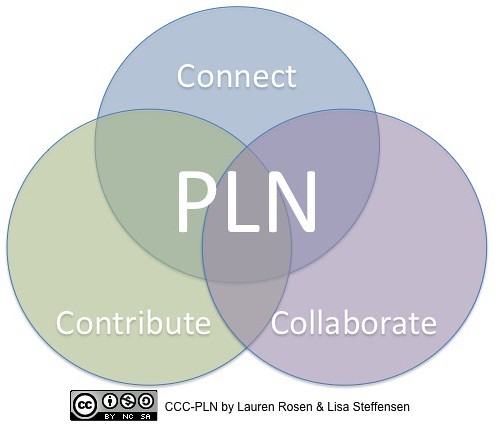
The emphasis I placed on the end of the course was for them to build their Professional Learning Community.  Finding the resources to help students starts with building a Professional Learning Community.  There are tons of resources out there and it can be daunting.  My solution is to put social media to work!  Here are a few places on Social Media to start:


There are other tools you can use to gather your newly found resources in one place so they are easier to digest.  Some of these tools, I have shared in previous articles, while others are new.  I hope you find them useful:  


  • ScoopIt! - This tool lets you choose topics and websites so you can digest all those articles out there on the topics you are interested in.
  • Flipboard - Similar to ScoopIt, you can gather twitter feeds, facebook pages, magazine articles and websites into a magazine style resource so you can put all your interests in one place.
  • IFTTT - When sharing what you have found, you can use If This Then That (IFTTT) to put recipes together that make your life easier.  For instance, if you post a resource on YouTube, you can have IFTTT automatically let your fellow teachers know on Twitter.  If a new article pops up on twitter with the topic "iPad Tips", you can have an email sent to you.
  • Paper.li - turn your twitter feed into a paper that publishes daily, then have an email sent to you so you can read all your favorite resources like a newspaper.
Finally, if you've never used these resources before, here are a few websites dedicated to making the teaching profession better
  • Edutopia - The George Lucas Foundation has a vested interest in helping teachers learn and grow to help students.  Visit their site, or create a free account so you can keep up with trends in education.
  • Edudemic - This site provides resources for teachers and students with the goal of infusing technology into the classroom.  Check this article out on their site to start http://www.edudemic.com/great-edtech-twitter-chats/