Showing posts with label education. Show all posts

Sep 21, 2016

Tracking Student Progress and Attendance in Google Sheets

This week, a question to the Techy Coach asks how a coach or teacher might use Google Sheets to track student progress, as well as attendance.

From this I know that there are many times as educators that you want to log data regarding student performance.  Specifically you may want to track Reading Fluency or Cross Country/Run Times, while still having the ability to see a visual of their progress over time.  Google Sheets can help with this, as well as Attendance needs by using a few simple tools.  The video below will specifically cover:

  • Sparkline Charts
  • Data Validation
  • Conditional Formatting
Take a look and see how Google Sheets can help you with your club sponsor and coaching needs.  Design  your Google Sheet to fit your needs, then once you have your sheet setup, you can access it on a phone or tablet as you meet for practice or meetings.


Apr 3, 2016

How to Protect Information in a Google Sheet

Sometimes in Google Sheets, it is necessary to protect a range of cells, or even an entire sheet so that other users cannot edit them.  Likewise, you may have multiple users in the same sheet, and you may have the need to set permissions for cells that allow only certain users to edit.  An example may be a Sheet you are using for Collaboration, in which you want each student to have access to only one row.  Another example is when a Sheet is being used as a fillable form rather than using a Google Form, and you wish to protect headers, questions, and other data from end users, while still allowing them to enter information in empty cells.

To protect cells in a sheet:


  1. Highlight the Range of cells you wish protect
  2. Click on the Data Menu
  3. Select Protected Sheets and Ranges
  4. A menu will appear at the right of your sheet.
  5. Click Set Permissions
  6. Change "Only You" to Custom and enter the account of the user you'd like to restrict to these cells.


To protect an entire sheet:
  1. Click on the dropdown menu in the Tab of the Sheet you want to protect.
  2. Choose Protect Sheet
  3. A menu will appear at the right of your sheet.
  4. Click Set Permissions
  5. Change "Only You" to Custom and enter the account of the user you'd like to restrict to this sheet.

Both of these functions come in very handy.  There have been several times when I have used a Google Sheet as a group activity in which I wanted students to answer questions that we could all view and discuss as they were being answered.  But because some students like to "mess" with other's cells, it was necessary to protect that information and allow only the user of that row or cell access.  

Hope this helps!

Jan 14, 2016

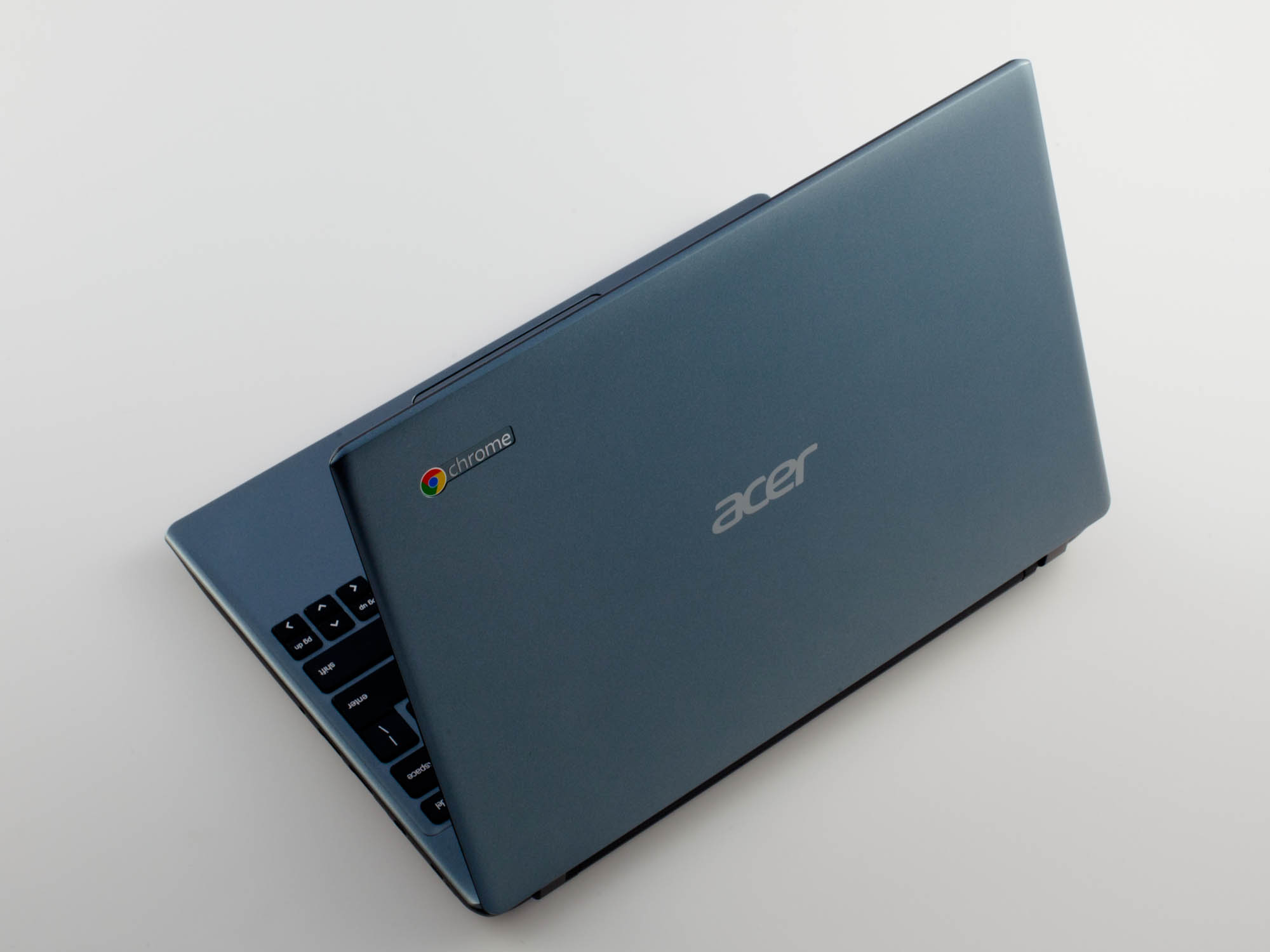
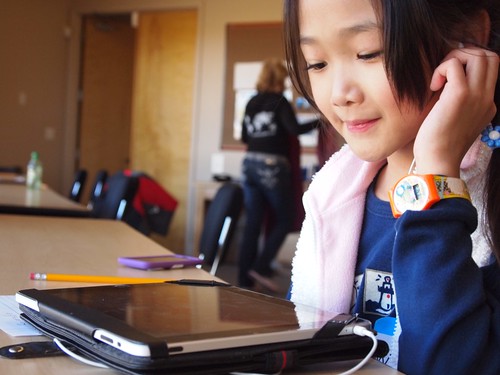
Schools and Mobile Devices - iPads, Computers or Chromebooks...Oh My!


Recently a question was submitted to the Techy Coach site asking about the use of mobile devices in the classroom.  The question specifically asks:


"Would you recommend a school that is mostly on an Apple platform to add Chromebooks to its mix...we are looking at Chromebooks because of their price and to meet the  increased enrollment demands.  More specifically, would you recommend Chromebooks for 4th-5th grade?"
In the world of 1:1 computing, I don't really feel that there is one exact fit for schools regarding mobile devices.  Different devices serve different needs, and I believe that schools need to be flexible in their choices when creating a learning environment to foster 21st century computing skills.  Flexibility, in this case, means that schools need to understand that while workhorse devices such as PCs and Macs offer the ability to install programs such as Microsoft Office, Adobe Creative Suite, and others, mobile devices such as Chromebooks and iPads offer the ability to mimic many tools with smaller apps that consume fewer resources, storage space, and are often free.  And while schools may be willing to sacrifice larger programs for price and more accessible (free) tools, they will ultimately find that they still need those big box programs.  So in answering this question, I'll fill in gaps by explaining what our district has done to work towards a solution.  


The Beginning of Mobile Access
About 6 years ago, our district started purchasing iPad carts to place in each building.  The drive was to provide classrooms with access to the web for research, as well as rich video content and access to apps for drill and practice.  The initial push was in the elementary schools, with middle school and high school to follow.  While iPads provided a great deal of flexibility with free apps and instant access to the web, the cost was smaller than placing PCs and Macs in classrooms, and they took up less space.  

Eventually, every building had at least one cart, while others had multiple carts that were used as checkout labs on an as needed basis.  This lessened the competition for computer labs and library access, and allowed more teachers/classrooms to conduct research and connect with the web.


1:1 Budget Concerns
Our district is a medium sized district for our state, but it is not by any means a "rich" district.  By this I mean, we face some of the same budget restraints that smaller schools face.  As a result, we began to slow down on the purchase of iPads and started to take a hard look at our budget, while discussing the need to provide access to all students.  We knew we could not afford to place a device in the hands of every student, so the question was, how could we provide access for all and still remain within our budget.  

Google Apps for Education had been around for a while, and our district had been exploring the opportunity to become a GAFE school.  I used this as an opportunity to discuss the cost savings of Chromebooks.   While the carts for Chromebooks tended to be about the same in cost as iPad carts, the devices were around $100 to $200 cheaper.  Once you multiply that cost by 30-35 devices per cart, the costs savings is great.  The question some had was whether the Chromebooks would be as sturdy as an iPad.  But the initial cost and the addition of a keyboard (add about $99 to $150 to an iPad for keyboards) and Chromebooks were the obvious choice.  

We began the process of purchasing Chromebook carts with our technology budget, and placed one cart in each ELA classroom, from 6th grade up.  This meant that every student in grades 6-12 would have access to a mobile device at some point, every day.  We also decided that for future purposes, iPads would be pushed down to the Elementary Schools as they seemed more suitable for the needs of K-5 students.  We then shifted our computer rotation cycle so that instead of PCs, libraries would receive a Chromebook cart instead, which allowed us to save money within our budget.  This meant that the only PCs we had in our building were in Career Tech classes, which needed a device capable of running Microsoft Office and Adobe Creative Suite, and in checkout computer labs.   As we did so, we started to hear more and more from our elementary teachers, stating that they would also like to have access to Chromebooks.  


Suitability Across the District
What we have found is that while iPads were a great addition to our district, we have grown to like our Chromebooks more every day.  Here are some of the benefits we have found in using Chromebooks:


  • The Chrome Web Store provides access to a wide range of free apps, including all Google Apps.
  • The added functionality of a keyboard means that our students are practicing keyboarding skills while accessing apps and information on the web.  
  • Google Apps, admittedly, is much easier to access and use on a Chromebook than on an iPad.
  • The IT department has found that managing Chromebooks is much easier.  After the initial setup, devices can be managed remotely from a computer.  (iPad management requires hands on operation for updating and managing).
  • Chromebooks allow any user to login and use them without worrying about account security once they log off.
We have not found that our elementary students have any more difficulty using Chromebooks than our secondary students, meaning that 4th -5th grade students can use them just fine.  In fact, using Chromebooks more closely mimic the experience students encounter when at a computer workstation, especially since most students use them for web research.  The suite of apps in Google Drive also creates an experience similar to what students would experience when using most other programs such as Word, PPT, Excel, Pages, Keynote and Numbers.   


What Should You Do?
If you currently use Macs or iPads, or if you are thinking of adding Chromebooks to the mix in your district, I would suggest you strongly consider a few of the points below:

  • What will the primary use of devices be? 
  • What will students access? 
  • Will devices be used primarily for access to web services, or specific programs?
  • What apps do you currently use? Check for availability of apps in the Chrome Web Store.
In addition to answering these questions, you will also need to consider infrastructure needs (WiFi, Bandwidth) and Student Access.  If you are seriously considering Chromebooks, you'll want to start by exploring the possibilities that Google Apps for Education can offer.  Once we did so, we found that universal access to Google Apps for all teachers and students meant that we could work and communicate more easily through Gmail, Google Drive and Google Classroom.  And finally, any district considering the addition of any device to their curriculum will want to make sure that they consider Teacher Buy-In.  After all, if you don't have buy in from your teachers, it could make or break your implementation plan.  To do this, we provided extensive in house training to our teachers in the Spring and Summer prior to implementation, and throughout the school year.  If you need help in providing training,  I have tutorials available, you can find trainers online, or your can train your own teachers here.


Good Luck and if you have questions, please post them here!


Aug 29, 2014

Resources Every Teacher Needs to Know About...

One of the biggest complaints I hear from teachers is that they just don't have enough time in the day to grade papers, commit to extra duties, attend workshops, or search the web for professional learning opportunities.  And I have to say that I agree - it is very hard to fit all of that into a busy schedule.  But one big things that has helped me  this year, is that our school district has joined SimpleK12.  

In terms of professional growth, it takes a great deal of time and many don't have that time, but the question that keeps nagging is whether or not you want to...

* Learn about the latest technologies helping other teachers excel?
* Join discussions with other educators about implementing new standards? 
* Stay in tune with what matters most in today's schools?
* Feel up-to-speed on the "latest and greatest" strategies and tools? 

All these questions are important to our roles as teachers.  Finding all of these things is a huge task, and SImpleK12 makes it a little easier by putting it all in one community.

If you answered YES to any of the above, join me inside the hottest education resource: SimpleK12’s Teacher Learning Community.

==> Create a FREE Basic Membership Today.
http://community.simplek12.com/scripts/student/courses/view.asp?lid=1003116


SimpleK12, the leading provider of 21st century teacher professional development, brings the fun, energy, and excitement back into learning.

200,000+ educators from around the world have access to SimpleK12's PD resources, information, and training ... and you can too!

Take learning into your own hands and explore the fastest-growing social network and Professional Development community for educators...

==> Create a FREE Basic Membership.
http://community.simplek12.com/scripts/student/courses/view.asp?lid=1003116


I look forward to seeing you inside the Community!

Jun 26, 2012

No boundaries: Using iPads to reach English Language Learners

Tis afternoon I attended a session by Lisa Estrada, Program Coordinator, and Heather Parris-Fitzpatrick, Program Specialist with Nassau, BOCES. The discussion focused on the use of iPads for ESL students.

http://esltechies.com

Essential questions:

--How can educational apps strengthen and support critical thinking?
--How can digital media remove boundaries and promote achievement for ELLs?
--How can distance learning expand horizons for All students?

To answer these questions, the presenters stress their love of the iPad because it provides multimedia support, accessibility, portability, multiple modalities for learning, and that the device addresses all language skills.

iBooks was a key component of their program as they feel that it promotes critical thinking through its features:

Bookmarking
Highlighting
Note-taking
Dictionary
Search
Google and Wikipedia access

For designing curriculum for ELL and ESL students, presenters suggested resources which can be found in iTunes U. This iPad/iPod/iPhone resource provides a wealth of ESL/ELL material in the form of podcasts and vodcasts which can be downloaded as full courseware for free.


The focus of the session focused heavily on iBooks, but I must point out what some of the attendees brought up. The accessibility features of the keyboard allow users to type in their native language. As well, the standard keyboard will allow you to add special characters to your documents by pressing and holding any letter


The presenters also pointed out that critical thinking can be enhanced through use of apps such as:

ebook readers
Graphic organizers
Translators
Test prep
Subject specific apps

A list of suggestions is found on their site: http://esltechies.com


They also are big fans of one of my favorite apps, Explain Everything!.

Tis app can be used to record audio, screenshots, and screencasts along with notes, edits, and graphics. Once your video explanation is complete, it can be uploaded to the web for student viewing. This app is one of my favorites (said that already) and one I'll be covering in our Flipping the Classroom class in July!


Other apps they recommend include:

Notability - allows students to take finger written notes, or audio notes.

Photo card - allows students to write on a photo. Great for creating postcards, or even flash cards.

iTranslate - free app.

Polycom- app that allows you to connect from iPad to anyone with polycom video conferencing system.

Popplet- good For creating concept maps and charts.

For more information and tips on teaching ESL/ELL students using technology, visit http://ESLTechies.com


- Posted using BlogPress from my iPad

Location:ISTE 2012, San Diego

Jun 25, 2012

There's an App For That #ISTE12

Attended a forum for the ISTE Special Interest Group on Mobile Learning (SIGML). Presenters promoted use of the following website, which provides a resource list of apps for most any mobile platform (blackberry, iOS, android) and any age level (pre-k to PhD).
http://www.tbrmobile.org
Many apps were presented, but discussion shifted very early on to the fact that we as teachers need to speak up and tell the publishers what content, interactive, video, etc, we would like to see in the educational apps we use. Results will happen if you ask.
A few of the super cool apps presented:
Frog Dissection by Emantras
Al Gore: Our Choice
Splashtop Presenter
Verbally - provides words and phrases and speaks them aloud for special needs kids.
News in Slow Spanish -actually a podcast - provides news commentary in Spanish -can be played at slower rate for Spanish learners. Available on iTunes.
Art Rage - painting tool for the iPad. Use a stylus!
Dropbox - cant stress enough how great this file storage app is! I use it myself. Access files anywhere.
Kobo - free books
Wattpad - free original stories
Skitch - Annotate over anything.
Puppet Pals - make your own Puppet play using characters and backdrops provided. Play back on iPad. Great for building creativity.
Check them out. The level of interactive content and productivity is wonderful.
- Posted using BlogPress from my iPad

Location:ISTE 2012 San Diego, CA

Apps with Aptitude

Cathie Loesing, Program Coordinator with the eMints National Center, presented a session this morning on the use of iPads in the K-2 classroom. She stresses that when using iPads and selecting apps for lessons that teachers should focus on the following:
Apps should promote higher level thinking
Lessons should prompt community based learning
Stress inquiry based learning
She discussed many of her favorite apps, but rather than have me pick and choose, I though I would post a link to her site so you could see the apps for yourself. She lists many paid and free apps. Enjoy!
http://appswithaptitude.weebly.com/
- Posted using BlogPress from my iPad

Location:ISTE 2012

Jun 12, 2012

ISTE 2012

The ISTE 2012 Conference is coming up on June 24-27th. This year's conference is in San Diego, CA. A few of us from our district will be attending. It is my hope and my goal to submit a few posts on this blog about what we see there. This year, there is a great deal of discussion regarding iPads, BYOD, Flipping, and Virtual Learning. I know there will be a lot to see and experience, so I'll try to share as much as possible.
The past few years have been interesting as technology has taken a greater presence in education. Where in years past, the ability to use technology in the classroom greatly hinged on budgets, there are now more free options and WiFi in schools has given teachers the ability to serve students more as they bring their own devices to the classroom. This year's ISTE workshops and topics will help to answer many of the questions I have about this and other issues regarding technology and education.
If you are interested in seeing what all the buzz is about, here is a link to the ISTE website.

iOS 6 for iPhone and iPad


Recently Apple released information at the Worldwide Developers Conference 2012, that it would be updating its iOS to version 6 in the Fall.  A few of the updates include tweaks to Siri, Maps, Facebook Integration, Safari, Phone, Email and FaceTime.  But the greatest update in terms of the field of education is Guided Access.


Guided Access will focus on schools who use iPads in the classroom and for high stakes testing.  This feature will allow teachers and administrators to limit use on the iPad to one app.  This setting ensures that students will remain on the task at hand, rather than venture into other territories when they should be focused on one app.  This works by disabling the Home button during app use. 

In addition to this, VoiceOver will be fully integrated into other areas such as Maps, Assistive Touch, and Zoom, which will allow visually impaired students greater access to content. 

This change in the iOS is huge in terms of helping teachers utilize iPads as an instrument of testing and review, as students are wholly focused on the content, rather than having the ability to wander off in other areas that would tempt them to use other resources to answer questions at a time when their knowledge of content is being tested.  As well, the other accessibility tools make this update more useful to special education students who require additional assistance when using computing devices. 

How does this change in the iOS affect you?  What are your thoughts on this change?  What other changes would you like to see Apple make in the iOS to benefit educators?  Add your thoughts in a reply to this post!

Feb 28, 2012

More Tips for Flipping the Classroom

This morning as we continued to discuss Flipping the Classroom, a fellow teacher and I shared ideas on making the transition to the Flipped Classroom a little easier. As students probably love the idea of watching instructional videos for homework, over the standard drill and practice of working problems and answer questions on a worksheet, there will still be those who may need some period of adjustment. With that, here are a few tips on making that transition.

Breaking the instructional videos into small enough chunks so that they can digest the information helps quite a bit with attention span. You have to remember that they will be doing this on their phone, or home computer. With that, there will be distractions. As you develop your videos, you might spend about 10 minutes of instruction on new material followed by examples and real world applications. Videos should be anywhere from 15-30 minutes. After that, it becomes too much for them to consume in one setting. The next day, follow up with hands-on practice activities.


One problem you may encounter is that there will be a few holdouts during the first week that will not remember to go home and view your videos. To prevent this, spend the first two days showing them where the videos are on the web possibly viewing the first one in class to reinforce that this is their homework. Then keep the following in mind:

  • Try to minimize their excuses by making the material easy to retrieve (no difficult logins, web addresses, etc...).
  • For students that have a phone (android or iphone), show them how to make an icon on their device that links them directly to your website. This keeps them from making excuses if its right on their phone.
  • After the video, give them a preview of what they will cover in class the next day - linking the video with the in-class assignment.

Happy Flipping!

Feb 27, 2012

Flipping the Classroom...continued

I have posted a few articles regarding Flipping the Classroom in the past, but recently a colleague and I were talking about it again.  It seems that when I mention the idea of flipping, most teachers express little interest.  Not until now have I spoken with someone that wanted to try it. 

For those of you that have never heard of it, flipping the classroom is a bit of a departure from traditional teaching methods.  The way most of us learned in the classroom (and still teach), instruction is given in the classroom and then homework is assigned for, well...home.  With flipping the classroom, teachers have found that if they make "homework" about instruction and set aside classroom time for hands on practice, labs, and drill activities, students benefit more, because they get more one on one time with the teacher.  As well, they benefit from more group oriented tasks, such as collaborative projects and labs. 

How do you do instruction as "homework"?  The answer is to record instructional lectures as video and to post them online, either on YouTube, Vimeo, or a teacher created website.  As we spoke about the process, we got into the discussion of what would be needed.  Here are a few resources:

Video Production:

  • CamStudio - http://camstudio.org/ - free resource similar to Camtasia.  This resource allows you to capture screencasts.
  • Moviemaker - Available on Windows XP - if you like to record your videos the old way, use a video camera and upload your videos to your computer.  Then use Camtasia for editing.
  • Explain Everything - iPad App ($2.99) - Explain and record from your ipad, then upload to web.

After production, upload your videos to YouTube, Vimeo or your own website.   Try these links for creating your own Teacher Website:


These are just a few links to create a website.  There are tons of others available on the web.  Just be aware of your ability to upload different file types and be aware of pricing. 

Once you have created your videos, students can view them at night for homework.  What I would have given to have told my parents that my homework was to watch videos.  The big hook is that you have to make sure your students have access to the internet and the videos you are putting out on the web are available in a format they can view.  If students are viewing them on a mobile device, remember that Apple products cannot view Flash, so you might think about using a QuickTime or MP4 Format. 

The great thing about making this switch is that once your students have done their homework and watched your videos, they come to class ready to do hands-on practice.  If you're just not sure about it, here are a few articles on the process and successes different teachers have had with it:


The Daily Riff - http://www.thedailyriff.com/articles/how-the-flipped-classroom-is-radically-transforming-learning-536.php

The Chronicle of Higher Education - http://chronicle.com/article/How-Flipping-the-Classroom/130857/

Salman Khan on flipping the Classroom - http://www.ted.com/talks/salman_khan_let_s_use_video_to_reinvent_education.html


The Flipped Classroom

Aug 14, 2011

Resources for Innovation and Technology in Education

Through my experiences this summer, I have learned a great deal about disruptive innovation and technology in education. The sweeping changes that have occurred in technology over the past 5 years alone have had a profound effect on how we all learn; teachers and students alike. In the next few years, I will be helping to shape the face of online learning in my school district. During that time, I am sure I will see many changes as we get our feet wet, learning what works best and what does not. But in the next five years, I would like to see our program grow to provide a high school education in an online format by providing assignments and instruction from teachers within our own learning management system such as Moodle.

Currently, our school services students who are considered fully online and work from home, students who attend face to face classes during the day, as well as online, and those who make up credits in a virtual lab. The most important innovation I see that would benefit our program is the use of handheld tablets like the iPad or Android tablets. This would require the use of a Wi-Fi signal in our school, as well as funds to purchase the tablets. But once this is complete, this will allow students to interact with the online curriculum, as well as learning labs setup throughout the school.

The consensus of many IT departments in public schools has been to react to the change in technology education by trying to keep up with infrastructure and cost. To make our school more proactive, I think a move toward a wireless environment would allow students and teachers to bring their own devices to the learning environment. This would free many resources, both fiscal and physical, and apply them to curriculum design.

Knowing that change never stops and that we all, as educators, need to look every forward into what changes will come, I am providing a list reading of resources that I plan to read over the course of this year. This list is for me so I can be ready for the effects that innovation and technology will have on education and for all of those who are interested in keeping pace with technology and education. A few of these resources address the concept of technology and infrastructure resources. Others focus on best practices and use of technology in the classroom.

  •  Christensen, C.M. & Eyring, H. (2011). The innovative university: Changing the dna of higher education from the inside out. San Francisco, CA: Jossey-Bass.
The first stop on my list is The Innovative University: Changing the DNA of Higher Education from the Inside Out by Clayton Christensen and Henry Eyring. This book takes a look at the concept of disruptive innovation and relates it to Higher Education. Higher education has stayed basically the same over the past century, and has showed little evolution, because it has not been required to compete on a grand level with other entities. As more options for online degree programs have come into the marketplace, colleges and universities, the incumbent product, are now faced with dealing with a new innovation of sorts. This book will apply the concepts of innovation to the brick and mortar institutions of higher education and provides examples for creating change in the face of disruption. As an adjunct instructor, I find this concept interesting because I teach online for a local community college. The approach this book gives will be insightful, having already read Disrupting Class by Christensen, Horn, and Johnson.

  •  Means, B., Penuel, W.R., & Padilla, C. (2001). The connected school: Technology and learning in high school. San Francisco, CA: Jossey-Bass.
Since I also make my living as a high school teacher, I picked The Connected School because it covers a topic that we are entrenched in every day: how to provide an education and still provide students the 21st century technology skills they need. Although this title is a bit older, high schools still face a great deal of resistance regarding cost and infrastructure in providing computer access. This book discusses the role of technology and computers in student’s lives as well as how to find the right technology to fit student needs.


Retrieved from http://www.realeducation4al.com/
Other resources in my reading list include the books below as well as a list of blogs and websites I want to read or read on a regular basis:

Books

• Kelly, F.S., McCain, T., & Jukes, I. (2009). Teaching the digital generation: No more cookie cutter high schools. Ontario, Canada: Corwin Press.

• Collins, A. and Halverson, R. (2009). Rethinking education in the age of technology: The digital revolution and schooling in america. New York, NY: Teachers College Press.

Website/Blog Articles

• Wright, L. (2011, August 2). Adaptive learning technologies are the future of education. Retrieved from http://educationinnovation.typepad.com/

• Educational Technology. Retrieved from http://people.uis.edu/rschr1/et/

• Educational Technology Guy. Retrieved from http://educationaltechnologyguy.blogspot.com/

• Technology Integration in Education. Retrieved from http://www.edutopia.org/technology-integration

• The Innovative Educator. Retrieved from http://theinnovativeeducator.blogspot.com/

• Dreams of Education. Retrieved from http://dreamsofeducation.wordpress.com/

• iLearn Technology. Retrieved from http://ilearntechnology.com/

Jul 12, 2011

Video Games as Innovative Teaching

One of the topics discussed by Clayton Christensen in his book, Disrupting Class:  How Disruptive Innovation Will Change the Way the World Learns (2011), focuses on the use of video games in the classroom (p. 220).  This struck a chord with me, because prior to my position as Sand Springs Virtual Academy Director, I worked as a professional development trainer for teachers.  One of the classes I created in this position focused on the use of video games as a learning tool in the classroom.  Teachers have been using the Wii console as a learning tool in various forms for the past 5 to 6 years.  The class focused on the use of the Wii, but actually led to a greater discussion of online games, computer based games, and video games as training tools in business.   My research led me to read a few books that teachers might find interesting: 


More recently, I ran across this post on the website, Good Education (http://www.good.is/).  It discusses how a teacher is using Angry Birds to teach Physics, and documenting his progress and methods every step of the way. 

From:  http://www.good.is/post/atlanta-teacher-uses-angry-birds-for-physics-lessons/


As I read through this article, I realized how when we play games like this one, we do a great deal of planning and hypothesizing on the fly without even knowing it.  If kids were to truly dissect a video game like angry birds and apply physics to the situation, it would open up a whole new level of understanding and enjoyment in the subject.

I knew that the use of video games in the classroom was a new trend, and a successful one at that, but I hadn't really thought of them as a form of disruptive innovation in teaching before.  Now I am paying more attention.  As I look at new teaching methods, I have a different view.  I tend to dissect them, compare them to older methods, and assess whether they are effective.  Guess you really can teach an old dog new tricks.  And I guess as old dogs, we need to keep looking for new tricks.

Reference:

Christensen, C.M., Horn, M.B., & Johnson, C.W. (2011). Disrupting class: How innovation will change the way the world learns. New York: McGraw Hill.