Showing posts with label differentiated instruction. Show all posts

May 4, 2016

Any Questions? You Can Do That in Slides!

Today, Google Slides released an update that allows presenters to accept questions from the audience during a slide show.  This is such a huge bonus in terms of helping students feel comfortable asking questions.  If you have students that are a bit shy about raising their hand in class, they can still participate. 

This update will appear right away for Rapid Release users, and very soon for Scheduled Release GAFE users.  To see a preview of how it works, view this video from Google.

To use Presenter View:

  1. Open your Google Slides presentation
  2. Click the Dropdown menu next to the Present Button
  3. Choose Presenter View
  4. Choose Audience Tools and Click Start New
  5. Share your link to your audience. (Comments in Sharing settings must be enabled to allow users to ask questions)

There is also a Laser Pointer option available when you are in presentation mode.  Once you present your slideshow, you can select Laser Pointer from the floating toolbar and your mouse becomes a Laser Pointer!  Very cool!


Mar 8, 2016

Publish Your Docs for Use on eReaders

So how many teachers out there would like to publish their lessons or documents so that students could read them on their mobile device just like a book?  I'm thinking quite a few!  If that is the case with you, Google just took the guesswork out of publishing for you.

Today's Google Apps Update allows Google Docs users to publish docs as an ePub file format.  What does this mean?  ePub files (short for electronic publication) are an e-book file format (*.epub) that can be read on apps such as Play Books (Google), Kindle (amazon ereader), the iBooks app for iOS , and many others.  

For teachers, this a huge advantage, as they can develop classroom materials that students can download to their mobile device, tablet, or laptop for easier access.

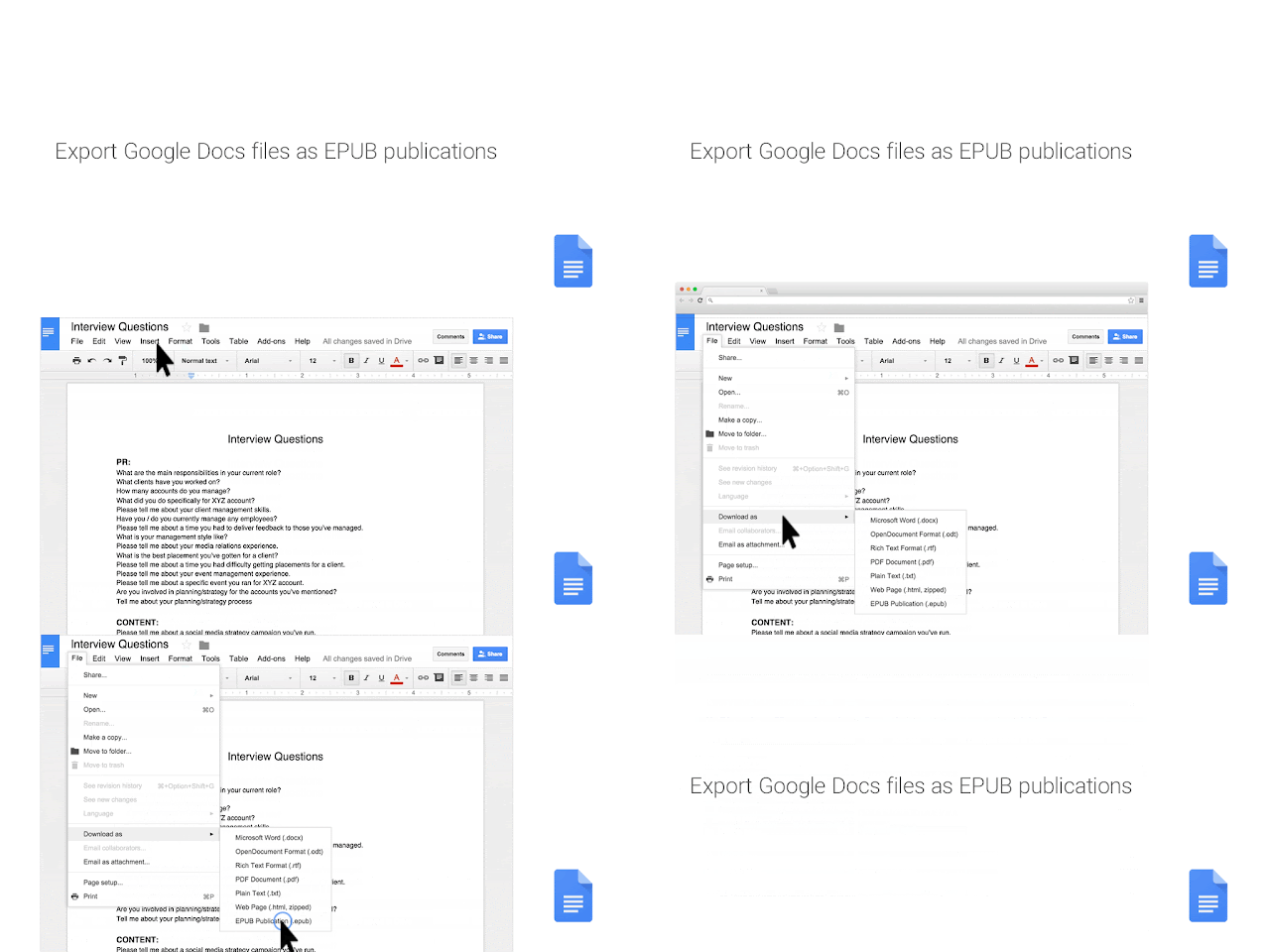
To take advantage of this feature, go to the file menu of Google Docs, choose Download As, and then select EPUB.  Your document will be downloaded as an epub file that you can then make available to students on your website.  


So for teachers that are looking to extend the walls of their classroom, the possibilities are endless.  You can make content available for kids such as packets, short publications, textbooks, or compilations of short stories.  While many districts are looking for ways to satisfy tighter budgets, this is a great time to look at developing your own textbook.  Just make sure you obey copyright laws!  

Dec 1, 2015

We've Gone Google!


This week, teachers in our district received their Teacher Login for Google Apps for Education.  When I teach classes on Google Drive and Google Apps, I often get skeptics who aren't sure why they would take the plunge.  Many just don't want to let go of the things they have traditionally relied on.  With that, here are a few reasons I give for the switch:

  • You can go paperless - Google Drive and Google Classroom let open up the possibility of pushing assignments out to students in the form of a link to a Google Doc, which students can copy and then fill in.  Then they can resubmit the lesson for grading.  Plus, inside Google Drive, you can comment on student work and share it back with them in real time, meaning they can receive feedback immediately - with no need to wait on papers to be passed back.

  • No more flash drives! - I used to carry around a small case that held all of my flash drives so I would always have my documents with me.  But with Google Drive, you can have all of your files with you as long as you have access to the internet.  That means on a computer, your phone, your tablet - anywhere!  But often people say, "what happens if the internet goes down?"  If you download Google Drive to your computer, your files are synced from the web to your computer - so you have a backup!

  • Publish your files to the web! - If you have presentations that you use in class or in meetings, you can publish your Google Slide presentation to the web or embed it on your Google Site.  Then any changes you make in the future will be available on your site and with others you have shared in real time.

  • Collaboration - By sharing a doc, you can work from anywhere at any time with others in real time.  

  • Put Google Drive to work for you - There are tons of Add Ons and Scripts that allow you to put Google to work for you. For instance, in our Virtual Academy program,  I have a form that I use for enrollment.  Our counselors fill the form to let me know what courses our online students need.  Once the counselor submits the form entry, a script called Autocrat automatically merges their selections with a document that is emailed to me!  


In an effort to help our teachers understand the world of possibilities this opens up to them, I am also publishing a few links I have found to be helpful with Google Apps and Google Drive.


For more tips and ideas from the web, follow me on our Google Educators of Oklahoma page on Facebook - Google Educators of Oklahoma


Jun 22, 2015

Google Sites vs. Google Classroom

Classroom vs. Site

This year, our district has made significant strides toward being a Google Apps for Education school district.  All of our faculty and students have their own Google Account and have been working to understand the benefits afforded by working in the cloud.

As we drew the year to a close we started Summer training for our English Language Arts teachers, as they would be receiving a Chromebook cart in each of their classrooms.  As part of that training, one of the questions that popped up was,  "Which is better? Google Sites or Google Classroom."

To answer that question, I've provided a few pieces of information for you (benefits of each), as well as a few videos to help newbies understand each tool:


Google Classroom

  • Teachers can assign students to their classroom.
  • Assign and grade work within the classroom.
  • Use the stream to post announcements or assignments
  • Link to Google Drive to assign work.
  • Add links to YouTube Videos
  • Add links to URLs
  • Allow students to post or comment (easy to disable)
Google Classroom


Discussion Forums using Google Classroom

Google Sites

  • Freedom to create the look and feel of a Teacher Webpage/Site
  • Add multiple pages
  • Link to Google Drive to add assignments
  • Create a File Cabinet to share files as a department
  • Create an Announcements Page to post thoughts and discussion topics
  • Embed any content you need (YouTube, Easel.ly, Etc...)
  • Add links to websites, etc....
  • Open site up for discussion boards
  • Embed a Google Calendar for a list of events
  • Have students create their own Google Site as a digital portfolio
  • Use a Google Site as a Wiki where students can work on group projects.  
Setting up a Google Site


Apr 9, 2015

Check for Understanding

Often it is difficult to get a grasp of student understanding when covering a new concept in class without having a one on one discussion with students.  But singling out each student to discuss concepts with them can take away from valuable class time.

One solution to this that I have used is to use a "Check for Understanding" checklist during Group Work.  To give you an example, I once taught a short lesson on Hydrocarbon Molecules.  As the students were working on a group activity, I wanted to check the understanding of each student so that I knew who was struggling and who had a firm grasp of the topic.  To do this, I created a sheet like the one below that I carried around on a clipboard:


Student Name: John Doe

Standard or Task
Rating of Student Understanding
1
Needs Improvement
2
3
Fair Understanding
4
5
Mastery of Concept
How many single bonds can be formed with a Carbon Atom?


What is the molecular formula for Methane?


What is an alkane?


What is a functional group?


What is a saturated compound?


As I moved around the room, I asked each student to explain or answer each question in the checklist.  As they answered, I would rate them on a scale of understanding of 1-5.  1 being a Needs Improvement rating and 5 being Mastery of Concept.


As I worked around the room, student groups could continue to work on the lab without interruption, but also with the knowledge that I was observing along the way.  When I finished, I collected all of the sheets and sorted them in terms of needs.  This allowed me to be more productive during class, while providing an informal assessment along the way.

As times change, so does technology, so I have created a digital form of this checklist using Google Forms.  


If you would like to use either of these, just use the links below:

Paper Checklist - click the link below to save a copy to your Google Drive account.


Google Forms Checklist - Open this file and then click File > Make a Copy to add a copy to your Google Drive account.


What Is STEM?

This question is not a new one.  It is one that has perplexed educators for quite some time.  Not in terms of the general concept of what it is - Science, Technology, Engineering, and Mathematics - but in terms of how to make it happen in a school setting.

Our district is in the midst of tackling this question now.  The greatest difficulty is getting the idea across that we are already doing a great many things in terms of STEM Integration now - and that we can also revisit things we have done in the past that were STEM oriented, but went by another name, such as Project Based Learning, or Inquiry Based Learning.

A couple of points to think about in terms of STEM Integration are:

  • STEM is Hands On, Not Lecture - If we truly want students to understand how STEM works, we need to give them experiences that help them understand how things work.  That means laboratory experiences, science experiments and projects, and the ability to create.  Instead of "telling" our kids all of the information (lectures), we need to help them figure it out for themselves, while providing guidance along the way.  
  • STEM is All About Connections - As educators, our curriculum across the board is compartmentalized.  We often leave our students thinking of the world in this way.  I can't tell you how many times I have had a students say, "This is science, why are we doing math?" My response to them is, "Math is Science and Science is Math!"  
    • Making connections means that we need to point out to students the connection between math concepts and general science principles when they naturally occur together.  
    • For instance, if in an environmental science class we are talking about Solar Energy and we discuss the increase in temperature over time of a room heated naturally by the sun, we can apply a linear regression model in graph form.  This is a great way to introduce the Slope Intercept Formula into science.
    • We also need to help students understand the connection between the science, math, and the technology tools we use to study and work with both subjects.
  • STEM has Cross Curricular Applications -  Students need to understand that, as much as these things (Science, Technology, Engineering, and Math) do not occur in isolation, there are applications in English and Social Studies as well.  
    • I had this discussion with our 9th Grade Principal today.  He brought up several of these points as we discussed how in English, teachers could teach grammar and writing through the use of Technical Writing, which has as much application as writing an essay on Shakespeare.
    • We also discussed Social Studies and the integration of interview, data, and photographs collected during a Crime Scene Investigation (applying math and science to crime).  The information gathered there could be used to create a mock trial in which students argued different sides of the law and rights of citizens as they applied to the crime scene.
  • STEM Needs to Start at an Early Age - In order for STEM to be successful in high school, it can't be a new concept thrust at kids once they enter the 9th grade.  Our 9th Grade Principal specifically talks about helping our elementary schools begin the process of STEM integration. The benefit of this is that students learn problem solving skills at an earlier age and that the level of engagement is much higher. 
  • STEM creates a level of Engagement that could possibly prevent future issues -  Now this idea is not something I have found proof to support, but it is my thought that if we can increase student engagement and build on skills they will use all their lives, as an educational system, we could drastically cut down on failing grades and dropout numbers.  
In studying the ideas behind STEM Integration, I ran across the following videos that may be helpful to our teachers and our district.  


Finally, as our district is trying to up the ante in terms of STEM Integration, I'd like to poll the readers of this article.  Please add your thoughts on STEM to this form...Thanks!


Responses to the Form:


Mar 25, 2015

Create Maps for Learning using Google Maps and Google Forms

The deeper you dig into the world of Google, the more you discover.  After attending several workshops on Google Apps, I ran across some information regarding Google Maps.  Using your gmail account,  you can go to http://maps.google.com/mymaps and you can create your own Maps that allow you to integrate data collected in a Google Forms Response Sheet or any Google Sheet.

Here are a few tips on how to use this in your classroom:


Jan 29, 2015

Learnin', Bloggin' and Makin' Videos

Recently, in the discussion board of my Differentiated Instruction class, we talked about different ways to teach students and ways for students to show understanding.  Much of the class focuses on student learning styles and as we talk about our own hangups in terms of learning.  

I run participants in the class through a discussion of what learning styles mean for students.  In doing so, we talk about how not all students are alike.  You will have some who are visual learners, others auditory, and some kinesthetic.  If you follow Gardner's train of thought, it can be more complex than that, but in either case, if you focus solely on an auditory means of teaching (standard lecture), you're going to lose more than half of your audience as your visual learners can't picture what you're saying and your kinesthetic learners - well let's just say they're itching to get out of their seat and out of the room!

To get teachers in the mode of understanding the impact, I have them take a Learning Style Quiz to see where they lie on the spectrum of learning.  Try these for yourself and your class:

After they take one or more quizzes to assess their style, I ask teachers to reflect on their own learning (what life was like in high school for them) and how they feel this impacts their teaching style.  As they do so, they start to see how some kids could easily be left behind (no that was not an NCLB reference) in the process of presenting content.  This quickly gets us onto the discussion of student work.  We discuss the use of  video content to present work in new ways that allow a bit of auditory and visual content. By creating your own content on video, you can flip your classroom and save time for other tasks such as projects and labs.  Take it one step further and get your kids to create content of their own -  a kinesthetic learners paradise!

Try these free and cheap tools to start creating your own content:


In order to know that your students understand what is being taught, you need to assess them.  Now don't get me wrong, I'm all in favor of a simple Multiple Choice test that can be auto-scored by a  computer, but let's face it - to gauge true understanding, kids need to show us.  So why not lend them a hand and let them collaborate!  Use the tools above to help them in creating content to show understanding.  Use a Rubric to grade the process.  

But sometimes, regardless of how content is presented, some students never understand on their own.  IF they stay within their silos, they soon become frustrated.  This is why collaboration is so important.   Collaboration is key in assisting with understanding, but also fostering creativity and generating new ideas.  By placing students into groups and stations, you can create an atmosphere that allows for true collaboration.  
  • Group work and stations - Get students to work toward assessing content, checking for mistakes, applying understanding by creating their own journals - but have them do it in groups that rotate through stations.  As students move through each station, they can work as a group to comment and correct material at each station.    When they move through stations as a group, they not only benefit from the work of their own group, but the ones who have rotated through the station before them, as they begin to dissect comments and corrections made by others.  
If you don't have the time, but you have the technology, have your students work in collaboration outside of the classroom in a Discussion Forum.  Discussion Forums are great for vetting new ideas, Q&A sessions, help with homework, or just simple project collaboration.  Here are a few resources to help you get started:

Discussion Boards:
  • Today's Meet - https://todaysmeet.com/ - If you'd like a simple backchannel style discussion thread that students can interact with in realtime, Today's Meet is a great free option.  You can setup a web link for them to access, and you can choose how long you want it to stay open.  You also have the ability to download a copy of the discussion to print.  
  • Piazza - https://piazza.com/ - Great for Q&A style discussion between instructor and students.
  • Google Classroom - Must be a Google Apps for Education district to use this http://www.alicekeeler.com/teachertech/2014/09/07/20-things-you-can-do-with-google-classroom/ - Use this tool to do a whole host of things, including the ability to comment and post questions.
  • Google Docs as a Discussion Tool - https://www.youtube.com/watch?v=Pn6ZQB6fuQM - Google Drive/Docs is a free tool, so why not use a Google Doc as a discussion tool.  Watch this video to learn tips!

Finally, there is no greater way to get kids to show understanding than writing.  Blogs can help.  If you want to call it journaling, you can call it that too, but in either case, the very act of writing gets students to hash out their ideas and thoughts.  Assign students activities that they have to blog about.  One great way to do this is to have kids create technical instructions.  Give them the task of explaining a concept such as math or scientific procedure in such a way that their English teacher can understand it - and do it on a blog or discussion forum.  This idea came from a workshop on literacy integration in our school.  Wonderful idea!
Blogs:
What does all of this have to do with learning styles?  That's where we started, right!  Well, as a kid, one of the things I always hated was taking tests.  And creating dioramas - don't even get me started.  I was the type of kid that would blow it on a test, but I could always write a great essay (that may not always be evident here).  I hated making dioramas or cell projects in science, but I could make a mean poster!  A student's learning style has a great deal to do with their strengths.  Some kids are very musical/rhythmic, so why not allow them to show understanding by writing a poem, song, or dance.  Others are very visual, so whay not allow them to use that to create visuals that teach others through use of a cartoon.  

Allowing students to play to their strengths seems very simple, but many teachers don't want the complexity of grading  a hundred different projects.  My answer is to go back to rubrics.  Design a simple rubric around the concepts/standards you want students to focus on in the lesson.  Then use those key points to grade their project - not on creativity or pieces such as number of slides in a powerpoint, but their ability to relay content in such a way that others can understand it!  

So what if you receive a myriad of different projects, in all sorts of media formats! Allowing students to use their creativity means they will have more fun with it and possibly learn something in the process.  Think about this - what are your most memorable projects from school?  Were they the ones that allowed you more freedom to create in your own way, or were they the ones that forced you to do the same thing everyone else did?  

Now go with that thought and teach your kids!


Oct 7, 2014

Technology Trends and the Implications for Teachers

This article is probably overdue, as we are already more than halfway through 2014. But as the school year is still fairly new, I thought it was worth addressing. As educators know already, the past five to ten years have created a sizable shift in technology, instruction, and the way students learn.  As we have moved from an era of flip phones to carrying around small computers in our pockets, it is clear now more than ever, that technology changes have given us the ability to teach in ways we have never been able to before.

The difficulty is that we are also thrust in an age of confusion.  There are so many new ways of integrating technology that the educational environment has become chaotic.  Which new technology should schools buy?  What trends do we listen to? Do teachers abandon old practice for something they are unfamiliar with only to find it doesn't work?

The key thing teachers and schools need to remember is that change should not be something that is rushed into.  We need to take advantage of the experience of others and the vast amount of research that has been done in terms of educational technology.  A big fear is that technology is replacing teachers.  Nothing could be further from the truth. Although technology has changed, students will still need teachers as a guide, facilitator, and purveyor of learning. Not all of our students are technologically savvy or are as advanced as others in terms of content. Rather, technology now affords us the ability to differentiate education in ways that allows us to cater to the needs of all learners.

All this being said, I am using this soap box to pass on a few key information sources that can be valuable to teachers and administrators:


  • New Media Consortium Horizon Report  - This yearly report defines up and coming trends in technology for the next 1-10 years and the impact those changes will have on teachers, teaching, and education.  Pay particular attention to page 6 covering teacher roles and page 32 covering important developments in technology for schools. 

  • Edutopia - Technology Integration - The George Lucas Foundation funds this website which focuses on providing best practices for educators. This specific link covers all articles on Technology Integration in the classroom.  Everything from Differentiated Instruction to The Flipped Classroom can be found here. 

  • Google Educators of Oklahoma - Facebook - this facebook page was set up for teachers in our district to stay apprised of new changes to Google Apps for Education as we make the shift to Google. It was expanded to the state to allow anyone to keep on top of Google updates. Articles are curated from many sites around the globe. 

  • Edudemic - This site provides articles covering many different topics in education, most of which are related to technology integration. 

  • Sandite Exchange - PLCs - this in district site was developed for our teachers to share and exchange ideas. The PLC page, still in its infancy, is growing as we add more resources. If prompted to login, choose login as a guest. 


Hopefully these resources help you and your fellow teachers in finding valuable resources regarding technology integration. As trends change, use these resources to stay on top of things.

Sep 28, 2014

Build Your PLC by Putting the Internet to Work For You


Recently while teaching an online class on Differentiated Instruction, I found that many of the teachers involved in the class had gotten the fire in them and were excited about finding resources and implementing DI in their classroom.  Rather than let them leave the class with no path to keep them going, I put together this list of resources the help them find what they needed.  

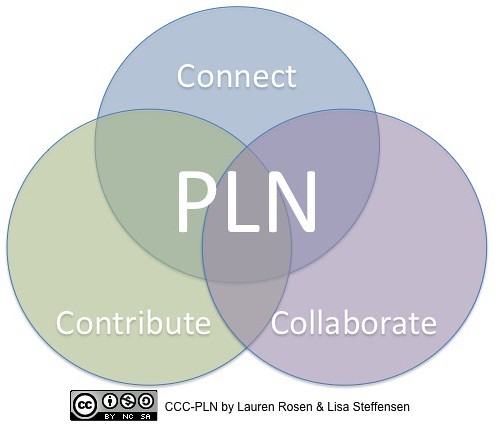
The emphasis I placed on the end of the course was for them to build their Professional Learning Community.  Finding the resources to help students starts with building a Professional Learning Community.  There are tons of resources out there and it can be daunting.  My solution is to put social media to work!  Here are a few places on Social Media to start:


There are other tools you can use to gather your newly found resources in one place so they are easier to digest.  Some of these tools, I have shared in previous articles, while others are new.  I hope you find them useful:  


  • ScoopIt! - This tool lets you choose topics and websites so you can digest all those articles out there on the topics you are interested in.
  • Flipboard - Similar to ScoopIt, you can gather twitter feeds, facebook pages, magazine articles and websites into a magazine style resource so you can put all your interests in one place.
  • IFTTT - When sharing what you have found, you can use If This Then That (IFTTT) to put recipes together that make your life easier.  For instance, if you post a resource on YouTube, you can have IFTTT automatically let your fellow teachers know on Twitter.  If a new article pops up on twitter with the topic "iPad Tips", you can have an email sent to you.
  • Paper.li - turn your twitter feed into a paper that publishes daily, then have an email sent to you so you can read all your favorite resources like a newspaper.
Finally, if you've never used these resources before, here are a few websites dedicated to making the teaching profession better
  • Edutopia - The George Lucas Foundation has a vested interest in helping teachers learn and grow to help students.  Visit their site, or create a free account so you can keep up with trends in education.
  • Edudemic - This site provides resources for teachers and students with the goal of infusing technology into the classroom.  Check this article out on their site to start http://www.edudemic.com/great-edtech-twitter-chats/

Dec 28, 2012

Updated Wiki for Educators

I recently took the time to update my Wiki for Education and Professional Development.  Several new topics have been added and old topics have been updated to repair links.  Check out the sections on iPads, Flipping the Classroom, and Common Core, and more.

Smart Tips for Smart Teachers

Aug 31, 2012

3 Misconceptions About Flipping the Classroom

This Summer I taught a class on the basic principles of flipping the classroom. We discussed many of the advantages, as well as tips for producing videos. 24 teachers signed up for the workshop prior to the end of the school year. Realistically I expected less than half to show up because it was scheduled for July and many would be unwilling to give up their vacation time. I was pleased when 18 showed up and was even more excited to see the enthusiasm they had for the topic.

As we worked through the class, there were teachers from all areas: language arts, science, math and even art and music. They were so full of questions that I wondered how many would follow through with the concept.

As the year started, I found that my son's art teacher, who had attended the class, had sent home a letter with a pass code for edmodo. In her letter she told us that her class would be a little different this year, as she would be flipping her classroom.

Another teacher who had attended the workshop had been flipping since last spring in his college course and had made plans to flip his high school math classes. He an I talk quite frequently and he had passed on a few stories of fellow faculty members who commented that flipping would never work.

From watching these two teachers I have found that there are definite rewards that come from flipping, as well as a few misconceptions.

Misconception #1: the kids won't watch!

One comment I have heard many times is that the kids aren't any more likely to watch the videos than they are to listen in class. On the contrary, kids seem very interested and intrigued by the idea of being able to watch and pause the videos so they can take notes on concepts they would normally miss in a fast paced lecture. Additionally, both our art teacher and math teacher state that parents are watching. Parents that came to back to school night said they were watching with their kids because they said it helps them help their kids.

Misconception #2: students won't work any harder in class.

In a conversation from today, our math teacher commented that in the past (pre-flip days) he would have many kids who never turned in homework (even if it was for a completion grade). Now after flipping, he says he has tons of grading to do over the labor day weekend. More kids are comprehending and since they have hands on time with peers and their teacher, they are producing more work.

Misconception #3: Grades won't improve.

When comparing the first week of quiz averages from last year to this year, our math teacher pointed out a marked improvement. Last year's quiz average for the first week was in the 60 range. This year his average is in the 90 range. Granted, this is a different batch
of students from last year, but this is a pre-calculus class covering some very abstract concepts. The sharp increase is something difficult to ignore.

With these three misconceptions, one has to understand that simply making videos and posting them didn't create the change. There is a great deal of dedication, teaching and practice involved in making the flipped classroom work. But the fruits of those labors are worth it in this Common Core world.


- Posted using BlogPress from my iPhone

Jul 9, 2012

If Students Loved Learning

This is a repost of an article I wrote over a year ago on The Eighth Floor Ning. I think it lends itself to the current discussion on Flipping the Classroom since it discusses a change in traditional classroom teaching. I was recently asked if kids are watching video lectures as homework, what do I do with them during the class period in the day other than the same homework they would have done at night. In terms of the math classroom, this is one answer. . .


If students loved learning, what would it look like? Think back to the days when you were a high school student. Think of the classroom moments you remember the most. Why do you remember them? Was it because they involved some spectacular word problems? Was it because you remember writing some awesome lab procedures? Probably not. The moments you remember the most probably involved a teacher that helped you understand concepts in a way that was meaningful to you, and it most likely didn't involve rote memorization or unrealistic examples to get a point across.

I've been thinking about what those moments really reveal about learning and finding out the answers on our own. Most of these internal conversations were started by an article about Dan Meyer in Ed Week. Dan Meyer is a math teacher at San Lorenzo Valley High School in California. He has developed a wonderful approach to get students interested and involved in math. If you've never heard of him, watch the video below, read the article from Ed Week, or check out his blog. If students loved learning, it would look like this...


Hopefully watching him at work doesn't turn your stomach as you think about changing your teaching style. Instead, I hope you feel empowered to make learning more interesting and fun for your students. As I have analyzed my teaching style over the past few years, I have come to the realization that I don't teach they way I learn. If I were teaching an audience made up of 30 of "me", then I think my approach would be drastically different. Here's a thought...if you as a student would be bored with you, think about what you would change. Think about it.

Jul 2, 2012

Nearpod - iPad Teacher App

@KleinErin tweeted about an app called Nearpod today. This app, available for FREE in Student and Teacher versions, allows a teacher to push a presentation from their iPad to a group of student ipads with the Nearpod app installed on them.


This is something I have been waiting for for a very long time; an app that would allow the ability to share, collaborate, and poll students across the iOS platform.


Best of all, there is nothing that you need to buy. As long as you have the iPads and a wifi connection, you can use this app. All the teacher needs to do is provide their students with an access PIN that allows them to view what the teacher is presenting.

The first time I logged in, I noticed there was a "store" button. I figured it would be full of paid presentations that they wanted you to buy. But so far, the store provides a pretty good mix of free presentations (NPP Format) for download.
I also noticed that there is no button to create your own presentations. But if you visit their website, you can upgrade to the Silver edition for free. This license allows you 200MB of storage. There is a School Site License that will be coming soon.

The only drawback to using this app is that once you upgrade to the Silver Edition, you can create your own presenations but to do so you must login to the Nearpod site; you do not have the ability to create them directly from the iPad app. However, this is a small obstacle to overcome. Once you login from your PC or Mac and create your NPP Presentations, they are stored on Nearpod's site (remember you get 200MB free). I don't know how long the free upgrade will last, so you might want to check it out as soon as possible.

- Posted using BlogPress from my iPad

Jun 30, 2012

Flipping in Time

Coming home from the ISTE national conference in San Diego, I found on our doorstep, a copy of Time Magazine for the week of July 9th. As I flipped through the latest I found the following article (http://www.time.com/time/magazine/article/0,9171,2118298,00.html) on Sal Khan called "Reboot the School". It seems that in reading the article, the idea of the flipped classroom has reached Time Magazine. However, as I read further, I found the usual story of how Salman Khan went from Hedge fund manager to online tutor/teacher. As I read further, I discovered what the magazine describes as the flipped classroom, but refers to it as Khan's Way.

Now I am a big fan of Khan, and while I am happy to see the idea of the flipped classroom reach such a wide audience, I was disappointed to see that other names such as Bergmann and Sams were left out of the discussion; or to also see that no mention was made of the success that is occurring in schools across the country where teachers have made their own videos through their own efforts.


While Khan Academy is a great solution for students who need additional help, and it provides a solution for teachers who are starting out on their own in a flipped model, nothing replaces the familiarity of a student being able to see and hear their own teacher in a video lesson as homework, and being able to relate the information back the next day in a hands on activity.

I would encourage anyone who reads this article and is interested in flipping the classroom to do the research. There are many examples of how flipping can be successful. I would also recommend that for teachers who are just starting out, Khan is a great starting point, but nothing can replace the teacher students are familiar with. So when you get the nerve and get over seeing or hearing yourself on video, start with a few simple tools such as Camtasia, Explain Everything, or Educreations, and make your own videos to begin flipping the classroom.

- Posted using BlogPress from my iPad

Jun 27, 2012

ISTE 2012: Pirates of the Class-I-Wanna-Be-In ~ The Journey to Paper's End

I loved this presentation! From the start, it was very entertaining. The presenter, Captain IO, was clad in pirate costume and brought on the full effect with an authentic pirate accent! Aargh!
The focus of this workshop was on the paperless classroom and use of mobile devices. He poses the idea that a trained "tech pirate" can find most anything:

Pull media
Pick out images
Snag shared fair-use resources
Collaborate with others
Acquire inspiration and creativity

If going paperless, Cap'n IO mentions that you have to get yer stuff from somewhere! Creating a site to put things out on the web was necessary. His choice was dreamweaver, weebly, and wix. Weebly and Wix provided a user friendly drag and drop interface for teachers who didn't feel savvy enough for dreamweaver.

He says you also need a means of assessment, content absorption, and expression. In other words, testin', learnin', and creatin'! The key is to go around the HMS Admin. that thar was a boat to avoid! Rough waters ahead he says (ya feelin' how cheeky this presentation was?).


His setup meant that he totally threw out all paper. And aside from his website, he had a teacher workstation, student owned devices, a projector, and a few other peripherals.

Keeping the attention of the kids was a problem, but he says it can be easy. What with all the activities, parent meetings, sports events,and tutoring sessions ( sound familiar), he had to keep their attention. But he needed machines. He had enough machines (rebuilt, borrowed, hijacked) to create a 2:1 ratio. Even though it wasn't 1:1 it wasn't bad. He even had a kid that brought in a PS3 because it had wifi and could get on the net. Anything to get them wired. And the techs didn't quite love it.
They complained about the hodge-podge of machines and the nightmare created by the mix. But no matter how old it was, once he reached the satisfaction of making it work, the key was it worked.


Turning in work came down to emailing assignments. Gmail was what he used. He had now entered Googledom. He had one gmail address, one site, per class.


For grading and assessment, he used Quia.com. He never had to grade homework, but he could track mastery and understanding of content.

"Thar still be big problems"

The desire would be to have a 1:1 environment, but sometimes that doesn't happen. And kids get lost and sucked in by the "Fracken" (Facebook) or other distractions. And when not all kids are working on the same device and same format, you get assignments turned in in so many formats (.doc, PDF, works, ppt, etc...) that it can be frustrating. Also, where do they take notes? How do you know the work is authentic? So rather than have them do all the work outside, it was done in class, by hand on paper; their own, not the schools. But by flipping it in this way, their understanding transformed.


But this wasn't paperless! He still depended on the kids to buy theme books for writing. Argh! There be no papers end!

"But thar be a place!"

A place called Tabletonia! They headed in to Tabletonia and found Everything he had created could be ported through one device with a battery that would last all day. But flash became a problem, as when he created his videos with Camtasia, they couldn't be viewed on iPads. But he found if when creating links, he linked to the video instead of the site, they indeed could be viewed on iPads!

As well, the iPad allowed students/teachers to record, edit, use special effects, create, and export items on one device. And rather than spend tons of dollars on graphing calculators, he used the $0.99 calculator on the app store.

Apps provided a way so that notes could be handwritten, PDF could be converted to word and back, comments could be written, and it was paperless! Try Notability. Notes can be created by hand and emailed from within the app. And in PDF format. Everything could be converted and handed in via the PDF format. You can also record. Great value.

If you want more about this great speaker go to http://templeeduneering.com/ISTE/x.html
Print out a poster of his material for your classroom.

- Posted using BlogPress from my iPad

ISTE 2012: Classroom Flipping - How We Did It

http://youwillflip.pbworks.com
This morning I am attending a workshop on flipping the classroom at ISTE 2012. Never hurts to get all the additional info you can. This morning's presenters are Rebecca Evans and Kate Kanach.
If you haven't heard of flipping the classroom, it's not actually a new concept, but it has taken on a life of its own in the past two years. I have posted several articles on it in the past. If you want to check them out, check the tags at the left.


Flipping the classroom entails changing your traditional lectures to a video format and posting them online as homework. Then face to face classroom time can be used to focus on hands on activities, practice, and guided instruction through inquiry. Think Salman Khan (Khan Academy) for homework, and homework as classwork. That's an extremely simplified view, but hopefully you get the picture.

Back to our presenters, one of the things they stressed in their presentation is that some statistics show that student test scores go up in the flipped model of instruction. They also point out that flipping encourages teamwork and 21st century skills, as students work in teams more frequently, and utilize more technology skills. The caveat to this, they say is that some teachers are Leary of this modl because they are no longer the center of attention. It does take you off center stage. But remember: it's not about you, it's about the kids.


If you check out their website, they have provided a wealth of articles and resources. They provide examples of how they have setup their classroom, and provide a sample unit so teachers can see and understand the flow of a flipped lesson. Something they have done, and what needs to be pointed out here is that the "homework" doesn't always have to be a video, it can be a Prezi, a PowerPoint, or other interactive content. They use Edmodo to post their lessons and questions.

When doing class in this manner, you have to realize that student projects will build interpersonal skills and will allow students more variety in the ways they produce work. As they do work, they will be there with you and they will have the benefit of your help. Likewise, you will benefit by being able to observe them at work.

The presenters also pointed out something I feel is important. It is not always necessary or proper to flip every lesson. But it will work with most things. Also, check out "Flip Your Classroom" from ISTE. This book provides a great deal of insight from flipping pioneers Bergmann & Sams.

- Posted using BlogPress from my iPad

Jun 26, 2012

No boundaries: Using iPads to reach English Language Learners

Tis afternoon I attended a session by Lisa Estrada, Program Coordinator, and Heather Parris-Fitzpatrick, Program Specialist with Nassau, BOCES. The discussion focused on the use of iPads for ESL students.

http://esltechies.com

Essential questions:

--How can educational apps strengthen and support critical thinking?
--How can digital media remove boundaries and promote achievement for ELLs?
--How can distance learning expand horizons for All students?

To answer these questions, the presenters stress their love of the iPad because it provides multimedia support, accessibility, portability, multiple modalities for learning, and that the device addresses all language skills.

iBooks was a key component of their program as they feel that it promotes critical thinking through its features:

Bookmarking
Highlighting
Note-taking
Dictionary
Search
Google and Wikipedia access

For designing curriculum for ELL and ESL students, presenters suggested resources which can be found in iTunes U. This iPad/iPod/iPhone resource provides a wealth of ESL/ELL material in the form of podcasts and vodcasts which can be downloaded as full courseware for free.


The focus of the session focused heavily on iBooks, but I must point out what some of the attendees brought up. The accessibility features of the keyboard allow users to type in their native language. As well, the standard keyboard will allow you to add special characters to your documents by pressing and holding any letter


The presenters also pointed out that critical thinking can be enhanced through use of apps such as:

ebook readers
Graphic organizers
Translators
Test prep
Subject specific apps

A list of suggestions is found on their site: http://esltechies.com


They also are big fans of one of my favorite apps, Explain Everything!.

Tis app can be used to record audio, screenshots, and screencasts along with notes, edits, and graphics. Once your video explanation is complete, it can be uploaded to the web for student viewing. This app is one of my favorites (said that already) and one I'll be covering in our Flipping the Classroom class in July!


Other apps they recommend include:

Notability - allows students to take finger written notes, or audio notes.

Photo card - allows students to write on a photo. Great for creating postcards, or even flash cards.

iTranslate - free app.

Polycom- app that allows you to connect from iPad to anyone with polycom video conferencing system.

Popplet- good For creating concept maps and charts.

For more information and tips on teaching ESL/ELL students using technology, visit http://ESLTechies.com


- Posted using BlogPress from my iPad

Location:ISTE 2012, San Diego

#ISTE12 Technology Tools and Differentiation

How do you use graphics, photos, etc...to draw interest and bring together an idea? This morning I attended a presentation on Dynamic Differentiation & Digital Age Learning by Annette Lamb in which she answered that question. Using technology, we can address the differences in our students. Technology can help us focus on the needs of groups in our classrooms. Technology can help achieve readiness, develop interests, and provide choice. Technology can do this by adding visuals, auditory components, and writing.

For instance, if a child has problems in an area such as writing or typing, an iPad can help a child as it provides a way to record and transcribe thoughts. But as well, technology can help students relay ideas or understand content through rich visual content which can attract student interest.
Create a bridge between media by connecting a reader to video or online content related to a book they are reading.

The example Annette uses is that Graeme Base, author of The Jewel Fish of Karnak has recorded youtube video commentary on his book. The online content creates an extension which can't drive student interest. Weaving these experiences and extensions together can become important.


But not all media are this rich in related content. As a result, we as educators need to work together to share resources or seek out those who have connections to content online. If something isn't available, build it yourself!
One way to turn kids on to reading is to use google as a starting point. Have a child search for a book, and read a synopsis or first few pages of a book before going to the library to check it out.

To generate interest in global topics, use the web to do a search on videos, visuals, etc... For example, on a discussion of Egypt, have them refer to sites suggested by Google to help them understand that Egypt is a real place and find out what it looks like.


Use fun tools to help them conduct their search:

-Student made tools, maps, books, artwork can be overplayed over existing content to draw a comparison. Have kids make their own map of Egypt and compare it to the real thing on google maps.

-iPad apps can help immerse students in new content. D a search for apps related to your subject.

- do a search for student work created by others and have student's critique their work for accuracy and understanding.

-put together resources using keynote or PowerPoint, Glogster, or some other web based tool.

With almost anything, you can generate student interest just by searching out supplemental videos, websites, and tools on the web. With the results you get, you can create an extension activity that enriches student understanding and interest.

As she discussed these topics, I was reminded how Apple has led us down this very path by generating iBooks textbooks that create visuals that jump off the page or provide interactive activities that go deeper into topics that normally would just lay on the page in print media. Today, she says, we have reached "a different way of thinking" and learning.
But in relating these thoughts she stresses that it is important that kids learn to generate their own content. After all, we do learn best by doing! There are a wealth of tools available to us now, especially for free, that can be utilized to generate our own content. Organizers, cameras, video tools, aggregators - all sorts of web 2.0 tools and tools on handheld devices - have given us the ability to create! Many kids have iPods of their own, or phones that carry these tools. We need to make use of these tools.

As she continues, Annette also stresses that we need to give students choice. I have been saying this for years. We need to let them choose how they analyze content, how they create content. Students don't always want to use the methods prescribed by us. They have strengths of their own; they have interests that can be used to create authentic works.

Every year, we as educators spend an inordinate amount of time learning and discussing new apps and tools that we can use. We need to apply those tools to projects in the classroom. This leads to the discussion of producing 1:1 tools such as tablets and computers. Student learning can be greatly amplified by integrating technology and allowing students to use these tools. Why do we continue to use technology behind the desk as a teacher, but expect kids to do the same old dry activities and projects? It's time to bring those tools to the other side of the desk.

- Posted using BlogPress from my iPad

Jun 25, 2012

Apps with Aptitude

Cathie Loesing, Program Coordinator with the eMints National Center, presented a session this morning on the use of iPads in the K-2 classroom. She stresses that when using iPads and selecting apps for lessons that teachers should focus on the following:
Apps should promote higher level thinking
Lessons should prompt community based learning
Stress inquiry based learning
She discussed many of her favorite apps, but rather than have me pick and choose, I though I would post a link to her site so you could see the apps for yourself. She lists many paid and free apps. Enjoy!
http://appswithaptitude.weebly.com/
- Posted using BlogPress from my iPad

Location:ISTE 2012