Showing posts with label apps. Show all posts

May 23, 2016

Why Are You Still Using Bubble Sheets?

Today, I made a run down to our front office at school to find some office supplies.  While there, I ran across a large number of bubble sheets.  I asked the secretary in the office why there were so many.  She told me that there are a large number of teachers that use them.  I asked why, and she said, "tell me why you ask, because if we can avoid ordering them, they are expensive."  I then proceeded to tell her about all of the online options that teachers have for grading student assessments.  She was unaware that there were so many options.  So, as a result I decided to write this article, asking the question:

WHY ARE YOU STILL USING BUBBLE SHEETS?

Now, before we go down this path, I truly understand that in terms of assessments, the following still may apply:

  • I need to see the steps in my students' math problems.
  • Students can cheat when they use online assessments.
  • My kids don't have mobile devices to use in the classroom.
I understand how each of these may be true.  But while only the first one relating to math may still be unanswered by this article, the other two can be, in at least some way, solved by these options:

Google Forms


If you aren't already using Google Forms, you should be.  Google Forms is the best thing since sliced beer (or is that canned bread?). Google Forms, while originally thought of as a survey tool or means to gather information, is a great assessment solution.  But as an assessment tool it works great in a 1:1 environment.  Here's the rundown on how Forms works:

  • Forms allows users to set up an online document that users can fill in.
  • Users can add Multiple Choice, True/False, Short Answer, or Essay questions
  • All responses are collected and saved (New Forms collects answers in the Responses Tab).  Responses can be viewed in a Google Sheet if you'd like.
  • Watch this video for more information.

Since Google Forms allows Google Apps for Education Users to restrict who fills out a form, and to automatically collect usernames when filled out, it makes Forms a great tool for Assessments.  Plus, when you use Google Sheets Add-Ons such as Flubaroo or Super Quiz, all student submissions can be automatically graded for you.  See this tutorial on Flubaroo for more information.


And, if you still want a bubble sheet for kids to fill in when they can't use a device to complete the assessment, you can always print your form as a bubble sheet.

Since Google Forms allows teachers to shuffle answer options, or shuffle questions, there is less chance of cheating in a proctored environment.


Socrative

This one works equally well in a 1:1 environment, or one in which students have access to phones, tablets, or other mobile devices.  Socrative allows teachers to set up quizzes, tests, or exit tickets using their Socrative account online.  If you don't already have a Socrative account, you can use your GAFE account to set one up for FREE.  Just use this link and click Sign In with Google.  

Once set up, teachers can administer tests using the Socrative website, or Teacher apps available for Android, ChromeOS, or iOS.  Students can interact and answer questions using the Socrative Student App available for Android, ChromeOS and iOS.  Since teachers can randomize questions and answers, you can reduce instances of cheating.  Here is a quick sample of how it works.


Plickers
This option is great for schools in which teachers have access to a tablet or phone, but 
the kids may not.  Plickers is an app available for Android and iOS, that uses QR-style codes to gather responses from students.  The Plickers app can be used to scan the room for responses to questions that teachers create.  Each student has their own set of cards used to respond to questions (See below).  Students are assigned to a specific Card Number.  Depending on which way the card is oriented, the app will pick up the student's answer.  

Responses are collected by the app and saved to your Plickers account.  Cards can be printed from the Plickers website.  Get started by visiting http://plickers.com

ZipGrade

For bubble sheet users, this may be an appealing option.  ZipGrade is an app available for Android and iOS.  While this is a paid app, it is still very economical.  Here's how it works: 
  • Users can pay $1.99 for 2 months, $6.99/Year, or a one time fee of $12.99 (iOS only). 
  • Set up your account at http://www.zipgrade.com to create tests and answer sheets.
  • Bubble Sheets can be printed here.   
  • As students turn in their sheets, teachers can use the app to scan in answers.
  • That's it!  All answers are collected and can be viewed online or downloaded.


Mar 21, 2016

Setting Up Your GAFE Site - Tips for New Admin Users

A question for the Techy Coach this week focused on the proper setup for a Google Apps for Education School using Nexus Tablets.  While I don't specifically have documentation or training materials for this topic, I thought I'd share some of the information and links our district has come across in setting up devices for our site.

Organizational Units


One thing that you will want to pay close attention to when setting up users and devices, is how you set up your Organizational Units (OUs) in the Google Admin Dashboard.  Organizational Units are used by third party apps and services, and can be used as contact groups.  You will also use these OUs to configure services for users differently.  So for this reason, the method to your madness - in setting up sites, grade levels, students vs. staff - is important.  Tips:


  • Separate your students from  your staff.
  • Develop subunits for Staff to define roles (Admin, Faculty, Staff)
  • Separate Students by grade or graduation year
  • Make a Practice OU to test things like settings and configurations out
For more information on setting up OUs, click here.


Email / Username Setup

When configuring the usernames for users, decide on a convention that easily identifies students from staff.  First.last for Staff and Last.First for Students.  

Apps for Staff/Students - Chrome Web Store

To help your students and staff get started, create a district page for suggested Chrome Apps and Extensions.  There were several Apps for Chrome that I knew our teachers might want to look into right away, such as Socrative or Remind.  To help them, we created our own page.  There are tips for setting this up here.

Do's and Don'ts for Google Services

There are several Google Services that are ideal for the classroom, but at the same time, there are others that may not be best for student use.  This is a great reason to make sure that you have your Organizational Units set up to define who can use what.  Once that is done, pay attention to these services:

  • Google Hangouts - Great for in class Virtual Field Trips, but the Hangouts Chat option may not be something you want set up for students.
  • Google Photos - might want to turn off for students to avoid inappropriate content from being uploaded.
  • Off for Students - Google Analytics, Google Groups, Google Payments, Google Voice
  • On for Older (13+) Students - Blogger - great for content creation, YouTube - great for projects and content creation. 

Google Apps Settings

Inside the Google Admin Dashboard, there are several settings that your district can control that make use of Google Apps much easier and more friendly.  Here are some suggestions that we have found helpful:


Rapid Release vs. Scheduled Release

Google updates their apps from time to time, and some users want the new features right away, while others need some time to get training and get used to changes.  Free Gmail Users are on a Rapid Release schedule, meaning that as soon as a new feature is available, it is rolled out to them.  GAFE and Google For Work can be setup for either option.  Scheduled release can be setup to provide time for training.

Google Classroom 

  • Turn on Email Notifications - this allows students to receive an email when a teacher posts new information in Google Classroom
  • Teacher Group - When teachers first sign in to Google Classroom, they identify themselves as a teacher.  It helps to manage and use the approved teacher list in case a teacher makes a mistake and clicks Student instead.  Use this link to see what I mean.

Contacts

  • Enable Contact Sharing - this allows your students & teachers to find each other easily in Gmail and Calendar.

Gmail

  • Limit Delivery to Internal recipients for younger students.  See More
  • Enable Read Receipts to track collaboration and response to emails for students.
  • Enable Labs - There are some great labs in Gmail that are helpful to teachers for corresponding with students and parents.  One that comes to mind is Canned Responses.  

Other Tips for Getting Started

The list of suggestions for getting started can be rather lengthy.  It is often useful for a district to enlist the help of a third party to audit your setup for optimal use.  Often, the seller you purchased your devices from can provide this service.  However, there is a wide knowledge base, as well as support articles online to help.  Several have been listed here in this article, but others can be found here:

While this is not a inclusive list of everything you would need to know, it will get you started.  Hopefully this will help some of you out there as it has helped our district.


Feb 18, 2016

Google Apps, AddOns, and Extensions


Google Chrome is a powerful tool for browsing the web, but did you know you can super charge your browsing experience by adding Apps and Extensions?  What are apps and extensions?  


  • Chrome Apps - these are web based applications that can be added to your Chrome Apps Page or Chrome App Launcher.
  • Chrome Extensions - These are tools that can be added to your Chrome Browser
Also, if you are a Google Drive user, you may know that there are AddOns that you can install in Docs, Sheets, Slides, and Forms to beef up your productivity and document creation.   

You can easily add these tools to your browser by visiting the Chrome Web Store (http://chrome.google.com/webstore).  Some AddOns may not be viewable in the store, but you can find them in the AddOns menu of whatever Google App you are using.

Now that you know what is possible, below is a list of tools you can't do without!  Just providing enough to make you dangerous, then you can set yourself loose on the webstore to really start exploring.

Apps

  • Pocket - This app allows you to save and archive websites/articles for viewing later.  You can use your Google Account to set up your Pocket account. Great for those times that you simply can't read every article or site that you run across.  Just pocket it for later.
  • Socrative - This student response app allows teachers to create, edit and deploy assessments.  Students can respond on any web connected mobile device or computer.  And its FREE!
  • Remind - this tool is a free, safe way for teachers to interact with students and parents.  Sent out notifications to participants via text or email - whatever format users wish to receive.  Plus you can also setup the Chat feature so that students and parents can respond or reply.
  • NewsELA - This tool provides a large library of articles that can be used to engage students in nonfiction and news articles.  Articles can be scaled to the students needs across 5 reading levels.  Plus, teachers can also administer quizzes and discussion questions related to the articles students read, for a great reading comprehension exercise.
  • HootSuite - Very simply put, this app allows you to connect all your social media accounts so you can access them in one place.  Wonderful tool if you have social media accounts for the classroom.

AddOns 

  • Autocrat - This add on for sheets allows you to merge Sheet data with a Google Doc.  Great for Mail Merges.
  • Draftback - Allows users to playback the revision history of a document.  Sort of like watching the document be created all over again. Great as a plagiarism checker, as you can see large pieces of text dropped in at once instead of being typed....
  • EasyBib - This add on for Google Docs allows users to search for and add citations to their documents - in MLA, Chicago, APA and more....
  • Flubaroo - This add on for a Google Form Response Sheet allows you to grade assessments automatically as they are submitted, and inform students of their grade and responses.  Great time-saver for teachers.
  • Merge Values - This add on for sheets allows you to merge values in a google sheet.  Great when paired with Power Tools.
  • Power Tools - This add on allows Sheets users to perform many of the functions found in Excel, including capitalization, split (text to columns), data merge, etc...
  • Site Maestro - This add on for Google Sheets allows you to create and manage ePortfolio sites for students using a Google Site template you have previously created.  This description will not do justice to the actual add on - you have to watch the video tutorial to see how powerful this tool is!

Extensions

  • ColorZilla - This extension allows you to pick a color from anything on your screen and get the RGB values for the color so you can use them in Photoshop or any other program.  More useful than you would know!
  • Crafty Text - This extension allows users to display large text on a banner over an existing webpage.  Great for lectures, presentations, or bellringer activities.
  • OneTab - Reduces tabs on your browser down to a  list on one tab.  Tab can be shared with others using a link.  Great way to share a list of links for projects and research, with students.
  • Save to Pocket - This extension for Chrome allows you to Save articles and sites to your Pocket Account directly from your browser.
  • SnagIt - This chrome extension from TechSmith allows you to capture images and screen casts from your browser and save them in Google Drive.  Great screen cast and image tool!
  • Tab Resize - Need to view two tabs side by side?  Tired of having to reduce/restore and resize on your own?  Turn your chrome browser into a split screen. Let this extension do the work for you.  Love it!


Jan 29, 2016

Change the Subject in a Gmail Reply

If you are a recent convert to Gmail, you may have noticed that when you reply to an email from someone, the Subject Line does not readily appear allowing you to change it.

If you reply to someone and you need to change the Subject line, there are a few easy steps to accomplish this.

1.  Open an email
2.  Click Reply
3.  To the left of the Address of the recipient, click the Reply drop-down Menu.
4.  Choose Edit Subject
5.  The email will appear in a Pop Out window allowing you to edit the subject line.

Its that easy!  Watch the animation below if you need further help.


Jul 7, 2014

The Best iPad Apps for Teachers


Link to Updated Version of this Article

Looking for a few good apps to use in your classroom?  Here is a short list of apps for iOS devices and some for Android.  Thanks to the ladies at SimpleK12 at #ISTE2014 for sharing these:

Spelling city - https://www.spellingcity.com/app-redirect.html?ReturnURL=%2F  - vocabulary, spelling lists, free activities

Science 360- http://science360.gov/ipad/ - this app offers streaming video on a wide array of science topics.
History pin-http://www.historypin.com/map/#!/geo:51.6,0.05/zoom:7/  - Teachers can use this site/app to pin pictures and information related to historical topics.

Wunderlist - https://www.wunderlist.com/en/  - manage your to-do list.

Project Noah- https://itunes.apple.com/us/app/project-noah/id417339475?mt=8&ls=1  or http://www.projectnoah.org/ - tool to document and explore wildlife.

Virtual tour - Library of Congress -https://itunes.apple.com/us/app/library-congress-virtual-tour/id380309745?mt=8 - Take a virtual tour of the Library of Congress.

iTunesU - http://www.apple.com/education/ipad/itunes-u/ Download the app or visit the link for more information on virtual courses from a wide range of K-12, Colleges, or Universities.

Quizlet - http://quizlet.com or https://itunes.apple.com/us/app/quizlet/id546473125 - create and deploy quizzes on the app or online.

Kindle - https://itunes.apple.com/us/app/kindle-read-books-ebooks-magazines/id302584613?mt=8 - You don’t need a kindle to take advantage of the Amazon service.  Download the app for your iPad.  

Evernote - This note taking app allows you to curate topics from anywhere. - https://evernote.com/evernote/ or https://itunes.apple.com/us/app/evernote/id281796108?mt=8

Zite - This curation tool lets you gather articles from your favorite web news sources - https://itunes.apple.com/us/app/zite/id419752338?mt=8

Sockpuppets - This app lets you create your own sock puppet videos with backgrounds, scenery, and yes, sock puppets- https://itunes.apple.com/us/app/sock-puppets/id394504903?mt=8
Dictionary.com - Look up any word, root word, synonym, antonym...you name it. http://dictionary.com or https://itunes.apple.com/us/app/dictionary.com-dictionary/id364740856?mt=8

Space images - images and videos of stars, planets, and space.  From NASA - http://www.jpl.nasa.gov/apps/spaceimages/


Sphere 360 -  Explore or create 360∘ moments with this app using panoramic photos. https://itunes.apple.com/us/app/sphere-360o-photography/id335671384?mt=8

Bloomberg app - Math and Finance app by Bloomberg - https://itunes.apple.com/us/app/bloomberg-for-ipad/id364304764?mt=8

Khan academy - video tutorials on educational topics - https://www.khanacademy.org/ or https://itunes.apple.com/us/app/khan-academy/id469863705?mt=8

History maps - Interactive Maps of the world for iPad.  https://itunes.apple.com/us/app/history-maps-of-world/id303282377?mt=8

Stack the states - Learn the 50 states and their place on the map - https://itunes.apple.com/us/app/stack-the-states/id381342267?mt=8


Simple K12 app - Stay in Touch with SimpleK12 PD on your iPad -https://itunes.apple.com/us/app/teacher-resource-day-simplek12/id630772183?mt=8


Jun 25, 2013

Beyond the Apps: A Pedagogical Approach to the iPad #ISTE2013

This session was presented by Aaron Svoboda, secondary learning coach, Kearney Public Schools
@Mr_Svoboda

The presenter starts by saying that he is tired of attending workshops where the speaker just talked about neat apps or "hey there's an app for that!" discussions. He feels there needs to be more meaningful discussion on designing lessons with the iPad. He is big on Madeline Hunter and promotes the principle of pedagogical design and purpose driven learning.

Check out his site here: https://sites.google.com/site/svobodagct/beyond-the-apps

Why ipads?
-In terms of a modes of delivery, he uses Wikispaces or google sites.
-Kids want to use the iPad, so it automatically engages them.
-The iPad provides a contained learning environment - everything is right in front of you.

Tools he uses:
-Quizlet
-Youtube
-Safari montage
-Socrative
-Mentimeter

Anticipatory Set
When working with kids, he starts with an anticipatory set. Question them and give them an activity or discussion topic to start with. It can be a quiz or a sharing of ideas using one of the tools above.

Objectives and Purpose
Then he moves on to the objective and purpose. Not necessarily what you're doing as much as why. He uses Google Forms to get feedback from students on their level of understanding on an objective. Allows them to interact with the objective.

Instructional input
Ways material can be delivered:
-Slide Decks
-Video
-Text
-Field trips
-Slide Share
-Google presentations
-YouTube
-Google docs video
-Websites

Tips for instruction:
Chunk instruction. Break up topics with activities; provide opportunities for understanding.

Modeling
Demonstrate understanding to your kids. In terms of the iPad, the teacher should be using the iPad in the same way as the kids so they know where they are or should be. Do as you want them to do.

Check for understanding
This is something that should happen throughout the lesson. It allows kids time to process and digest information. Teachers should provide multiple checks and do it between instruction to chunk - see above.

Guided Practice
Students are given time to work with the information. Support is present either in the form of the teacher or peers. Aaron is a big fan of Quizlet.

Independent practice
Time when the teacher is not available. With making info available on a website, the info is on 24/7. The student can work and review at any time.

Closure
This he feels is often the most underused step in learning. This is the time when students summarize and share what they have learned for clarification. To show understanding he has his students use a google form to write/respond with what they have learned.


- Posted using BlogPress from my iPad

Feb 25, 2013

10 Apps for the Classroom iPad Cart


Recently, our school purchased iPad Carts for use in our schools.  The idea was to provide iPads for use in the classroom, but purchasing them on a large scale was too much.  So, by providing a cart for each building, the cart could be checked out by teachers to use as a mobile computing classroom.  iPads provide the ability to access apps for practice, web 2.0 resources, and sites for classroom research.

Being an iPad user, as I investigated different apps I already had an idea of what I would want on the iPads.  But as these were going to be used by different teachers on a larger scale, the thought process was  a little different.

Here are a few apps that I found to be crucial the the classroom iPad Cart:


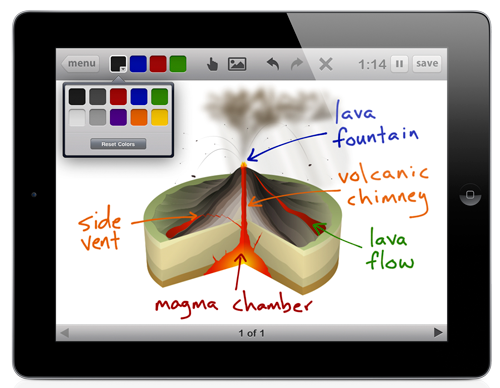
  • Educreations - Like having an interactive whiteboard (IWB) on your iPad, this app, when used with a HDMI cable or Apple TV, allows you to use tools familiar to IWB users.  Features include a pen tool, ability to erase, add pictures, text, and most of all, the ability to record.  By being able to record what you present, you can save it for later, and even share your presentation with others. 

  • Puffin Free  - iPads aren't Flash friendly, so if you're going to show certain web content that is built on Flash, it can be difficult when using the Safari browser.  This app (available for free with ads, and for a price to remove ads) gives users the ability to view and interact with Flash content.

  • Free Graphing Calculator - Math teachers will appreciate the ability to use the iPad as a graphing calculator.  There are several free calculators available, this is just one of them. 

  • iTunesU - The iPad will prompt new users to download this app and it is well worth it.  With the ability to download free course content from K-12 institutions, as well as colleges and Universities, this app gives teachers the ability to connect students with content covering thousands of subject areas.  Professional Development courses are available through iTunesU too!

  • iBooks - This app may not seem like a teaching tool to some, but many teachers have found that the ability to bookmark, highlight, and add notes to the margins makes the use of this app very handy.  For English classes, teachers can download epub files for classic novels from sites such as http://www.gutenberg.org/.  eTextbooks can be purchased from many educational textbook publishers, through the iBooks store. 


  • Socrative - Download Socrative Teacher and Socrative Student and use the iPad as a Student Response System.  Create your own assessment questions and deploy them over classroom WiFi. 

  • PenUltimate - This note taking tool allows students to take notes in their own "fingerwriting".  Keep notebooks by subject area - all for free.

  • Dropbox - download this cloud storage app and create a classroom account that will allow students to upload/store assignments in the cloud. 

  • iWork - This bundle of apps from Apple may cost a little ($9.99 for each app; less on the Volume Purchase Program if you buy more than 10), but its worth it.  Keynote is a presentation tool similar to PowerPoint that allows you to create and view slideshows.  Pages is a word processing app that allows you to create documents.  Numbers is a spreadsheet app. 
Obviously this is not an all encompassing list of everything you would need, but it is a great place to start.  The capabilities of tablets in the classroom are so great that you will discover more as you use them.  The camera and built-in microphone make iPads great for creating audio and video projects as well.  As you become more advanced in using them, investigate and explore the web for more options.  And enjoy! 

Dec 28, 2012

Updated Wiki for Educators

I recently took the time to update my Wiki for Education and Professional Development.  Several new topics have been added and old topics have been updated to repair links.  Check out the sections on iPads, Flipping the Classroom, and Common Core, and more.

Smart Tips for Smart Teachers

Aug 3, 2012

The Teacher and the One iPad Classroom

Recently I ran across an article in twitter that discussed tips on teaching in the one iPad classroom. The article share several great tips and I thought I would continue the discussion by providing some of what I have learned along the way myself.

Splashtop - this app was mentioned in the above article and have to agree it is great. Available in the app store for $2.99 this app allows the teacher to utilize wifi to control their teacher desktop from anywhere in the room. While it requires a bit of installation to get started, you basically stream across the network to your computer and you can see your desktop (PC or MAC) on your iPad. Sort of like using the iPad as a slate.

Socrative- who needs clickers when students can respond to your questions on their own devices via this free app. Teachers download the socrative teacher app to their iPad to create and deploy questions. Student's download the socrative student app to access your questions via a code given by you. What better way to employ #BYOD!

HDMI or VGA Out cable - Depending on which type (HD or VGA) LCD projector you have in your classroom, you can purchase a cable for $40 or less to connect and mirror content from your iPad onto your projected screen. This is great if you are teaching from keynote, trying to demo an app, or simply teaching from the web. The only caveat is that you are wired to your projector. If you don't like that, you can go wireless by connecting Apple TV to your projector and using AirPlay.

Flipping with videos- planning on flipping your classroom this Fall? Try one of these apps (educreations, screenchomp, or explain everything) to record your lessons and offer them up as short bits of lecture/homework for your students.

Thanks to Think-Share-Teach for the inspiration for this entry! Enjoy the new school year!
- Posted using BlogPress from my iPad

Jul 25, 2012

Flash Content, Flash Browsers and iOS

In the recent flurry of discussions that have occurred regarding the flipped classroom, one hurdle that I have noticed is the ability to post videos that are accessible on iOS devices (iPods, iPhones, iPads).  With the inability to view Flash content, many students who try to view videos on these mobile devices run into the issue that they are unable to view your videos.  There are a few options and a few workarounds to help your students view Flash content and videos on these devices. 

First, in terms of storing your videos, many people like to use YouTube as a place to post them.  This is fine and tends to work well when students try to view your videos on and iOS device.  One trick I have found that helps out tremendously is to share by using the URL to your YouTube video as a link from your LMS, Teacher Website, or wherever.  This means that when students click on it, it will open in the native YouTube app on their iOS device. 

If you plan to Embed your video, it helps to check the box marked "Use Old Embed Code".  The reason for this is that some sites will often reject the standard embed code which is based on HTML 5.  The old embed code is based on Flash.  I know this sounds crazy since Flash is not an option on iOS devices, but sometimes you just have to play around with the one that works.  If one doesn't work, try the other.  But always, always, always, setup your embedded video on your website and then try to view it on your iOS device to make sure it is viewable/playable.

Second, if you are not much of a techie, there are other ways to help  your students gain access to your video content on their iOS device.  The easiest route is to direct them to a Flash Browser in the App Store.  There are several good ones for free and some great ones that cost a few dollars.  A few that I have found to be good are:

Photon Flash Browser - $4.99 in the App Store - This one works great, but comes at a cost.  If students are willing to spend the money, this one allows users to view any flash content via a streaming process.  There is a slight lag, but it is not that noticeable.   For iPad/iPhone/iPod.


Rover - Supported by ads from educational providers such as Discovery Education, this app is Free!  As a result you have ads that popup at the beginning, but once you enter your site address and navigate, the ads go away while you browse.  This app is for iPad only.


Puffin Web Browser - Available as a Free and Paid App - this browser works as the others do by streaming content across the web and back to your device to provide the experience of viewing flash content.  Works great.  Expect ads on the Free version. 


Whichever route you take in making content available to your students, make sure you spend a few minutes at the beginning of the school year going over accessibility options.  This will help prevent any obstacles your students have to accessing content and viewing it as homework.  Good luck flipping your classroom!

Jun 30, 2012

Flipping in Time

Coming home from the ISTE national conference in San Diego, I found on our doorstep, a copy of Time Magazine for the week of July 9th. As I flipped through the latest I found the following article (http://www.time.com/time/magazine/article/0,9171,2118298,00.html) on Sal Khan called "Reboot the School". It seems that in reading the article, the idea of the flipped classroom has reached Time Magazine. However, as I read further, I found the usual story of how Salman Khan went from Hedge fund manager to online tutor/teacher. As I read further, I discovered what the magazine describes as the flipped classroom, but refers to it as Khan's Way.

Now I am a big fan of Khan, and while I am happy to see the idea of the flipped classroom reach such a wide audience, I was disappointed to see that other names such as Bergmann and Sams were left out of the discussion; or to also see that no mention was made of the success that is occurring in schools across the country where teachers have made their own videos through their own efforts.


While Khan Academy is a great solution for students who need additional help, and it provides a solution for teachers who are starting out on their own in a flipped model, nothing replaces the familiarity of a student being able to see and hear their own teacher in a video lesson as homework, and being able to relate the information back the next day in a hands on activity.

I would encourage anyone who reads this article and is interested in flipping the classroom to do the research. There are many examples of how flipping can be successful. I would also recommend that for teachers who are just starting out, Khan is a great starting point, but nothing can replace the teacher students are familiar with. So when you get the nerve and get over seeing or hearing yourself on video, start with a few simple tools such as Camtasia, Explain Everything, or Educreations, and make your own videos to begin flipping the classroom.

- Posted using BlogPress from my iPad

Jun 27, 2012

ISTE 2012: Pirates of the Class-I-Wanna-Be-In ~ The Journey to Paper's End

I loved this presentation! From the start, it was very entertaining. The presenter, Captain IO, was clad in pirate costume and brought on the full effect with an authentic pirate accent! Aargh!
The focus of this workshop was on the paperless classroom and use of mobile devices. He poses the idea that a trained "tech pirate" can find most anything:

Pull media
Pick out images
Snag shared fair-use resources
Collaborate with others
Acquire inspiration and creativity

If going paperless, Cap'n IO mentions that you have to get yer stuff from somewhere! Creating a site to put things out on the web was necessary. His choice was dreamweaver, weebly, and wix. Weebly and Wix provided a user friendly drag and drop interface for teachers who didn't feel savvy enough for dreamweaver.

He says you also need a means of assessment, content absorption, and expression. In other words, testin', learnin', and creatin'! The key is to go around the HMS Admin. that thar was a boat to avoid! Rough waters ahead he says (ya feelin' how cheeky this presentation was?).


His setup meant that he totally threw out all paper. And aside from his website, he had a teacher workstation, student owned devices, a projector, and a few other peripherals.

Keeping the attention of the kids was a problem, but he says it can be easy. What with all the activities, parent meetings, sports events,and tutoring sessions ( sound familiar), he had to keep their attention. But he needed machines. He had enough machines (rebuilt, borrowed, hijacked) to create a 2:1 ratio. Even though it wasn't 1:1 it wasn't bad. He even had a kid that brought in a PS3 because it had wifi and could get on the net. Anything to get them wired. And the techs didn't quite love it.
They complained about the hodge-podge of machines and the nightmare created by the mix. But no matter how old it was, once he reached the satisfaction of making it work, the key was it worked.


Turning in work came down to emailing assignments. Gmail was what he used. He had now entered Googledom. He had one gmail address, one site, per class.


For grading and assessment, he used Quia.com. He never had to grade homework, but he could track mastery and understanding of content.

"Thar still be big problems"

The desire would be to have a 1:1 environment, but sometimes that doesn't happen. And kids get lost and sucked in by the "Fracken" (Facebook) or other distractions. And when not all kids are working on the same device and same format, you get assignments turned in in so many formats (.doc, PDF, works, ppt, etc...) that it can be frustrating. Also, where do they take notes? How do you know the work is authentic? So rather than have them do all the work outside, it was done in class, by hand on paper; their own, not the schools. But by flipping it in this way, their understanding transformed.


But this wasn't paperless! He still depended on the kids to buy theme books for writing. Argh! There be no papers end!

"But thar be a place!"

A place called Tabletonia! They headed in to Tabletonia and found Everything he had created could be ported through one device with a battery that would last all day. But flash became a problem, as when he created his videos with Camtasia, they couldn't be viewed on iPads. But he found if when creating links, he linked to the video instead of the site, they indeed could be viewed on iPads!

As well, the iPad allowed students/teachers to record, edit, use special effects, create, and export items on one device. And rather than spend tons of dollars on graphing calculators, he used the $0.99 calculator on the app store.

Apps provided a way so that notes could be handwritten, PDF could be converted to word and back, comments could be written, and it was paperless! Try Notability. Notes can be created by hand and emailed from within the app. And in PDF format. Everything could be converted and handed in via the PDF format. You can also record. Great value.

If you want more about this great speaker go to http://templeeduneering.com/ISTE/x.html
Print out a poster of his material for your classroom.

- Posted using BlogPress from my iPad

Jun 26, 2012

No boundaries: Using iPads to reach English Language Learners

Tis afternoon I attended a session by Lisa Estrada, Program Coordinator, and Heather Parris-Fitzpatrick, Program Specialist with Nassau, BOCES. The discussion focused on the use of iPads for ESL students.

http://esltechies.com

Essential questions:

--How can educational apps strengthen and support critical thinking?
--How can digital media remove boundaries and promote achievement for ELLs?
--How can distance learning expand horizons for All students?

To answer these questions, the presenters stress their love of the iPad because it provides multimedia support, accessibility, portability, multiple modalities for learning, and that the device addresses all language skills.

iBooks was a key component of their program as they feel that it promotes critical thinking through its features:

Bookmarking
Highlighting
Note-taking
Dictionary
Search
Google and Wikipedia access

For designing curriculum for ELL and ESL students, presenters suggested resources which can be found in iTunes U. This iPad/iPod/iPhone resource provides a wealth of ESL/ELL material in the form of podcasts and vodcasts which can be downloaded as full courseware for free.


The focus of the session focused heavily on iBooks, but I must point out what some of the attendees brought up. The accessibility features of the keyboard allow users to type in their native language. As well, the standard keyboard will allow you to add special characters to your documents by pressing and holding any letter


The presenters also pointed out that critical thinking can be enhanced through use of apps such as:

ebook readers
Graphic organizers
Translators
Test prep
Subject specific apps

A list of suggestions is found on their site: http://esltechies.com


They also are big fans of one of my favorite apps, Explain Everything!.

Tis app can be used to record audio, screenshots, and screencasts along with notes, edits, and graphics. Once your video explanation is complete, it can be uploaded to the web for student viewing. This app is one of my favorites (said that already) and one I'll be covering in our Flipping the Classroom class in July!


Other apps they recommend include:

Notability - allows students to take finger written notes, or audio notes.

Photo card - allows students to write on a photo. Great for creating postcards, or even flash cards.

iTranslate - free app.

Polycom- app that allows you to connect from iPad to anyone with polycom video conferencing system.

Popplet- good For creating concept maps and charts.

For more information and tips on teaching ESL/ELL students using technology, visit http://ESLTechies.com


- Posted using BlogPress from my iPad

Location:ISTE 2012, San Diego

Jun 25, 2012

There's an App For That #ISTE12

Attended a forum for the ISTE Special Interest Group on Mobile Learning (SIGML). Presenters promoted use of the following website, which provides a resource list of apps for most any mobile platform (blackberry, iOS, android) and any age level (pre-k to PhD).
http://www.tbrmobile.org
Many apps were presented, but discussion shifted very early on to the fact that we as teachers need to speak up and tell the publishers what content, interactive, video, etc, we would like to see in the educational apps we use. Results will happen if you ask.
A few of the super cool apps presented:
Frog Dissection by Emantras
Al Gore: Our Choice
Splashtop Presenter
Verbally - provides words and phrases and speaks them aloud for special needs kids.
News in Slow Spanish -actually a podcast - provides news commentary in Spanish -can be played at slower rate for Spanish learners. Available on iTunes.
Art Rage - painting tool for the iPad. Use a stylus!
Dropbox - cant stress enough how great this file storage app is! I use it myself. Access files anywhere.
Kobo - free books
Wattpad - free original stories
Skitch - Annotate over anything.
Puppet Pals - make your own Puppet play using characters and backdrops provided. Play back on iPad. Great for building creativity.
Check them out. The level of interactive content and productivity is wonderful.
- Posted using BlogPress from my iPad

Location:ISTE 2012 San Diego, CA

Apps with Aptitude

Cathie Loesing, Program Coordinator with the eMints National Center, presented a session this morning on the use of iPads in the K-2 classroom. She stresses that when using iPads and selecting apps for lessons that teachers should focus on the following:
Apps should promote higher level thinking
Lessons should prompt community based learning
Stress inquiry based learning
She discussed many of her favorite apps, but rather than have me pick and choose, I though I would post a link to her site so you could see the apps for yourself. She lists many paid and free apps. Enjoy!
http://appswithaptitude.weebly.com/
- Posted using BlogPress from my iPad

Location:ISTE 2012

Feb 27, 2012

Educreations - iPad App

Educreations is a simple and FREE app that gives you the freedom of an interactive whiteboard with the ability to record.  Let's say you have something  you need to explain to your class.  With the Educreations app, you can use the whiteboard tools (pens and ability to add clip art) to record a short explanation on a topic, complete with audio.  When you are finished, you can upload it to the Educreations website. 


Settings allow you to share your finished video with the public or just your students.  A link is provided so that everything is seamless.  You will need to create a free Educreations account to use the app, but no login is required by your students to view your videos.  Once your account is setup, you are ready to record and post your lectures.  You can also create a course within Educreations to storehouse all of your videos.