Showing posts with label classroom technology. Show all posts

May 12, 2016

Gettin' Crafty with Class Announcements


Picture

A few weeks ago, I taught an intro course to our science faculty on Chromebooks.  The most popular Chrome Extension of the day was Crafty Text.  If you haven't seen this little gem, it is worth is weight in virtual gold.  Out of all the tools that we covered that day, this was the most popular hands down.  


What does it do?  

Let's frame it this way. If you've ever been in a computer lab with 30+ students, or say you have a class of kids with mobile devices, you'll love this.  Let's say that on the fly, you want them to go to a specific website.  If you try to tell them out loud, you have to repeat yourself a million times.  If you write it on the board, they either can't see it or can't read your writing.  And if they look on the screen, the URL is usually too small.

In comes Crafty Text.  This Chrome Extension sits on your browser toolbar, and allows you to post a banner of anything you type, on your screen.  


How does it work?

To use Crafty Text, just click on its icon in the extension bar.  A text box will open.  Type what you want your class to see in the banner, and hit Enter.  When done, click the icon again and your banner disappears.  It's that simple!


What else can it do?

Well, it is a pretty simple tool, but the applications are endless.  Crafty Text can be used for:

  • Simple instructions
  • Bell Ringer Activities
  • Share a Web Address
  • Post a Password to Google Classroom


With the latest release of this Chrome Extension, there are more options: 


  • Adapt Text Size
    • If you have text that you don't want to wrap in your banner, and it needs to appear on one line, check the Adapt Text Size box.  
  • Show Suggestions
    • If you have previously typed a message on Crafty Text, and type it again, it will show a suggestion from previous entries.


Jan 14, 2016

Schools and Mobile Devices - iPads, Computers or Chromebooks...Oh My!


Recently a question was submitted to the Techy Coach site asking about the use of mobile devices in the classroom.  The question specifically asks:


"Would you recommend a school that is mostly on an Apple platform to add Chromebooks to its mix...we are looking at Chromebooks because of their price and to meet the  increased enrollment demands.  More specifically, would you recommend Chromebooks for 4th-5th grade?"
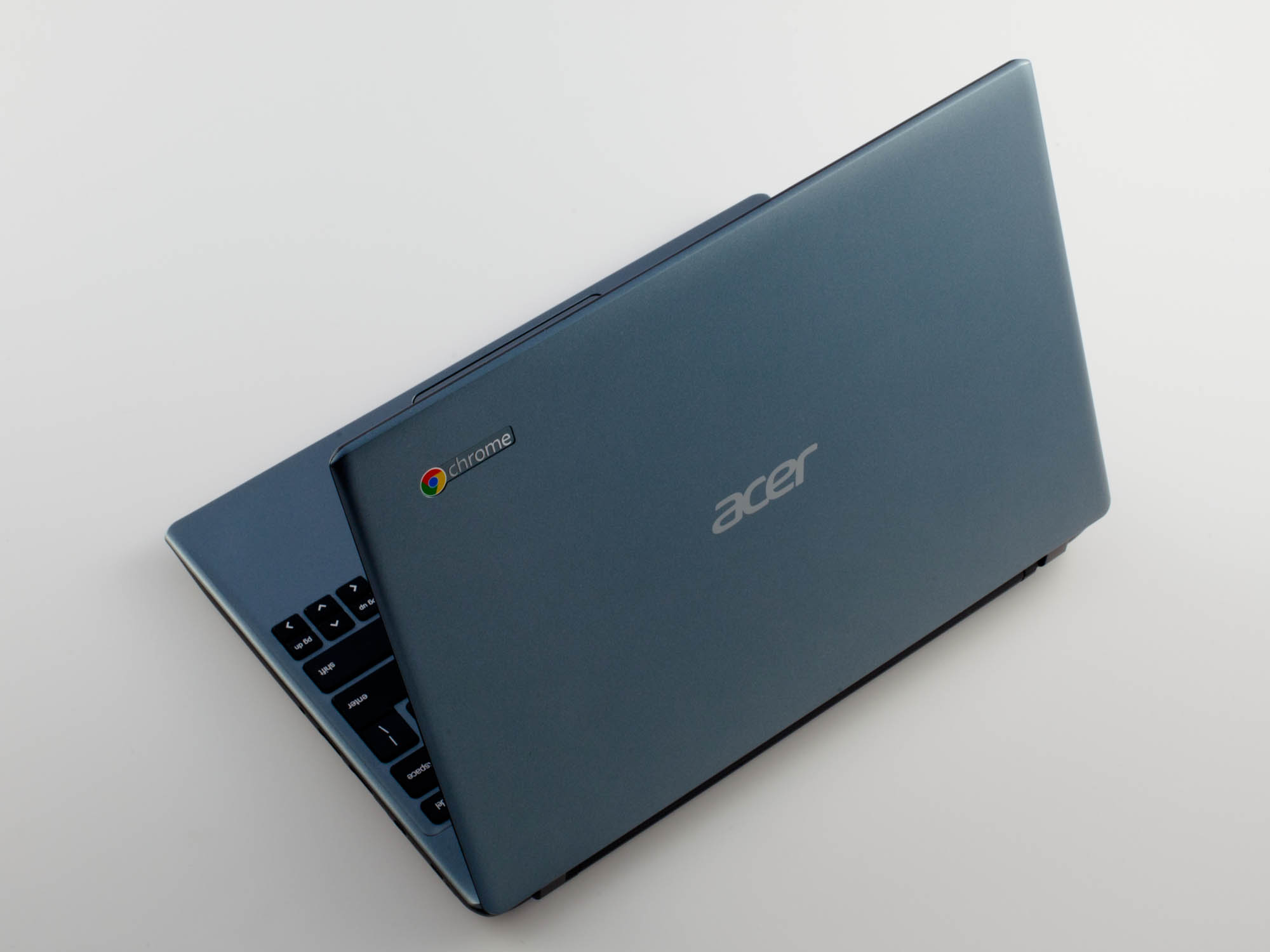
In the world of 1:1 computing, I don't really feel that there is one exact fit for schools regarding mobile devices.  Different devices serve different needs, and I believe that schools need to be flexible in their choices when creating a learning environment to foster 21st century computing skills.  Flexibility, in this case, means that schools need to understand that while workhorse devices such as PCs and Macs offer the ability to install programs such as Microsoft Office, Adobe Creative Suite, and others, mobile devices such as Chromebooks and iPads offer the ability to mimic many tools with smaller apps that consume fewer resources, storage space, and are often free.  And while schools may be willing to sacrifice larger programs for price and more accessible (free) tools, they will ultimately find that they still need those big box programs.  So in answering this question, I'll fill in gaps by explaining what our district has done to work towards a solution.  


The Beginning of Mobile Access
About 6 years ago, our district started purchasing iPad carts to place in each building.  The drive was to provide classrooms with access to the web for research, as well as rich video content and access to apps for drill and practice.  The initial push was in the elementary schools, with middle school and high school to follow.  While iPads provided a great deal of flexibility with free apps and instant access to the web, the cost was smaller than placing PCs and Macs in classrooms, and they took up less space.  

Eventually, every building had at least one cart, while others had multiple carts that were used as checkout labs on an as needed basis.  This lessened the competition for computer labs and library access, and allowed more teachers/classrooms to conduct research and connect with the web.


1:1 Budget Concerns
Our district is a medium sized district for our state, but it is not by any means a "rich" district.  By this I mean, we face some of the same budget restraints that smaller schools face.  As a result, we began to slow down on the purchase of iPads and started to take a hard look at our budget, while discussing the need to provide access to all students.  We knew we could not afford to place a device in the hands of every student, so the question was, how could we provide access for all and still remain within our budget.  

Google Apps for Education had been around for a while, and our district had been exploring the opportunity to become a GAFE school.  I used this as an opportunity to discuss the cost savings of Chromebooks.   While the carts for Chromebooks tended to be about the same in cost as iPad carts, the devices were around $100 to $200 cheaper.  Once you multiply that cost by 30-35 devices per cart, the costs savings is great.  The question some had was whether the Chromebooks would be as sturdy as an iPad.  But the initial cost and the addition of a keyboard (add about $99 to $150 to an iPad for keyboards) and Chromebooks were the obvious choice.  

We began the process of purchasing Chromebook carts with our technology budget, and placed one cart in each ELA classroom, from 6th grade up.  This meant that every student in grades 6-12 would have access to a mobile device at some point, every day.  We also decided that for future purposes, iPads would be pushed down to the Elementary Schools as they seemed more suitable for the needs of K-5 students.  We then shifted our computer rotation cycle so that instead of PCs, libraries would receive a Chromebook cart instead, which allowed us to save money within our budget.  This meant that the only PCs we had in our building were in Career Tech classes, which needed a device capable of running Microsoft Office and Adobe Creative Suite, and in checkout computer labs.   As we did so, we started to hear more and more from our elementary teachers, stating that they would also like to have access to Chromebooks.  


Suitability Across the District
What we have found is that while iPads were a great addition to our district, we have grown to like our Chromebooks more every day.  Here are some of the benefits we have found in using Chromebooks:


  • The Chrome Web Store provides access to a wide range of free apps, including all Google Apps.
  • The added functionality of a keyboard means that our students are practicing keyboarding skills while accessing apps and information on the web.  
  • Google Apps, admittedly, is much easier to access and use on a Chromebook than on an iPad.
  • The IT department has found that managing Chromebooks is much easier.  After the initial setup, devices can be managed remotely from a computer.  (iPad management requires hands on operation for updating and managing).
  • Chromebooks allow any user to login and use them without worrying about account security once they log off.
We have not found that our elementary students have any more difficulty using Chromebooks than our secondary students, meaning that 4th -5th grade students can use them just fine.  In fact, using Chromebooks more closely mimic the experience students encounter when at a computer workstation, especially since most students use them for web research.  The suite of apps in Google Drive also creates an experience similar to what students would experience when using most other programs such as Word, PPT, Excel, Pages, Keynote and Numbers.   


What Should You Do?
If you currently use Macs or iPads, or if you are thinking of adding Chromebooks to the mix in your district, I would suggest you strongly consider a few of the points below:

  • What will the primary use of devices be? 
  • What will students access? 
  • Will devices be used primarily for access to web services, or specific programs?
  • What apps do you currently use? Check for availability of apps in the Chrome Web Store.
In addition to answering these questions, you will also need to consider infrastructure needs (WiFi, Bandwidth) and Student Access.  If you are seriously considering Chromebooks, you'll want to start by exploring the possibilities that Google Apps for Education can offer.  Once we did so, we found that universal access to Google Apps for all teachers and students meant that we could work and communicate more easily through Gmail, Google Drive and Google Classroom.  And finally, any district considering the addition of any device to their curriculum will want to make sure that they consider Teacher Buy-In.  After all, if you don't have buy in from your teachers, it could make or break your implementation plan.  To do this, we provided extensive in house training to our teachers in the Spring and Summer prior to implementation, and throughout the school year.  If you need help in providing training,  I have tutorials available, you can find trainers online, or your can train your own teachers here.


Good Luck and if you have questions, please post them here!


Jul 7, 2014

The Best iPad Apps for Teachers


Link to Updated Version of this Article

Looking for a few good apps to use in your classroom?  Here is a short list of apps for iOS devices and some for Android.  Thanks to the ladies at SimpleK12 at #ISTE2014 for sharing these:

Spelling city - https://www.spellingcity.com/app-redirect.html?ReturnURL=%2F  - vocabulary, spelling lists, free activities

Science 360- http://science360.gov/ipad/ - this app offers streaming video on a wide array of science topics.
History pin-http://www.historypin.com/map/#!/geo:51.6,0.05/zoom:7/  - Teachers can use this site/app to pin pictures and information related to historical topics.

Wunderlist - https://www.wunderlist.com/en/  - manage your to-do list.

Project Noah- https://itunes.apple.com/us/app/project-noah/id417339475?mt=8&ls=1  or http://www.projectnoah.org/ - tool to document and explore wildlife.

Virtual tour - Library of Congress -https://itunes.apple.com/us/app/library-congress-virtual-tour/id380309745?mt=8 - Take a virtual tour of the Library of Congress.

iTunesU - http://www.apple.com/education/ipad/itunes-u/ Download the app or visit the link for more information on virtual courses from a wide range of K-12, Colleges, or Universities.

Quizlet - http://quizlet.com or https://itunes.apple.com/us/app/quizlet/id546473125 - create and deploy quizzes on the app or online.

Kindle - https://itunes.apple.com/us/app/kindle-read-books-ebooks-magazines/id302584613?mt=8 - You don’t need a kindle to take advantage of the Amazon service.  Download the app for your iPad.  

Evernote - This note taking app allows you to curate topics from anywhere. - https://evernote.com/evernote/ or https://itunes.apple.com/us/app/evernote/id281796108?mt=8

Zite - This curation tool lets you gather articles from your favorite web news sources - https://itunes.apple.com/us/app/zite/id419752338?mt=8

Sockpuppets - This app lets you create your own sock puppet videos with backgrounds, scenery, and yes, sock puppets- https://itunes.apple.com/us/app/sock-puppets/id394504903?mt=8
Dictionary.com - Look up any word, root word, synonym, antonym...you name it. http://dictionary.com or https://itunes.apple.com/us/app/dictionary.com-dictionary/id364740856?mt=8

Space images - images and videos of stars, planets, and space.  From NASA - http://www.jpl.nasa.gov/apps/spaceimages/


Sphere 360 -  Explore or create 360∘ moments with this app using panoramic photos. https://itunes.apple.com/us/app/sphere-360o-photography/id335671384?mt=8

Bloomberg app - Math and Finance app by Bloomberg - https://itunes.apple.com/us/app/bloomberg-for-ipad/id364304764?mt=8

Khan academy - video tutorials on educational topics - https://www.khanacademy.org/ or https://itunes.apple.com/us/app/khan-academy/id469863705?mt=8

History maps - Interactive Maps of the world for iPad.  https://itunes.apple.com/us/app/history-maps-of-world/id303282377?mt=8

Stack the states - Learn the 50 states and their place on the map - https://itunes.apple.com/us/app/stack-the-states/id381342267?mt=8


Simple K12 app - Stay in Touch with SimpleK12 PD on your iPad -https://itunes.apple.com/us/app/teacher-resource-day-simplek12/id630772183?mt=8


Aug 31, 2012

3 Misconceptions About Flipping the Classroom

This Summer I taught a class on the basic principles of flipping the classroom. We discussed many of the advantages, as well as tips for producing videos. 24 teachers signed up for the workshop prior to the end of the school year. Realistically I expected less than half to show up because it was scheduled for July and many would be unwilling to give up their vacation time. I was pleased when 18 showed up and was even more excited to see the enthusiasm they had for the topic.

As we worked through the class, there were teachers from all areas: language arts, science, math and even art and music. They were so full of questions that I wondered how many would follow through with the concept.

As the year started, I found that my son's art teacher, who had attended the class, had sent home a letter with a pass code for edmodo. In her letter she told us that her class would be a little different this year, as she would be flipping her classroom.

Another teacher who had attended the workshop had been flipping since last spring in his college course and had made plans to flip his high school math classes. He an I talk quite frequently and he had passed on a few stories of fellow faculty members who commented that flipping would never work.

From watching these two teachers I have found that there are definite rewards that come from flipping, as well as a few misconceptions.

Misconception #1: the kids won't watch!

One comment I have heard many times is that the kids aren't any more likely to watch the videos than they are to listen in class. On the contrary, kids seem very interested and intrigued by the idea of being able to watch and pause the videos so they can take notes on concepts they would normally miss in a fast paced lecture. Additionally, both our art teacher and math teacher state that parents are watching. Parents that came to back to school night said they were watching with their kids because they said it helps them help their kids.

Misconception #2: students won't work any harder in class.

In a conversation from today, our math teacher commented that in the past (pre-flip days) he would have many kids who never turned in homework (even if it was for a completion grade). Now after flipping, he says he has tons of grading to do over the labor day weekend. More kids are comprehending and since they have hands on time with peers and their teacher, they are producing more work.

Misconception #3: Grades won't improve.

When comparing the first week of quiz averages from last year to this year, our math teacher pointed out a marked improvement. Last year's quiz average for the first week was in the 60 range. This year his average is in the 90 range. Granted, this is a different batch
of students from last year, but this is a pre-calculus class covering some very abstract concepts. The sharp increase is something difficult to ignore.

With these three misconceptions, one has to understand that simply making videos and posting them didn't create the change. There is a great deal of dedication, teaching and practice involved in making the flipped classroom work. But the fruits of those labors are worth it in this Common Core world.


- Posted using BlogPress from my iPhone

Jun 27, 2012

ISTE 2012: Classroom Flipping - How We Did It

http://youwillflip.pbworks.com
This morning I am attending a workshop on flipping the classroom at ISTE 2012. Never hurts to get all the additional info you can. This morning's presenters are Rebecca Evans and Kate Kanach.
If you haven't heard of flipping the classroom, it's not actually a new concept, but it has taken on a life of its own in the past two years. I have posted several articles on it in the past. If you want to check them out, check the tags at the left.


Flipping the classroom entails changing your traditional lectures to a video format and posting them online as homework. Then face to face classroom time can be used to focus on hands on activities, practice, and guided instruction through inquiry. Think Salman Khan (Khan Academy) for homework, and homework as classwork. That's an extremely simplified view, but hopefully you get the picture.

Back to our presenters, one of the things they stressed in their presentation is that some statistics show that student test scores go up in the flipped model of instruction. They also point out that flipping encourages teamwork and 21st century skills, as students work in teams more frequently, and utilize more technology skills. The caveat to this, they say is that some teachers are Leary of this modl because they are no longer the center of attention. It does take you off center stage. But remember: it's not about you, it's about the kids.


If you check out their website, they have provided a wealth of articles and resources. They provide examples of how they have setup their classroom, and provide a sample unit so teachers can see and understand the flow of a flipped lesson. Something they have done, and what needs to be pointed out here is that the "homework" doesn't always have to be a video, it can be a Prezi, a PowerPoint, or other interactive content. They use Edmodo to post their lessons and questions.

When doing class in this manner, you have to realize that student projects will build interpersonal skills and will allow students more variety in the ways they produce work. As they do work, they will be there with you and they will have the benefit of your help. Likewise, you will benefit by being able to observe them at work.

The presenters also pointed out something I feel is important. It is not always necessary or proper to flip every lesson. But it will work with most things. Also, check out "Flip Your Classroom" from ISTE. This book provides a great deal of insight from flipping pioneers Bergmann & Sams.

- Posted using BlogPress from my iPad

Jun 26, 2012

No boundaries: Using iPads to reach English Language Learners

Tis afternoon I attended a session by Lisa Estrada, Program Coordinator, and Heather Parris-Fitzpatrick, Program Specialist with Nassau, BOCES. The discussion focused on the use of iPads for ESL students.

http://esltechies.com

Essential questions:

--How can educational apps strengthen and support critical thinking?
--How can digital media remove boundaries and promote achievement for ELLs?
--How can distance learning expand horizons for All students?

To answer these questions, the presenters stress their love of the iPad because it provides multimedia support, accessibility, portability, multiple modalities for learning, and that the device addresses all language skills.

iBooks was a key component of their program as they feel that it promotes critical thinking through its features:

Bookmarking
Highlighting
Note-taking
Dictionary
Search
Google and Wikipedia access

For designing curriculum for ELL and ESL students, presenters suggested resources which can be found in iTunes U. This iPad/iPod/iPhone resource provides a wealth of ESL/ELL material in the form of podcasts and vodcasts which can be downloaded as full courseware for free.


The focus of the session focused heavily on iBooks, but I must point out what some of the attendees brought up. The accessibility features of the keyboard allow users to type in their native language. As well, the standard keyboard will allow you to add special characters to your documents by pressing and holding any letter


The presenters also pointed out that critical thinking can be enhanced through use of apps such as:

ebook readers
Graphic organizers
Translators
Test prep
Subject specific apps

A list of suggestions is found on their site: http://esltechies.com


They also are big fans of one of my favorite apps, Explain Everything!.

Tis app can be used to record audio, screenshots, and screencasts along with notes, edits, and graphics. Once your video explanation is complete, it can be uploaded to the web for student viewing. This app is one of my favorites (said that already) and one I'll be covering in our Flipping the Classroom class in July!


Other apps they recommend include:

Notability - allows students to take finger written notes, or audio notes.

Photo card - allows students to write on a photo. Great for creating postcards, or even flash cards.

iTranslate - free app.

Polycom- app that allows you to connect from iPad to anyone with polycom video conferencing system.

Popplet- good For creating concept maps and charts.

For more information and tips on teaching ESL/ELL students using technology, visit http://ESLTechies.com


- Posted using BlogPress from my iPad

Location:ISTE 2012, San Diego

Jun 25, 2012

There's an App For That #ISTE12

Attended a forum for the ISTE Special Interest Group on Mobile Learning (SIGML). Presenters promoted use of the following website, which provides a resource list of apps for most any mobile platform (blackberry, iOS, android) and any age level (pre-k to PhD).
http://www.tbrmobile.org
Many apps were presented, but discussion shifted very early on to the fact that we as teachers need to speak up and tell the publishers what content, interactive, video, etc, we would like to see in the educational apps we use. Results will happen if you ask.
A few of the super cool apps presented:
Frog Dissection by Emantras
Al Gore: Our Choice
Splashtop Presenter
Verbally - provides words and phrases and speaks them aloud for special needs kids.
News in Slow Spanish -actually a podcast - provides news commentary in Spanish -can be played at slower rate for Spanish learners. Available on iTunes.
Art Rage - painting tool for the iPad. Use a stylus!
Dropbox - cant stress enough how great this file storage app is! I use it myself. Access files anywhere.
Kobo - free books
Wattpad - free original stories
Skitch - Annotate over anything.
Puppet Pals - make your own Puppet play using characters and backdrops provided. Play back on iPad. Great for building creativity.
Check them out. The level of interactive content and productivity is wonderful.
- Posted using BlogPress from my iPad

Location:ISTE 2012 San Diego, CA

ISTE Exhibit Hall

Walking through the ISTE exhibit hall, you never know what you will find. I happened to visit the Promethean booth and ran across this:
There are literally enough exhibitors to cover a city block and they are proof positive that technology is moving forward at a fast pace (like you didn't know that already).


- Posted using BlogPress from my iPad

Location:ISTE 2012 Conference, San Diego, CA

Apps with Aptitude

Cathie Loesing, Program Coordinator with the eMints National Center, presented a session this morning on the use of iPads in the K-2 classroom. She stresses that when using iPads and selecting apps for lessons that teachers should focus on the following:
Apps should promote higher level thinking
Lessons should prompt community based learning
Stress inquiry based learning
She discussed many of her favorite apps, but rather than have me pick and choose, I though I would post a link to her site so you could see the apps for yourself. She lists many paid and free apps. Enjoy!
http://appswithaptitude.weebly.com/
- Posted using BlogPress from my iPad

Location:ISTE 2012

Jun 12, 2012

ISTE 2012

The ISTE 2012 Conference is coming up on June 24-27th. This year's conference is in San Diego, CA. A few of us from our district will be attending. It is my hope and my goal to submit a few posts on this blog about what we see there. This year, there is a great deal of discussion regarding iPads, BYOD, Flipping, and Virtual Learning. I know there will be a lot to see and experience, so I'll try to share as much as possible.
The past few years have been interesting as technology has taken a greater presence in education. Where in years past, the ability to use technology in the classroom greatly hinged on budgets, there are now more free options and WiFi in schools has given teachers the ability to serve students more as they bring their own devices to the classroom. This year's ISTE workshops and topics will help to answer many of the questions I have about this and other issues regarding technology and education.
If you are interested in seeing what all the buzz is about, here is a link to the ISTE website.

Jun 6, 2012

Still Having Questions About Flipping?

What the advocates of flipped learning say...

The discussion on flipping the classroom has grown tremendously in educational circles. If you conduct a Google search on the topic, you'll find tons of articles, posts, and videos about the topic. In all that discussion, there are, as with any topic, proponents and opponents of the practice. This summer I'll be conducting a professional development class on how to create videos for flipping the classroom. In all that discussion, we will talk about what flipping is, how it is best applied to the classroom, and ways to push video content out to students. In my research I have run across many different names of teaching professionals who have been successful at flipping. If you are interested in hearing their thoughts, here are a few heavy hitters and links to their comments and work:

Katie posted a video back in 2011 regarding one serious question that many teachers have asked me in this discussion:  What if the kids don't watch the videos?  Interested in her response?  See her answer below:


What the opponents say... 


And as it should be with any discussion, you need to see and hear both sides of the story.  There are some groups in this discussion that are against the idea of flipping the classroom.  While flipping the classroom can be beneficial to students in many ways, it should be understood that not all lessons can be successfully flipped.  And in turn, the homework you sent home in the past should not be the same work you introduce in the flipped classroom.  The flipped classroom allows for richer and more meaningful lessons to take place in individual and group settings.  Simple drill and practice homework assignments are not for the flipped classroom.  Students will benefit from real world activities and deeper conversations that come from them.  

Although I choose to disagree, I thought it important to post a few links showing this side of the conversation. 

Although this list is short, the discussion on both sides is very lengthy.  Ultimately, the decision to flip the classroom should not come lightly.  It does take work at the outset, and should only be undertaken if you are willing to put in the work. But if you are willing, then it can create a whole new learning environment for students that draws their interest and motivates them to learn. 

Mar 3, 2012

Instructional Tools for Flipping the Classroom

As we have moved the discussion further down the path to creating a flipped classroom, the talk has turned to how to create quality instruction.  It is altogether one thing to find the right screencast software or video editing software, and another to find the right tool to provide instruction.  Do you use an Interactive Whiteboard?  Do you use a video camera and a whiteboard?

As we have talked about providing instruction, we discussed Salman Khan.  If you have never seen his work, see my previous post on Flipping the Classroom or go to http://www.khanacademy.org/.  One of the tools he uses is SmoothDraw.  This is a free tool that provides a background on which you can write with different colored pens.  Originally intended to be a drawing tool, it works great for providing on screen instruction. 

The math teacher in our building who is working on flipping his classroom tried it.  Here is a taste of his first run with SmoothDraw.


Pretty good if you ask me!  While smoothdraw is a free tool for your computer, you can also use other tools like Explain Everything or Educreations for the iPad .

The next step is to find the best format for making this available.  Which website do you choose.  As our math teacher works with this, I will keep you updated on what we find that works best.

Feb 27, 2012

Flipping the Classroom...continued

I have posted a few articles regarding Flipping the Classroom in the past, but recently a colleague and I were talking about it again.  It seems that when I mention the idea of flipping, most teachers express little interest.  Not until now have I spoken with someone that wanted to try it. 

For those of you that have never heard of it, flipping the classroom is a bit of a departure from traditional teaching methods.  The way most of us learned in the classroom (and still teach), instruction is given in the classroom and then homework is assigned for, well...home.  With flipping the classroom, teachers have found that if they make "homework" about instruction and set aside classroom time for hands on practice, labs, and drill activities, students benefit more, because they get more one on one time with the teacher.  As well, they benefit from more group oriented tasks, such as collaborative projects and labs. 

How do you do instruction as "homework"?  The answer is to record instructional lectures as video and to post them online, either on YouTube, Vimeo, or a teacher created website.  As we spoke about the process, we got into the discussion of what would be needed.  Here are a few resources:

Video Production:

  • CamStudio - http://camstudio.org/ - free resource similar to Camtasia.  This resource allows you to capture screencasts.
  • Moviemaker - Available on Windows XP - if you like to record your videos the old way, use a video camera and upload your videos to your computer.  Then use Camtasia for editing.
  • Explain Everything - iPad App ($2.99) - Explain and record from your ipad, then upload to web.

After production, upload your videos to YouTube, Vimeo or your own website.   Try these links for creating your own Teacher Website:


These are just a few links to create a website.  There are tons of others available on the web.  Just be aware of your ability to upload different file types and be aware of pricing. 

Once you have created your videos, students can view them at night for homework.  What I would have given to have told my parents that my homework was to watch videos.  The big hook is that you have to make sure your students have access to the internet and the videos you are putting out on the web are available in a format they can view.  If students are viewing them on a mobile device, remember that Apple products cannot view Flash, so you might think about using a QuickTime or MP4 Format. 

The great thing about making this switch is that once your students have done their homework and watched your videos, they come to class ready to do hands-on practice.  If you're just not sure about it, here are a few articles on the process and successes different teachers have had with it:


The Daily Riff - http://www.thedailyriff.com/articles/how-the-flipped-classroom-is-radically-transforming-learning-536.php

The Chronicle of Higher Education - http://chronicle.com/article/How-Flipping-the-Classroom/130857/

Salman Khan on flipping the Classroom - http://www.ted.com/talks/salman_khan_let_s_use_video_to_reinvent_education.html


The Flipped Classroom

Jul 25, 2011

ACU Connected Leads the Way

As high school students prepare for higher education, we as teachers want to make sure that they leave us with the skills they need to not only be successful in college, but also in the workplace. Over the past five years, the availability of mobile technology has changed dramatically. With those changes, the skills required in the workplace have changed, and as they should, the skills that students are acquiring in college have changed. enGauge (2003) points out that some of the skills required of workers in the new digital age are collaboration, interactive communication, and effective use of real world tools (p. 12). With this shift in mindset, schools are beginning to offer a different way of learning to help students attain those skills.

 
It was just a short time ago that Apple introduced the iPhone, which revolutionized mobile communication across the country. Since then, other companies like Samsung and HTC have followed suit in creating mobile phones similar to the iPhone, and other devices, like the iPod Touch, have made communication and computing more accessible to the masses. A side effect of this change is that many schools have begun incorporating mobile technology in their classrooms.

 
Universities like Abilene Christian University have gone the added distance of providing such devices to incoming freshman to help them collaborate with peers, stay connected beyond the classroom walls, and facilitate the learning process. The result of the ACU Connected initiative is that learning at ACU has made the transition from teacher centered learning in which students are constantly in search of what will be on the test and answering the question of “when will I need to know this?” to becoming more student centered. Student centered learning creates an atmosphere in which students take greater ownership in the learning process by engaging in meaningful discussion and producing work that is representative of the content they are to be learning. Dr. Dwayne Harapnuik (n.d.) adds that “Perhaps one of the greatest benefits to this active and dynamic approach is that leaners [sic] are engaged in the knowledge-creation process and no longer just view themselves as passive recipients of information but rather contributors” (n.pag.).

 
View the following video to see examples of student attitudes and the impact of the ACU Connected initiative:


The endeavor of providing mobile devices for the classroom began at ACU in 2007, when faculty began exploring the idea of bringing mobile devices into the classroom. Since then, the program has been well received as student participation has been high and faculty perceptions have been very positive. When asked of their experiences in using iPhones in their college classes, students like Mark Foster have praised the program by saying:

 
"Mobile learning is allowing students to have more engaging experiences in the classroom. When a teacher comments about something you want to know more about, you can pull out your iPhone and search for additional information. It encourages students to learn more." (Abilene Christian University 2009-10 Mobile Learning Report, p. 4).

 
Increased collaboration and communication at the higher education level using these devices has come in many forms. Teachers have the ability to share information before and after classes, as well as use class blogs and forums so that students can collaborate outside of class. As well, students can use their devices to take advantage of podcasts and videos that are made available on the internet by their instructors, or create their own content using their phones or tablet devices. Finally, by having mobile devices in hand, teachers can give out last minute tips and reminders to students, allowing seamless communication and adding less confusion about due dates and assignment guidelines.

 
As institutions of higher education begin to integrate technology in the ways we have just discussed, high school administrators and teachers are more aware of the pressures to begin incorporating the same skills and tools into their classrooms. Teachers at Wolf Creek Public Schools have found that allowing students to use technology in the classroom has created a shift in learning and skills: “The switch to personal mobile devices has moved the focus away from getting information to learning and asking questions” (Roscorla, T., 2011). Author Tanya Roscorla goes on to quote superintendent Gary Spence in saying, “It's about enhancing and building excellent learning environments. It's not a tech goal; it's a learning goal” (Roscorla, T., 2011).

 
High schools don’t necessarily need to take on as large a task as Abilene Christian University in providing iPhones to students. However, we can use ACU Connected as a model to begin integrating more technology by allowing students to bring their own devices to school. This will require a change in mindset on the part of our schools, but allowing this change will free students from the passive role of listening and absorbing, and give them the ability to explore, create and communicate beyond the walls of the classroom. A “Bring Your Own Device” rule will allow students who have devices to begin using them in productive ways, such as responding to in class polls, adding information to blog discussions, or researching information on the fly. To accommodate students without such devices, schools might utilize grant dollars or donations to provide wi-fi enabled iPod touches. An effort this size will invariably create opposition from some teachers, so we will need to proceed at a slow pace. A pilot program could include those teachers who feel comfortable integrating mobile technology into their classrooms. Afterward, successes and failures can be measured to make changes to the program, and then the pilot group can train other faculty members on integration techniques.

 
As high school teachers, although we may be resistant to allow students to use phones, tablets, and other handheld devices in school, we are just embarking on an innovation in learning that has already created a great amount of change. As always, students that leave our building will be adequately prepared for college if we are able to impart the book knowledge we have always given them. But, they will be more prepared if we are able to pass on twenty-first century skills that enable them to collaborate and work in a digital age.

 
References


  • Harapnuik, Dwayne. (n.d.). Engaging and student centered. ACU connected blog. Web. 25 July 2011.

  • Roscorla, Tonya. “Wolf creek public schools embraces byod, puts pedagogy first.” Converge Magazine, 5 July 2011.  Web.  25 July 2011. 
.


For more information, view the following video regarding student use of mobile devices at ACU:

May 20, 2010

Learning Styles, Technology, and Differentiated Instruction


I'd like to jumpstart a discussion on Differentiated Instruction.  I am in the middle of creating a class for The Eighth Floor on the topic of Technology and Differentiated Instruction.  The video above made me think about how teachers collaborate on activities in the classroom across the curriculum.  Any thoughts you may have about either topic would be appreciated.  What do you currently do to aid different learning styles in your classroom?

Jun 22, 2006

Workshop Links

This is a list of the Internet Resources I passed out in my workshop previously this summer. I hope that as a teacher these links are helpful to you. There are many other resources available on the internet and I encourage you to search for others yourself. If you have resources of your own you'd like to share, add them to this post.

Make Your Own Online Quizzes -
http://quizstar.4teachers.org/index.jsp

Eclipse Crossword Generator -
http://www.greeneclipsesoftware.com/eclipsecrossword/

Word Search Maker -
http://tools.atozteacherstuff.com/word-search-maker/wordsearch.php

Jeopardy Template - 30 Q&A Jeopardy Template
http://teach.fcps.net/trt10/PowerPoint.htm

“Who Wants to be a Millionaire” PowerPoint Template - http://www.cuesd.com/staff_resources/PPT_Files/millionaire.ppt

True Or False Quiz template for PowerPoint - http://www.saskschools.ca/~qvss/technology/tfquiz.zip

Other PowerPoint Game Templates -
http://jc-schools.net/tutorials/PPT-games/

Microsoft Office PowerPoint Background Templates -

http://office.microsoft.com/en-au/templates/CT061993301033.aspx

Kathy Schrock’s Guide for Educators -
http://school.discovery.com/schrockguide/

Tips for Teachers -
http://www.microsoft.com/education/classtipsarchive.mspx http://www.ebibleteacher.com/tipsprep.html


Build your own Teacher Web Site -
http://www.nuvvo.com/ Free with 25MB storage space
http://teacherweb.com/Intro.htm $27/year, easy to use, 10 MB storage space
http://www.gradeconnect.com/front/ Free site with cheap upgrades
http://www.schoolnotes.com/ Free Web Page for Teachers
http://www.schoolandteacher.com/
http://www.schoolrack.com/
http://pages.google.com/-/about.html Google Page Creator - up to 100MB free.


Free 3d Text maker -
http://www.3dtextmaker.com/image_editor.html

Free Government Resources for Teachers -
http://www.ed.gov/free/index.html

Free Resources for Teachers -
http://www.suelebeau.com/freetools.htm

Survey Monkey -
http://www.surveymonkey.com/home.asp?Rnd=0.4805872

Is PowerPoint Evil? - http://www.education-world.com/a_tech/columnists/johnson/johnson003.shtml

Online History Quizzes
http://www.historyteacher.net/USQuizMainPage.htm

Online Math Quizzes
http://www.thatquiz.com/

Online Literature Quizzes
Mostly for young readers
http://www.triv.net/html/literature.htm

Online French Grammar Quizzes
http://fog.ccsf.cc.ca.us/~creitan/grammar.htm

Online English Grammar Quizzes
http://www.wadsworth.com/devenglish_d/special_features/grammarquizzes.html

Teach with Movies -
http://www.teachwithmovies.org/

If I’ve forgotten something -
You can find it here. http://www.internet4classrooms.com/teachertools.htm#i4c