Techy Coach Video Tutorials are now available to users as a Chrome Extension. Now you can access tutorials through a popup window, allowing you to work while you learn.
Sometimes in Google Sheets, it is necessary to protect a range of cells, or even an entire sheet so that other users cannot edit them. Likewise, you may have multiple users in the same sheet, and you may have the need to set permissions for cells that allow only certain users to edit. An example may be a Sheet you are using for Collaboration, in which you want each student to have access to only one row. Another example is when a Sheet is being used as a fillable form rather than using a Google Form, and you wish to protect headers, questions, and other data from end users, while still allowing them to enter information in empty cells. To protect cells in a sheet:
Highlight the Range of cells you wish protect
Click on the Data Menu
Select Protected Sheets and Ranges
A menu will appear at the right of your sheet.
Click Set Permissions
Change "Only You" to Custom and enter the account of the user you'd like to restrict to these cells.
To protect an entire sheet:
Click on the dropdown menu in the Tab of the Sheet you want to protect.
Choose Protect Sheet
A menu will appear at the right of your sheet.
Click Set Permissions
Change "Only You" to Custom and enter the account of the user you'd like to restrict to this sheet.
Both of these functions come in very handy. There have been several times when I have used a Google Sheet as a group activity in which I wanted students to answer questions that we could all view and discuss as they were being answered. But because some students like to "mess" with other's cells, it was necessary to protect that information and allow only the user of that row or cell access.
Have you ever created a Google Form and wished you could add someone else with editing rights? Or have you created a Form in one account (say a personal Gmail account) and then wished you had created it in another account (your GAFE account, for instance)? You've probably noticed that there is no SHARE button on Google Forms. But you CAN still share a form with someone else. All you have to do is Add a Collaborator to your form.
To do this in the OLD Google Forms:
Click on the File Menu in Forms and Click Add Collaborators.
In the Invite People section, add the email address of the person you want to share your form with, along with the level of permissions you wish to grant.
Click Send and then Click Done.
In the New Google Forms:
Click the More icon
Choose Add Collaborators
In the Invite People section, add the email address of the person you want to share your form with, along with the level of permissions you wish to grant.
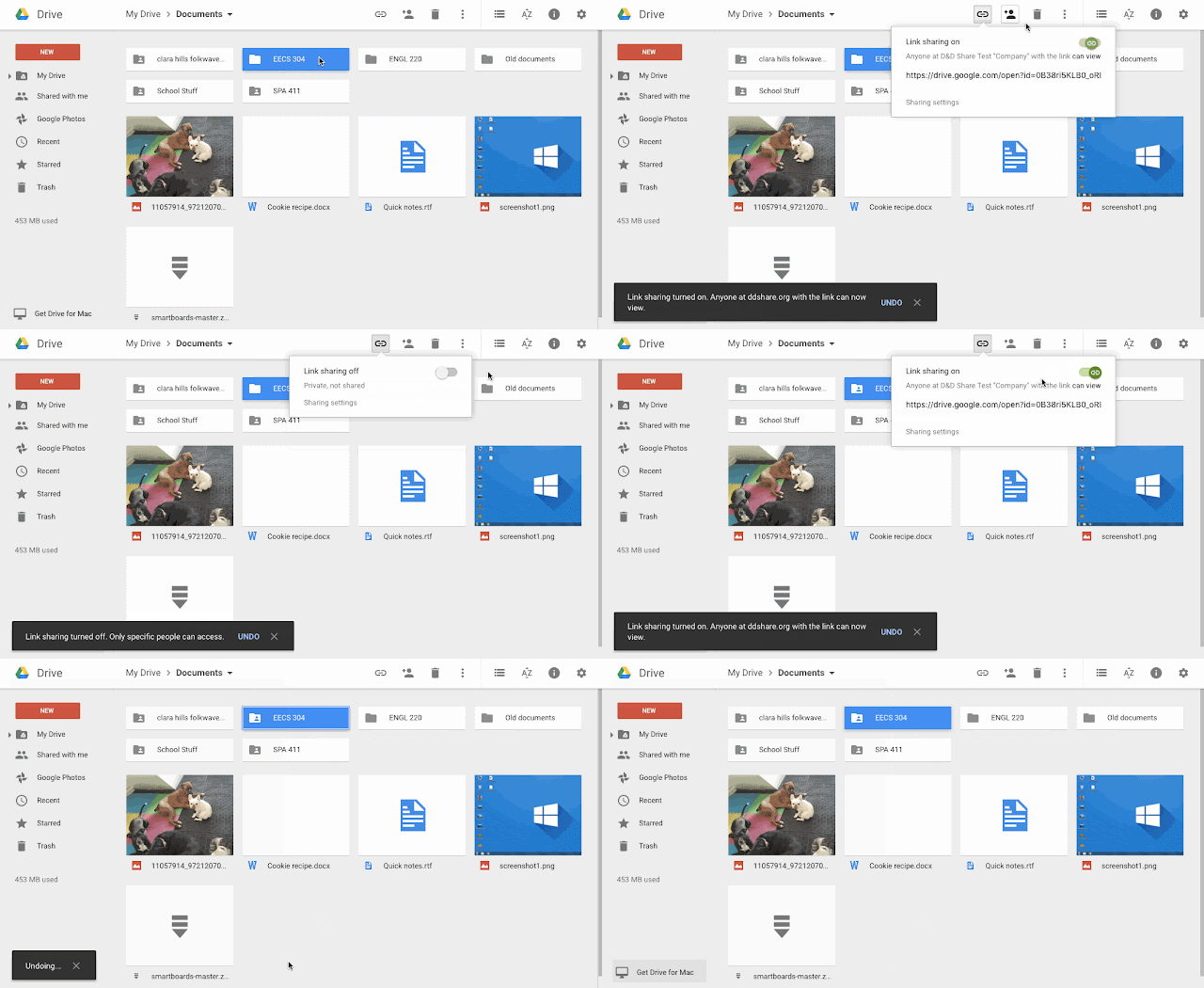
Sometimes as a tech-geek, I feel that technology providers change tools to the point that I feel spoiled. But if there is a quicker way to do things, the lazy man inside me wants to find it. Here's one for you. This week, Google released an update to Drive allowing faster link sharing. Now, simply by selecting your folder or file, you can click the Link icon at the top of Drive, and get a link without the need to open the document and then open sharing settings. The popup box allows you to turn on link sharing to "Can View" and copy the link so you can share documents quickly. Conversely, you can also quickly turn Link Sharing off if it is already on and you need to make that change.
Earlier this week, a subscriber posted a question for the Techy Coach regarding Workflows and Document Approval. Specifically, there was a need for an AddOn that would allow users to get approval from multiple document reviewers. To answer this question, I posted this tutorial regarding two AddOns: Workflows and Collavate. Both of these AddOns are available for Docs and Sheets and work great for document review/approval. Take at look at the tutorial and then use the links below to find these AddOns.
Several articles over the last few years have been posted on the web about creating Pixel Art on Google Sheets. To give everyone out there a visual explanation, I've created this tutorial on how to create your own Template. Enjoy and feel free to download the template below the tutorial to try your hand at pixel art.
This week, Kathi Smith from Omaha, Nebraska asked the following question about Google Forms and Flubaroo:
"Is there a way in Flubaroo - or another add-on - where the question responses can be weighted. Answer 1 worth 3pts.; Answer 2 worth 2 pts., etc."
The quick answer to this question is, "YES!" Here's how...remember that Flubaroo is an Add On that grades Google Form submissions that show up in your Form Response Sheet (Google Sheets). To use Flubaroo:
Click on the Add Ons menu of your Google Response Sheet
Choose Grade Assignment.
From there, you will answer a few prompts to setup grading. One of these prompts addresses the questions in your form. In this step, you can choose the point value to assign each question. You can choose any value between 1 and 10.
This allows you to weight certain questions more than others. After this step, you simply continue with your grade setup and you are on your way. If you've never used Flubaroo, and you need more information on using it for the first time, watch the tutorial below. If you have other questions for the Techy Coach, use this link.
A question for the Techy Coach this week focused on the proper setup for a Google Apps for Education School using Nexus Tablets. While I don't specifically have documentation or training materials for this topic, I thought I'd share some of the information and links our district has come across in setting up devices for our site.
Organizational Units
One thing that you will want to pay close attention to when setting up users and devices, is how you set up your Organizational Units (OUs) in the Google Admin Dashboard. Organizational Units are used by third party apps and services, and can be used as contact groups. You will also use these OUs to configure services for users differently. So for this reason, the method to your madness - in setting up sites, grade levels, students vs. staff - is important. Tips:
Separate your students from your staff.
Develop subunits for Staff to define roles (Admin, Faculty, Staff)
Separate Students by grade or graduation year
Make a Practice OU to test things like settings and configurations out
For more information on setting up OUs, click here.
Email / Username Setup
When configuring the usernames for users, decide on a convention that easily identifies students from staff. First.last for Staff and Last.First for Students.
Apps for Staff/Students - Chrome Web Store
To help your students and staff get started, create a district page for suggested Chrome Apps and Extensions. There were several Apps for Chrome that I knew our teachers might want to look into right away, such as Socrative or Remind. To help them, we created our own page. There are tips for setting this up here.
Do's and Don'ts for Google Services
There are several Google Services that are ideal for the classroom, but at the same time, there are others that may not be best for student use. This is a great reason to make sure that you have your Organizational Units set up to define who can use what. Once that is done, pay attention to these services:
Google Hangouts - Great for in class Virtual Field Trips, but the Hangouts Chat option may not be something you want set up for students.
Google Photos - might want to turn off for students to avoid inappropriate content from being uploaded.
Off for Students - Google Analytics, Google Groups, Google Payments, Google Voice
On for Older (13+) Students - Blogger - great for content creation, YouTube - great for projects and content creation.
Inside the Google Admin Dashboard, there are several settings that your district can control that make use of Google Apps much easier and more friendly. Here are some suggestions that we have found helpful:
Rapid Release vs. Scheduled Release
Google updates their apps from time to time, and some users want the new features right away, while others need some time to get training and get used to changes. Free Gmail Users are on a Rapid Release schedule, meaning that as soon as a new feature is available, it is rolled out to them. GAFE and Google For Work can be setup for either option. Scheduled release can be setup to provide time for training.
Google Classroom
Turn on Email Notifications - this allows students to receive an email when a teacher posts new information in Google Classroom
Teacher Group - When teachers first sign in to Google Classroom, they identify themselves as a teacher. It helps to manage and use the approved teacher list in case a teacher makes a mistake and clicks Student instead. Use this link to see what I mean.
Contacts
Enable Contact Sharing - this allows your students & teachers to find each other easily in Gmail and Calendar.
Gmail
Limit Delivery to Internal recipients for younger students. See More
Enable Read Receipts to track collaboration and response to emails for students.
Enable Labs - There are some great labs in Gmail that are helpful to teachers for corresponding with students and parents. One that comes to mind is Canned Responses.
Other Tips for Getting Started
The list of suggestions for getting started can be rather lengthy. It is often useful for a district to enlist the help of a third party to audit your setup for optimal use. Often, the seller you purchased your devices from can provide this service. However, there is a wide knowledge base, as well as support articles online to help. Several have been listed here in this article, but others can be found here:
While this is not a inclusive list of everything you would need to know, it will get you started. Hopefully this will help some of you out there as it has helped our district.
This week, new subscribers to the Techy Coach Blog will receive a free copy of the Spring Break Toolbox - a Nine-Page Guide to Chrome Apps, Extensions, and Tips for Browsing.
Just scan the QR Code here or fill in the Subscription Box at the Top Right of the website.
For teachers out there who are looking for a simple way to create a teacher website, Google Sites is a great option. With any GAFE (Google Apps for Education) or Free Gmail Account, users can create a site by going to http://sites.google.com. For more information, watch this simple tutorial on Google Sites Basics:
Over the next few weeks, I'll go over some of the basic features users will find, as well as some hidden extras.
For this post, we are going to focus on a File Cabinet page. While many people will spend time creating a basic webpage to push files out to users, a File Cabinet can be an invaluable resource for getting documents out to students and parents.
To get started, to to your Google Site by visiting http://sites.google.com. Click on your site and click the Add Page tool.
A new page will load where you can name your page, and select the page type. From the drop down menu, choose File Cabinet.
Once you set up a File Cabinet page, any user with editing rights can upload files or create folders on the page. Files can be uploaded from your computer or added from your files in Google Drive. Additionally, you can arrange your files into folders for greater organization.
Those who view the page will only see your files. They will not be able to upload to your page.
The advantage to this is that you can create a folder system of files for:
Classroom
Professional Development
Departmental Needs
Such as:
Lessons
Syllabus
Class Handouts
Training Materials
By doing this, it makes accessing files easier for your users, and makes uploading files easier for you.
Yesterday. Google released an update for Google Docs users that allows for easier navigation in longer documents. Whether you have applied Headers to your document or not, the intelligent design of this tool will recognize breaks in your document to make for easier searching and navigation.
If you don't notice this feature already, you can turn it on by clicking on the Tools Menu and selecting Document Outline. This feature is also available on Google Docs for Android.
So for Google users who use Docs to create large documents, lessons, or outlines, this feature is a huge time-saver. As a result, this tool means that study time for students is more efficient, as they can quickly and easily jump to any topic they need to review.
Much like a web-quest, teachers can also create Choose Your Own Adventure stories that utilize the features of the document outline. For example, as students complete a passage, they could be given a choice to go on to one of two passages, which they could quickly jump to using the document outline.
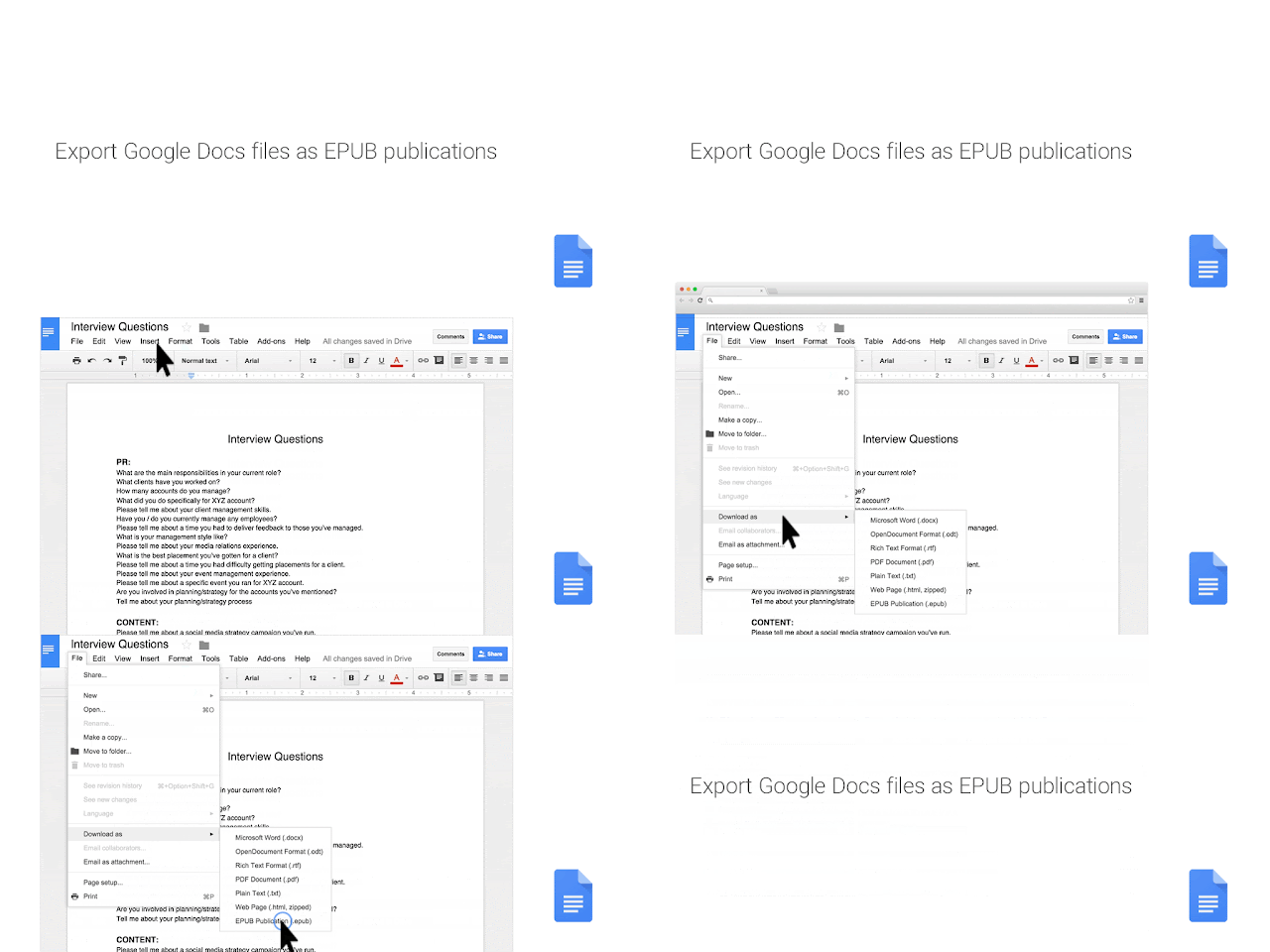
So how many teachers out there would like to publish their lessons or documents so that students could read them on their mobile device just like a book? I'm thinking quite a few! If that is the case with you, Google just took the guesswork out of publishing for you. Today's Google Apps Update allows Google Docs users to publish docs as an ePub file format. What does this mean? ePub files (short for electronic publication) are an e-book file format (*.epub) that can be read on apps such as Play Books (Google), Kindle (amazon ereader), the iBooks app for iOS, and many others. For teachers, this a huge advantage, as they can develop classroom materials that students can download to their mobile device, tablet, or laptop for easier access. To take advantage of this feature, go to the file menu of Google Docs, choose Download As, and then select EPUB. Your document will be downloaded as an epub file that you can then make available to students on your website.
So for teachers that are looking to extend the walls of their classroom, the possibilities are endless. You can make content available for kids such as packets, short publications, textbooks, or compilations of short stories. While many districts are looking for ways to satisfy tighter budgets, this is a great time to look at developing your own textbook. Just make sure you obey copyright laws!
This week, Google dropped two updates that are sure to whet your appetite. Take a look at these changes!
Google Sheets
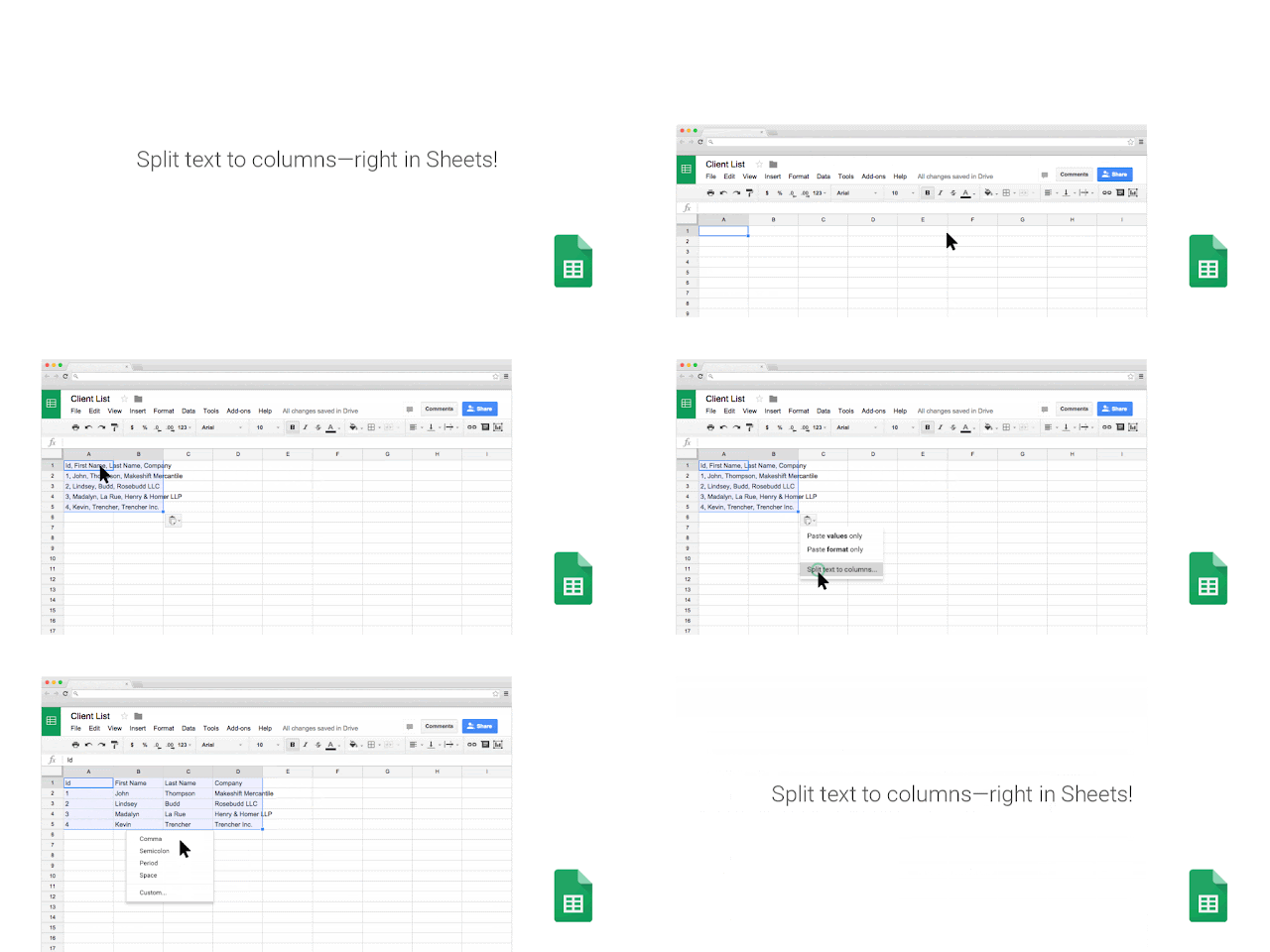
For all of you spreadsheet lovers who have been waiting for a text-to-column tool, its here! On March 1st, Google added a Text-To-Column option allowing you to split text into separate columns. Here is a sample along with the post from Google
Templates for Google Docs
Also, today, Google released new templates available for Docs, Sheets, and Slides users. These templates have been created by pros like Quickbooks, Google Science Fair, and Reading Rainbow. To use Templates, all you have to do is click on the File menu of any doc, choose New and Template.
You can also access the templates by visiting the main links for each doc:



 Collavate